A blinking white light on your Cox modem means the device hasn’t fully established a connection to Cox’s network yet. It’s typically seen during startup when the modem is syncing with upstream and downstream channels, or when it’s waiting for network activation. The light should turn solid white once the connection and provisioning are complete. If it blinks for more than 10 minutes, you’re likely dealing with network provisioning issues, cable problems, or a service outage that needs troubleshooting.
Quick Guide
- A blinking white light means your Cox modem is attempting to establish a network connection but hasn’t fully connected yet.
- The light typically appears during startup, firmware updates, or when the modem is waiting for network activation and provisioning.
- Common causes include loose coaxial cables, power supply issues, service outages, or outdated firmware preventing proper connection.
- Power cycle by unplugging for 10 seconds and waiting up to 10 minutes; check all cable connections are secure and undamaged.
- Contact Cox support if blinking persists beyond 10 minutes, as remote diagnostics or equipment replacement may be needed.

What Does the Blinking White Light Indicate?
A blinking white light means your device hasn’t fully connected to Cox’s network yet. This typically means it’s still starting up, establishing upstream and downstream channels, or waiting for network activation. The light may also appear during firmware updates or syncing phases. Routers and modems can show similar behaviour when experiencing connectivity issues that require power cycling or cable checks generally.
Once your modem successfully connects and completes provisioning, the light should turn solid white. Until it’s properly provisioned, you won’t have internet access available.
Common Causes Behind the Blinking White Light
The most common causes include network provisioning failures that prevent proper registration, power supply problems from faulty adapters or damaged cords, loose or damaged coaxial cables, service outages in your area, and device activation issues requiring re-provisioning. Outdated or corrupted firmware can also disrupt connectivity and may require an update through Cox support.
Perform a basic power cycle and check cable connections to rule out simple fixes and identify whether signal loss or a service outage is responsible.

Step-by-Step Troubleshooting
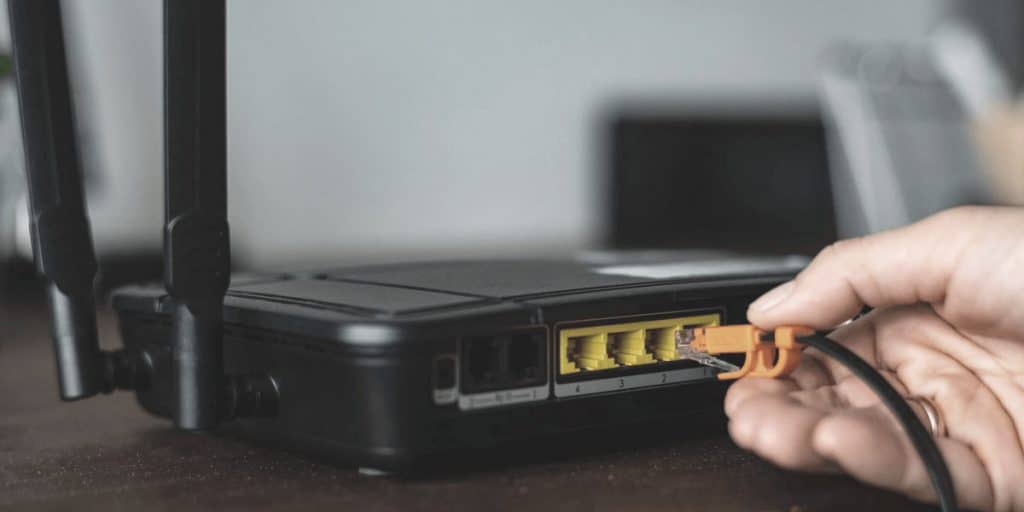
Start by power cycling the device — unplug it for at least 10 seconds, then reconnect and wait approximately 10 minutes for full boot-up. Check all cables for damage or loose connections, ensuring they’re secure at both ends. You can also try connecting the modem to a different power outlet or swapping Ethernet cables to rule out faulty hardware.
Understanding Your Cox Modem’s Light Status Indicators
Your Cox Panoramic modem uses a single LED displaying five colours: white, orange, green, blue, and red. Each represents a specific connection status. A blinking white light means your modem is attempting to establish a data connection but isn’t fully online yet. If it continues blinking for more than a few minutes, it often indicates a connection or authentication issue that may need a restart or a check of your cable connections.

Special Considerations for Cox PW8 Gateway Users
If you’re using the Cox PW8 Gateway, this triple-band device with battery backup can display a blinking white light for reasons specific to its advanced features — sync issues, bridge mode complications, or a genuine need for Cox support.
PW8 Sync Issues Explained
A blinking white light that won’t stabilize means the device is struggling to establish a proper sync with Cox’s network — a process involving both downstream and upstream channel connections. If blinking persists beyond several minutes, the gateway likely can’t complete network registration due to signal issues, provisioning errors, or connectivity problems requiring Cox’s intervention.
Bridge Mode Light Problems
Bridge mode converts the PW8 Gateway from a full-featured router into a simple pass-through device, which often triggers confusing light behaviour. You’ll likely see a persistent white blinking light even when your internet works perfectly through your connected router — this happens because bridge mode disables the gateway’s router functions, preventing normal sync confirmation despite active connectivity.
When Professional Help Is Needed
Persistent blinking white lights after restarts, cable checks, and factory resets indicate deeper provisioning or hardware issues. Cox technicians can run advanced remote diagnostics, verify network registration, and dispatch an onsite visit when necessary — including replacing defective equipment or applying firmware updates you can’t access independently.

When to Contact Cox Support
Contact Cox if the blinking white light persists beyond 10 minutes after power cycling, your modem gets stuck in continuous reset loops, or firmware updates appear stalled. Also reach out if you notice overheating, physical damage, or connectivity problems continuing despite confirming there’s no local outage.
Wrapping Up
Start with basic troubleshooting — checking connections and power cycling your device. If the issue persists, contact Cox support directly; they’re equipped to diagnose network-level problems or replace faulty equipment. A solid white light means you’re connected and ready to browse.