Your Eufy camera’s recording issues typically result from misconfigured motion detection settings, insufficient storage space, or outdated firmware. Start by checking that motion detection is enabled with moderate sensitivity levels, then configure activity zones to focus on critical areas while excluding busy streets. Restart your camera and HomeBase, verify adequate storage on your microSD card, and update both camera and HomeBase firmware through the Eufy app. These thorough troubleshooting steps will restore reliable event recording functionality.
Quick Guide
- Check motion detection is enabled and adjust sensitivity to moderate levels to capture events properly.
- Configure Activity Zones to focus on critical areas like doorways while excluding busy streets causing false alerts.
- Restart the Eufy app and camera, or reboot HomeBase to clear temporary glitches affecting recording functionality.
- Update camera and HomeBase firmware through the Eufy app to resolve compatibility issues preventing event recording.
- Verify adequate storage space on microSD card or HomeBase to prevent recording failures from full memory.
Check Motion Detection Settings and Sensitivity Levels

When your Eufy camera isn’t recording events, the most common culprit is incorrect motion detection settings.
Access your camera’s settings panel and verify motion detection is enabled. Set sensitivity to moderate levels initially, then adjust based on your environment.
Enable notifications for motion events and confirm all changes are saved properly. Position your camera 7-10ft above ground for optimal motion detection performance.
Configure Activity Zones to Reduce False Triggers
Activity Zones let you focus your Eufy camera’s motion detection on specific areas within its field of view, which can greatly reduce false alerts that prevent proper event recording.
You’ll need to set clear zone boundaries around the areas that matter most to your security monitoring, such as doorways, walkways, or property entrances. Users receive push notification alerts for detected activity within these defined zones, ensuring you’re immediately informed when motion occurs in your monitored areas.
Set Zone Boundaries
Although your Eufy camera captures motion across its entire field of view by default, you can greatly reduce false triggers by configuring Activity Zones that focus detection on specific areas.
Draw zones tightly around critical locations like doorways, driveways, or gates.
Avoid creating overly large zones that include irrelevant motion from passing cars or swaying trees.
Exclude Problem Areas
Since certain areas within your camera’s field of view consistently trigger false alerts, you’ll want to strategically exclude these problematic zones from motion detection.
Focus on removing busy streets, wind-blown foliage, and pet pathways from your activity zones. This targeted approach reduces unnecessary recordings while preserving detection accuracy in critical areas, ultimately extending battery life and improving notification reliability.
Restart Your Eufy App and Camera System
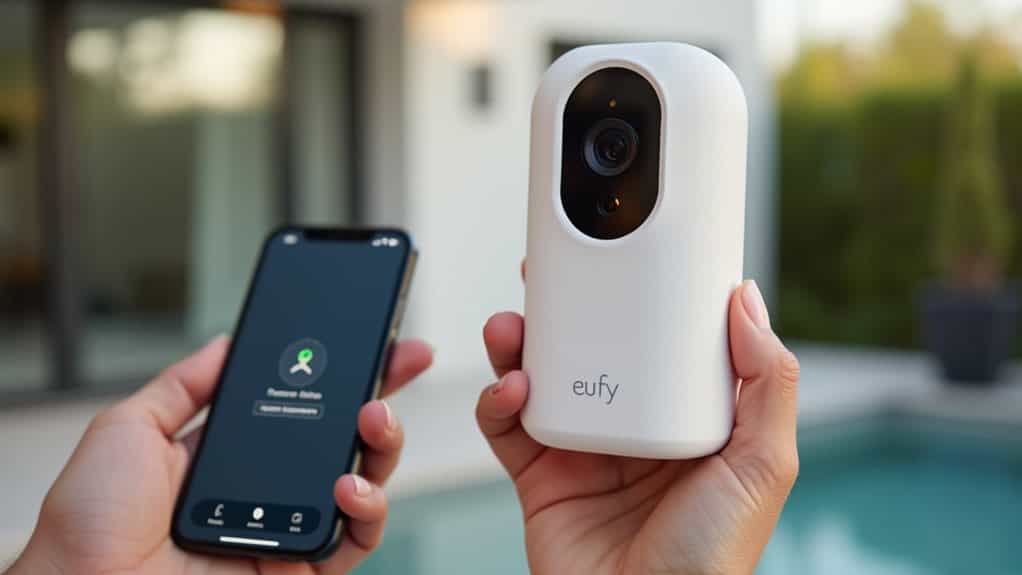
When your Eufy camera stops recording events, restarting both the app and camera system often resolves the issue by clearing temporary glitches that interfere with normal operation.
Close the Eufy app completely, then manually restart your camera by pressing the sync button for 10 seconds until you hear a beep.
Finally, restart your HomeBase through the app.
Remove and Re-add Your Camera Device
If restarting your system doesn’t resolve the recording issues, removing and re-adding your camera device can eliminate deeper configuration problems that prevent proper event detection.
Access your Eufy Security app’s device management section and remove the problematic camera.
Reboot your Homebase, then re-add it first before reconnecting your camera devices to restore functionality.
Clear App Cache and Storage Data

Another effective troubleshooting method involves clearing your Eufy Security app’s cache and storage data, which can resolve recording issues caused by corrupted temporary files or misconfigured settings.
Access Settings > Apps > Eufy Security > Storage & Cache. First, tap “Clear Cache” to remove temporary files safely.
If problems persist, select “Clear Storage,” then restart the app.
Update Firmware and Software Versions
Outdated firmware and software versions frequently cause recording failures in Eufy cameras, making updates essential for reliable event capture.
You’ll need to check your current firmware version through the Eufy Security app and update both your camera and HomeBase to the latest available versions.
If recent updates have introduced new problems, you may need to contemplate rolling back to a previous firmware version that worked properly.
Check Current Firmware Version
When your Eufy camera isn’t recording events properly, checking the firmware version should be one of your first troubleshooting steps.
Open the Eufy app, access your camera’s live feed, and tap the three-dot menu.
Select “Settings,” then “General,” followed by “About Device.”
Here you’ll see your current firmware version and can tap “Check for Firmware Update.”
Update Camera and Homebase
If your Eufy camera’s firmware is outdated, updating both the camera and HomeBase firmware can resolve recording issues and improve overall performance.
Guide to HomeBase > About Device > Check for latest firmware in the EufySecurity app.
Use “Check for updates” in device settings for cameras.
Download the latest app version from official stores to guarantee compatibility with new firmware features.
Rollback Problematic Updates
Although firmware updates typically improve device performance, problematic releases can cause your Eufy cameras to stop recording events entirely or go offline unexpectedly.
You can rollback to stable firmware by downloading previous versions from Eufy’s support site, then manually installing through your app or computer connection.
Always verify the rollback succeeded and test recording functionality afterward.
Troubleshoot Human Detection Recording Issues
Human detection problems stem from several interconnected factors that can prevent your Eufy camera from properly recording events.
First, check your camera’s positioning—overhead angles and distant placement reduce detection accuracy since the AI needs visible facial features.
Adjust sensitivity settings and guarantee proper lighting conditions.
If human-only mode fails, temporarily switch to all-motion detection while troubleshooting.
Verify Storage Capacity and Memory Card Health

Storage issues often prevent your Eufy camera from recording events, so you’ll need to check both available space and memory card functionality.
Start by verifying there’s adequate free storage on your microSD card or HomeBase device, as cameras can’t record when storage capacity is reached.
You should also test your memory card’s health since corrupted or failing cards frequently cause recording failures even when space appears available.
Check Available Storage Space
One of the most overlooked causes of recording failures stems from inadequate or compromised storage space on your Eufy camera system.
When storage fills up, cameras automatically overwrite oldest footage, potentially deleting important events before you’ve reviewed them.
Regularly monitor your available space through the Eufy app to guarantee continuous recording without missing critical event clips.
Test Memory Card Function
While storage space availability is essential, the underlying health and compatibility of your memory card directly determines whether your Eufy camera can reliably record events.
Test your microSD card using MiniTool Partition Wizard or manufacturer utilities to check for read/write errors.
Verify it’s Class 10 with 10MB/s write speed and doesn’t exceed your camera’s 128GB capacity limit.
Manage Cloud Storage and Event History
Managing your Eufy camera’s cloud storage and event history effectively guarantees you’ll never miss critical footage when you need it most.
Monitor your available storage capacity regularly to prevent recording disruptions. Delete unnecessary events manually to free up space for new recordings.
Configure retention duration based on your storage plan to avoid automatic deletion of important footage.
Reset Detection Settings and Toggle Power

When detection settings become corrupted or misconfigured, resetting your Eufy camera to factory defaults often resolves persistent event recording issues.
Locate the small Sync button on your camera’s back and hold it for 10 seconds until you hear two beeps.
Wait for the steady blue light indicating successful reset, then reconfigure your detection zones and sensitivity settings through the app.
Perform Regular Maintenance and System Reboots
Beyond troubleshooting specific recording failures, maintaining your Eufy camera system through regular upkeep and periodic reboots prevents many event recording issues from occurring in the first place.
Schedule monthly system reboots to clear temporary software glitches that cause recording failures.
Clean camera lenses with microfiber cloths, remove spider webs, and verify power connections remain secure.
Wrapping Up
You’ve now examined thorough solutions for fixing your eufy camera’s recording issues. Start with motion detection adjustments and activity zones, then progress through app restarts and device re-additions if needed. Don’t overlook storage verification and cloud management settings. If problems persist, reset detection settings and perform system reboots. Regular maintenance prevents future recording failures. These troubleshooting steps should restore your camera’s reliable event recording functionality.