Test your internet speed—target 25+ Mbps downloads/uploads for 4K. Upgrade to Wi-Fi 6 for faster, stable signals. Position your router centrally, raised, away from walls/appliances. Switch to fiber internet for consistent speeds up to 10 Gbps. Plug TVs/consoles into Ethernet to cut buffering. Use router QoS to prioritize streaming and limit bandwidth-hogs during peak hours. Keep refining—it’ll keep getting better.
Quick Guide
- Ensure minimum 25 Mbps download speed and 25 Mbps upload speed for stable 4K streaming, testing with online tools.
- Upgrade to a Wi-Fi 6 router with OFDMA and beamforming for faster speeds and reduced interference.
- Place router centrally, elevated, and away from signal-blocking materials to maximize coverage.
- Use Ethernet cables for streaming devices and prioritize fiber internet to minimize buffering.
- Enable QoS to prioritize streaming apps, limit background bandwidth usage, and throttle non-essential devices.
Test Internet Speed and 4K Streaming Requirements
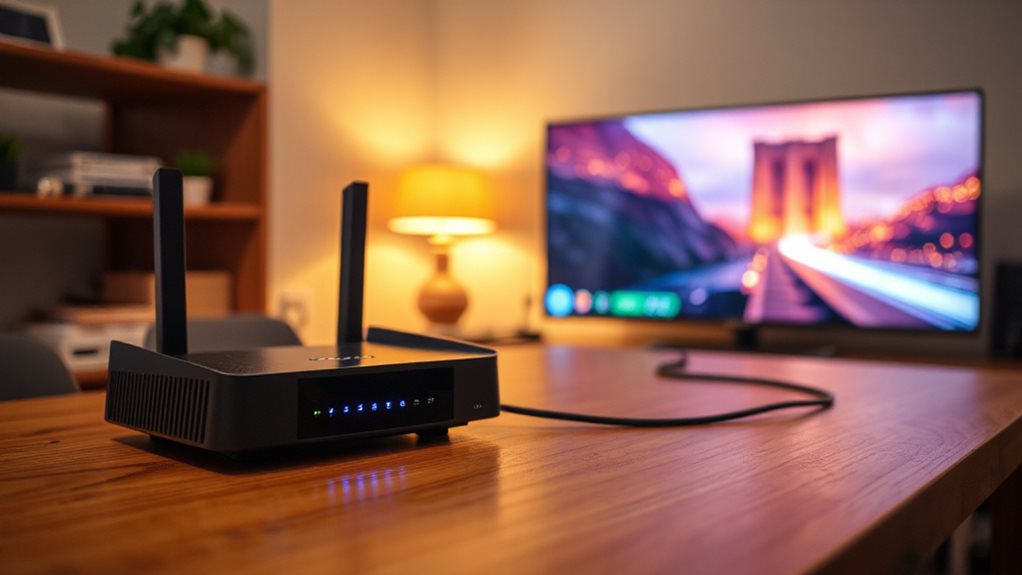
A minimum of 25 Mbps download speed is essential for seamless 4K streaming, though platforms like Netflix and YouTube recommend hitting this baseline while Vudu and Amazon require lower speeds at 11 Mbps and 15 Mbps respectively. Aim for 40 Mbps (1.5x minimums) to handle fluctuations. Upload speed is equally critical, as real-time streaming demands consistent outbound data transfer, with 4K at 60fps requiring at least 25 Mbps upload bandwidth to avoid stuttering or disconnections.
Each 4K hour consumes 7–10 GB. Test speeds via online tools—downloads must exceed 25 Mbps, uploads shouldn’t bottleneck live 4K. Verify stability across multiple devices; freedom to stream without limits starts with knowing your connection’s true performance. Prioritize consistency—bufferless streaming demands it. High bandwidth connections are therefore essential for data-heavy activities and smooth playback high bandwidth.
Upgrade to WiFi 6 for Faster, Stable Connections
Upgrading to WiFi 6 gives your home network a serious surge in speed and stability, which is key for streaming 4K/8K content without hiccups.
It delivers faster real-world speeds—like 600-900 Mbps per device—and handles crowded networks better than WiFi 5, thanks to smarter data delivery.
Before upgrading, check if your router supports WiFi 6 to access these benefits, including smoother simultaneous streaming and fewer dropped connections.
Also consider routers with hardware acceleration to maintain high encrypted throughput when running VPNs without slowing your streaming.
Benefits Of Wi-Fi 6
Whether you’re streaming 4K content or managing multiple smart devices simultaneously, Wi-Fi 6 delivers the performance you need.
Its 9.6 Gbps speeds guarantee smooth 4K/8K streaming, handles 30+ devices, cuts lag with faster response times, and enhances security.
Say goodbye to buffering and lag—enjoy uninterrupted streaming and seamless connectivity.
Wi-Fi 5 Vs. Wi-Fi 6
If your network struggles during peak streaming hours, the contrast between Wi-Fi 5 and Wi-Fi 6 becomes critical—Wi-Fi 6’s 9.6 Gbps capacity dwarfs Wi-Fi 5’s 3.5 Gbps limit, and its 1024-QAM modulation processes data four times more efficiently.
Upgrading to Wi-Fi 6 breaks free from lag, leveraging dual-band flexibility (2.4/5 GHz), OFDMA for smoother multi-device streams, and WPA3 security. You’ll get faster, stable connections—even with crowded networks—so 4K buffers less and your freedom to stream anytime, anywhere wins.
Router Compatibility Check
Wi-Fi 6’s superior speed and efficiency mean your router must match its capabilities to fully release the benefits. Check your router’s packaging or label for Wi‑Fi 6 or 802.11ax. Log into its admin interface via browser, verify 802.11ax in wireless settings. On Windows, use Device Manager to confirm your adapter supports 802.11ax.
Ensure backward compatibility with older devices, but upgrade to routers with OFDMA, MU‑MIMO, or beamforming for optimal streaming freedom. Avoid bottlenecks—match router power to your devices’ potential.
Optimize Router Position to Eliminate Dead Zones
You’ll get the strongest signal by positioning your router centrally, avoiding walls or dense objects that could block its reach.
Elevating it slightly off the floor—like on a shelf or table—helps the signal spread more evenly through your home.
Keep it clear of corners, closets, or appliances to cut down interference and guarantee smoother streaming throughout your space.
For larger or multi‑storey homes, consider a tri‑band mesh system with a multi‑gig backhaul for consistent coverage and throughput multi‑gig backhaul.
Central Location Placement
A router positioned at the center of your home spreads signals evenly, eliminating dead zones that disrupt streaming and device connectivity.
This placement guarantees consistent coverage, especially in high-traffic areas like living rooms, while reducing lag and speed drops.
By positioning your router centrally, you’ll enjoy uninterrupted streaming, smoother gaming, and seamless device handoffs—no more frustrating buffering or weak signals lurking in corners.
Freedom to roam without connectivity hiccups starts here.
Avoid Physical Obstructions
With signal strength hinging heavily on clear pathways, dodging physical barriers becomes essential when positioning your router. Dense materials like concrete, brick, and metal absorb your WiFi signal—so keep your router away from walls and large furniture.
Lift it to waist height or a shelf; position it above or beside big electronics, not behind them. Surround it with open space, especially away from microwaves or cordless phones. Unobstructed, your signal travels freely, slicing dead zones without extra gear.
Switch to Fiber Optic Internet for 4K Reliability
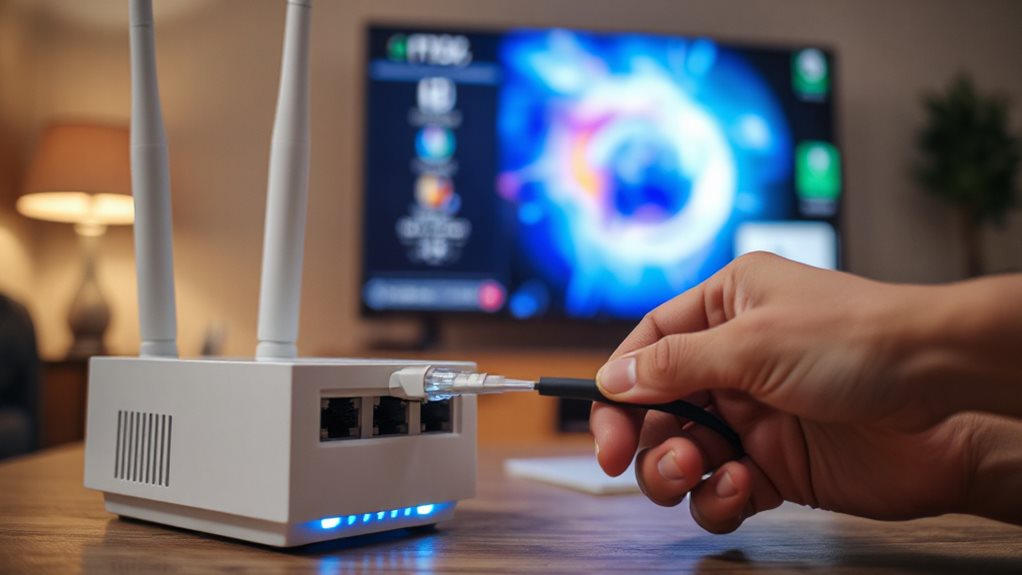
Convert your home streaming experience with fiber optic internet, engineered to deliver the speed, stability, and bandwidth essential for flawless 4K viewing. Fiber’s blistering speeds (100 Mbps–10 Gbps) crush 4K’s demands, handling multiple streams, gaming, and video calls simultaneously.
Unlike cable or DSL, it avoids congestion, caps, and slowdowns—even during peak hours. Symmetrical upload/download speeds enable smart homes and local streaming without hiccups.
Welcome freedom from buffering, stuttering, or compromised quality: fiber’s light-speed clarity remakes how you watch, play, and connect, ensuring every pixel hits your screen exactly when it should. For maximum reliability, pair fiber with a modern mesh system that supports Wi‑Fi 6/6E/7 to minimize interference and sustain multiple 4K/8K streams.
Connect TVs and Consoles via Ethernet for Zero Buffering
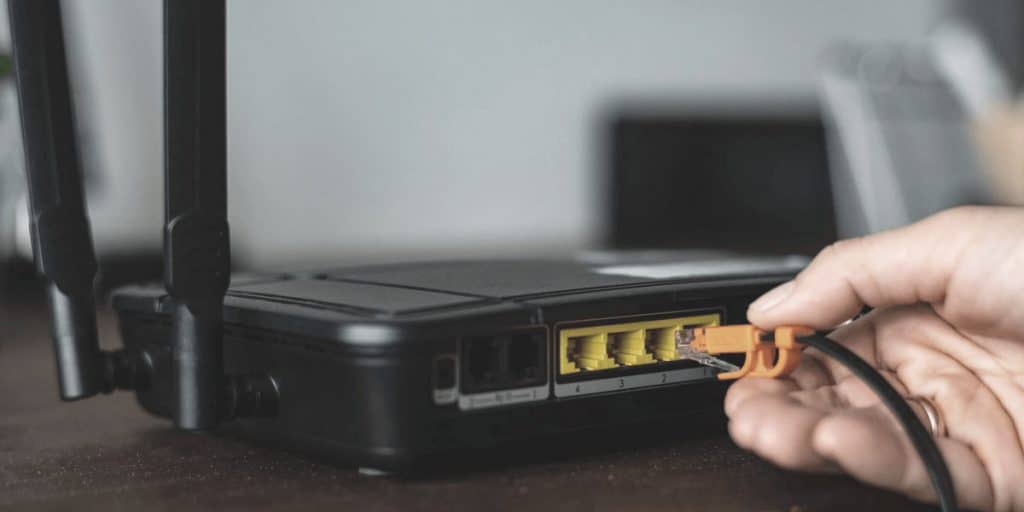
You’ve upgraded to fiber optic internet for rock-solid 4K streams, but wireless connections still throw roadblocks in the form of interference and lag. Ditch Wi-Fi for your TV and console—plug them into your router via Ethernet. This direct link kills buffering, slashes latency, and locks in consistent speeds by dodging interference.
Freed-up Wi-Fi means phones and laptops glide smoother too. Ethernet’s physical connection also blocks outsiders, keeping your streams secure. Zero lag, zero hassle, infinite 4K freedom.
Prioritize Streaming With Router Qos Settings
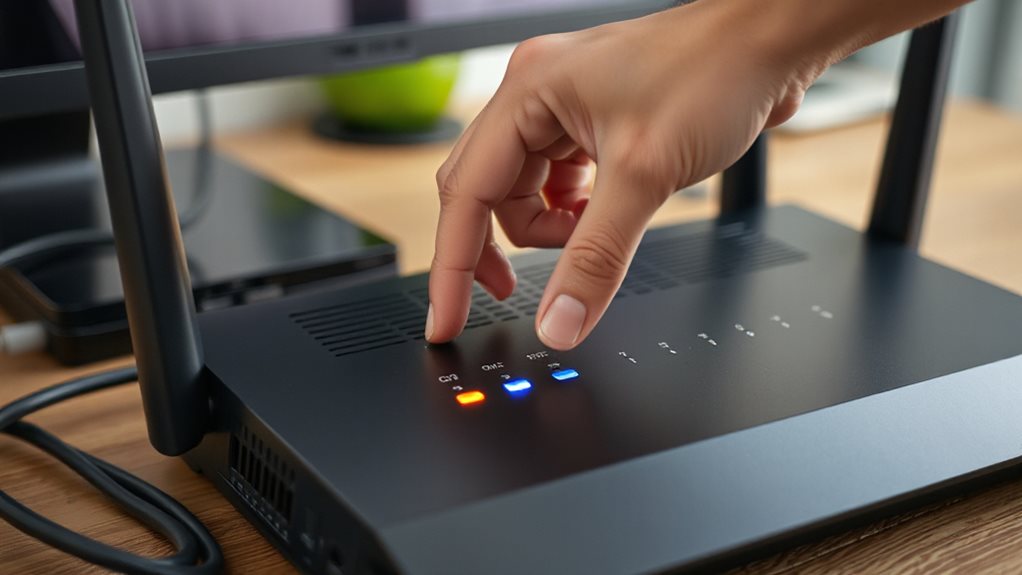
Tweak your router’s QoS settings to carve a fast lane for streaming traffic. Log into the QoS menu, set bandwidth limits at 90-95% of your tested speed, and prioritize streaming apps.
Enable adaptive QoS for automatic prioritization or manually adjust port rules. Avoid ISP restrictions by using third-party firmware if needed.
Test adjustments during peak hours, tweak priority hierarchies, then lock in settings to banish buffering without restricting freedom.
Block Bandwidth-Hogs During Peak Streaming Sessions
Kick off peak streaming sessions by spotting and sidelining bandwidth-hogs before they disrupt your view.
Audit connected devices, disconnect non-essentials like unused smart gadgets, and restrict updates or backups during streaming hours.
Lower video quality on streaming apps, throttle cloud syncs, and prioritize wired connections for critical devices.
Use your router’s QoS settings to cap bandwidth per task, ensuring smooth playback without sacrificing freedom to manage your network life on your terms.
Wrapping Up
Optimize your home network for seamless streaming by testing your internet speed to make sure it meets 4K requirements. Upgrade to WiFi 6 for faster connections, position your router centrally to eliminate dead zones, and switch to fiber optic internet for reliable 4K streaming. Connect devices via Ethernet to eliminate buffering, prioritize streaming traffic using QoS settings, and limit bandwidth-hogs during peak hours. Combining these upgrades with smart settings adjustments guarantees a buffer-free experience.