Your Xbox Series X randomly shutting down usually indicates overheating, power supply issues, or incorrect settings. Check that you’ve maintained 4-6 inches of clearance around all vents and placed your console vertically for ideal airflow. Examine your power settings—automatic turn-off timers default to 4 hours of inactivity. Update your system software and inspect PSU LED indicators for faults. If problems persist, you’ll need to investigate reset options and advanced diagnostic techniques.
Quick Guide
- Check for overheating by ensuring 4-6 inches clearance around vents and cleaning dust with compressed air.
- Disable automatic turn-off timer in Profile > Settings > General > Sleep Mode & Startup settings.
- Test power supply unit by checking LED indicators and inspecting for voltage output issues.
- Update system firmware regularly and enable automatic updates to fix bugs causing instability.
- Reset console via Settings > System > Console info, choosing “Reset and keep games & apps.”
Common Reasons Your Console Shuts Down Unexpectedly
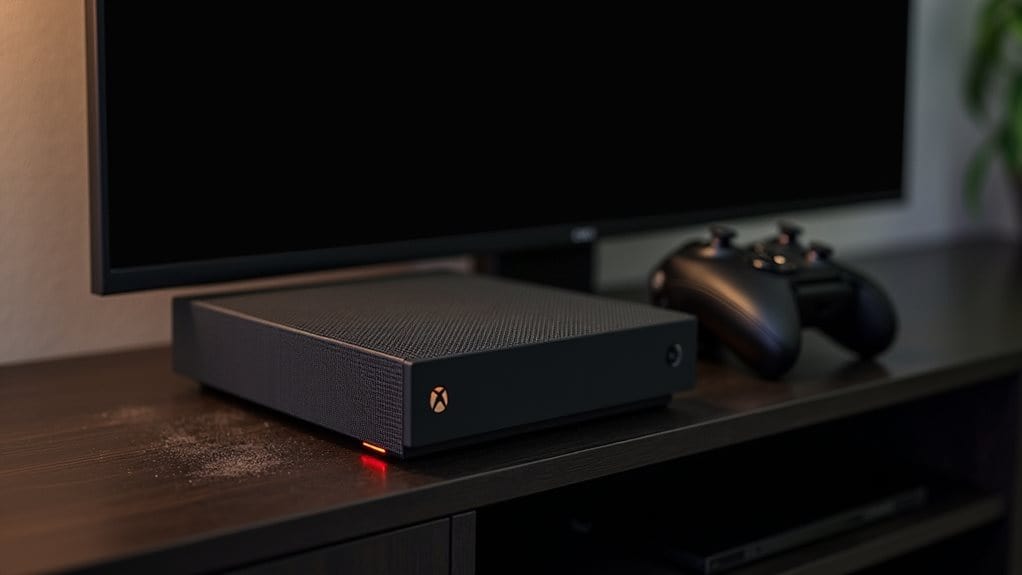
When your Xbox Series X suddenly powers down during intense gaming sessions or regular use, you’re likely dealing with one of several underlying issues that trigger the console’s protective shutdown mechanisms.
These shutdowns typically stem from overheating due to poor ventilation, faulty power supplies, outdated firmware, defective internal components, or environmental factors affecting your console’s stability. Fortunately, proper troubleshooting can help you identify the specific cause and resolve most of these issues through targeted user intervention.
Power Settings That May Trigger Automatic Shutoffs
Your Xbox Series X includes several power management features that can cause unexpected shutdowns if configured incorrectly.
The console’s automatic turn-off timers, sleep mode settings, and default power management options work together to conserve energy but may shut down your system during active use. The default setting is Shutdown mode, which prioritizes energy efficiency over instant accessibility.
Understanding these settings will help you identify whether your console’s shutdowns stem from power configurations rather than hardware issues.
Turn Off Timer Settings
If your Xbox Series X keeps shutting down unexpectedly, the culprit might be your console’s automatic turn-off timer settings.
These timers trigger shutdown after periods of inactivity, defaulting to four hours.
Access timer settings by pressing the Xbox button, guiding to Profile & System > Settings > General > Power mode & startup, then adjusting the “Turn off after” option.
Sleep Mode Configuration Issues
Sleep mode configuration problems frequently cause Xbox Series X consoles to shut down unexpectedly, confusing users who think their system has malfunctioned.
Incorrect settings between Instant-On and Energy Saver modes disrupt background downloads and updates.
When “Turn off storage” is enabled during sleep, your console stops processes mid-operation, creating apparent random shutdowns that aren’t actual power failures.
Default Power Management
Although Xbox Series X consoles come with convenient default power settings designed for quick startup and energy efficiency, these very configurations can trigger unexpected automatic shutoffs that disrupt your gaming experience.
Your console’s default “Sleep Mode” includes automatic shutoff timers that activate after periods of inactivity, even during game pauses or media streaming sessions.
Sleep Mode Configuration and Its Impact
When managing your Xbox Series X’s power consumption and performance, understanding sleep mode configuration becomes essential for optimizing your gaming experience.
Sleep mode enables quick boot times and background updates but consumes 10-15W power.
Energy Saver mode reduces electricity costs considerably while sacrificing instant startup.
Configure these settings through Profile > Settings > General > Sleep Mode & Start-up.
Overheating Prevention Through Proper Ventilation
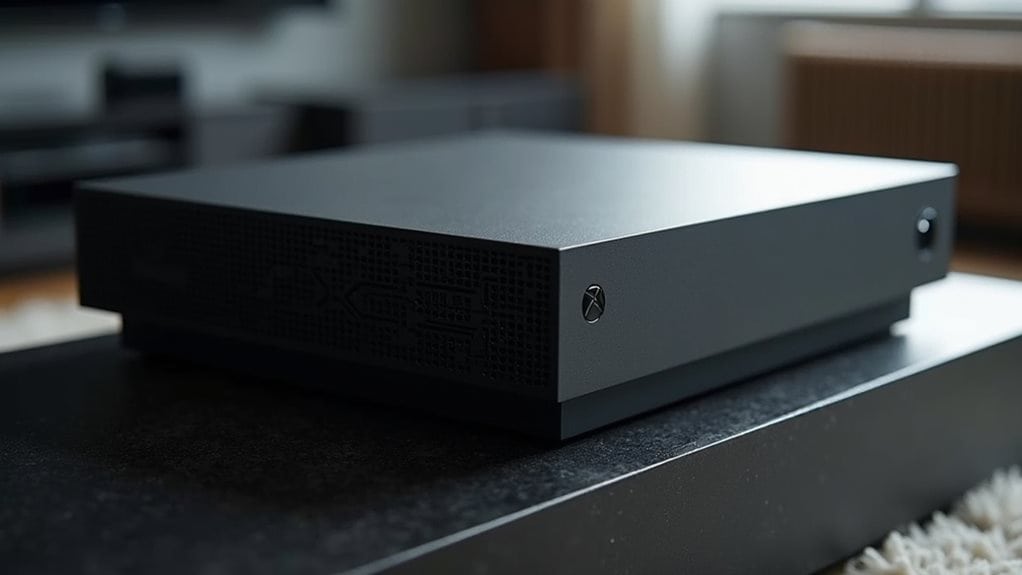
Power management settings work hand-in-hand with thermal management to keep your Xbox Series X running smoothly.
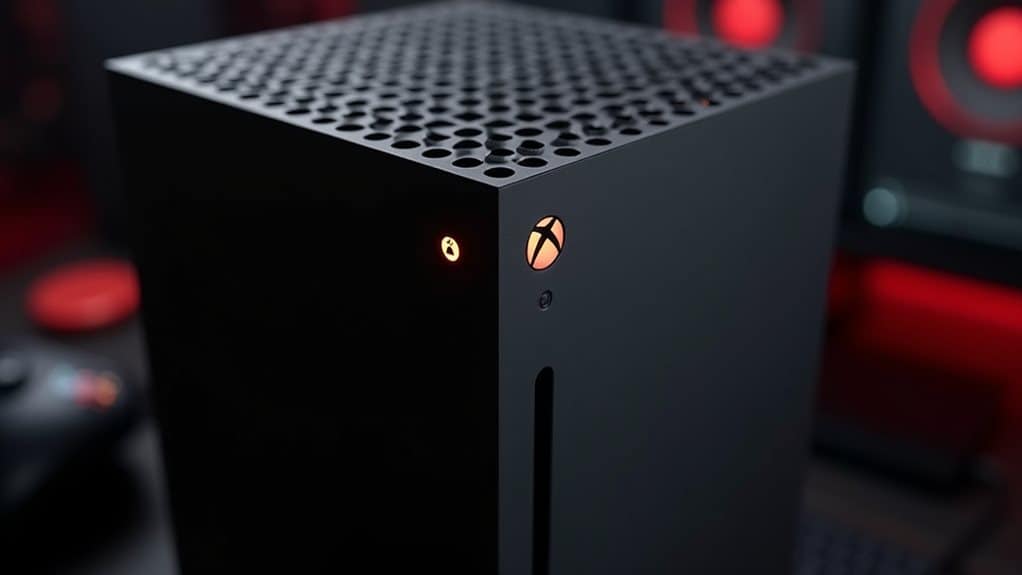
Position your console with 4-6 inches clearance on all sides for proper airflow. Avoid enclosed spaces, carpets, or soft surfaces that block vents.
Clean air vents regularly with compressed air, and maintain room temperatures between 41°F-95°F for peak performance.
Console Placement and Airflow Optimization
Your Xbox Series X’s placement greatly impacts its cooling performance and longevity.
You’ll need to decide between vertical and horizontal positioning while ensuring proper airflow around all vents.
Regular dust removal and maintaining clear spaces around your console will prevent overheating issues that can cause unexpected shutdowns.
Vertical Vs Horizontal Placement
Although the Xbox Series X functions effectively in both vertical and horizontal positions, your placement choice can impact cooling performance and overall system longevity.
Microsoft recommends vertical positioning for ideal heat dissipation, as hot air naturally rises through the top vent.
However, horizontal placement remains safe and stable when properly secured on flat surfaces with adequate clearance around all vents.
Clear Vent Requirements
Proper console placement becomes meaningless if your Xbox Series X can’t breathe through its vents.
You’ll need at least 4-6 inches of clearance around all vents, especially the top exhaust and bottom intake areas.
Don’t cover vents with objects or fabric that trap heat.
Regular inspection prevents dust buildup that blocks airflow and triggers overheating shutdowns.
Dust Removal Methods
Dust buildup can turn your Xbox Series X into an overheating nightmare, but strategic placement prevents most problems before they start.
Position your console on stable, flat surfaces away from carpeted floors and dusty vents. Raise it slightly for better airflow and maintain clear space around all vents.
Never enclose it tightly in cabinets where dust accumulates.
Cleaning Dust and Debris From Internal Components
When your Xbox Series X begins overheating or shutting down unexpectedly, cleaning the internal components can restore proper cooling performance and extend your console’s lifespan.
Use soft brushes and light compressed air to remove dust from fan blades and heatsink fins.
Clean air intake chambers around the power supply carefully, avoiding direct contact with sensitive electronics.
Power Supply Unit Testing and Replacement
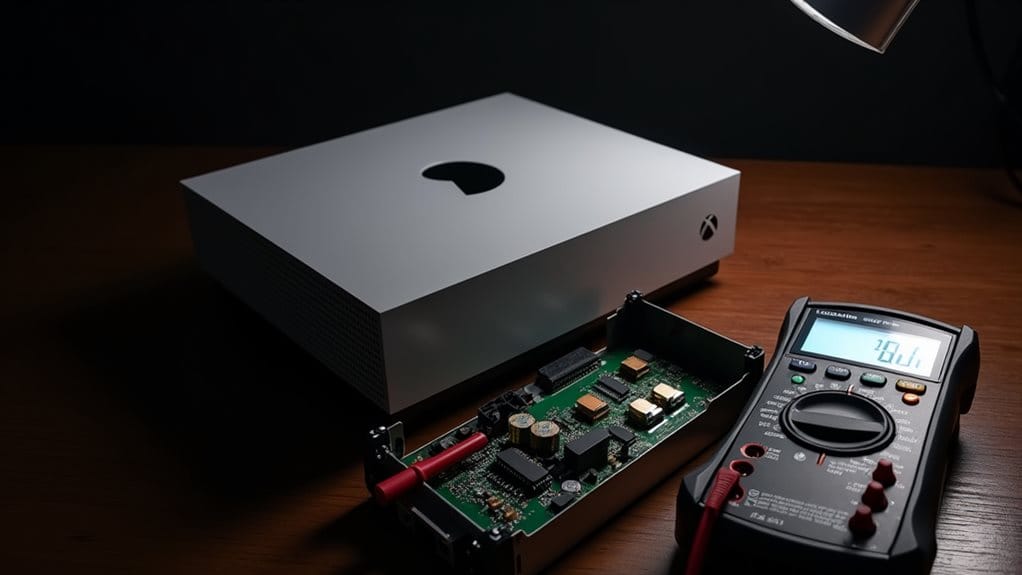
Although the Xbox Series X’s power supply unit operates reliably under normal conditions, electrical faults from power surges or component degradation can cause your console to shut down unexpectedly or fail to power on entirely.
You’ll need to test the PSU’s voltage output and inspect critical components like varistors and fuses for damage before considering replacement.
Checking PSU Indicators and Connections
How can you determine if your Xbox Series X’s power supply unit is functioning correctly before diving into complex diagnostics?
Start by examining the PSU LED indicators. No light indicates a power issue, while blinking signals intermittent faults.
Check that your power cable connects securely and inspect it for damage or fraying that affects delivery.
Software Updates and Firmware Management
You’ll need to maintain current software and firmware to prevent unexpected shutdowns and performance issues on your Xbox Series X.
Regular system updates address known bugs and security vulnerabilities, while controller firmware updates guarantee peak functionality and feature access.
When your console experiences instability, checking for pending updates should be among your first troubleshooting steps before considering hardware-related solutions.
Check System Updates Regularly
Since system updates serve as your first line of defense against random shutdowns and performance issues, keeping your Xbox Series X current should be a top priority in your troubleshooting routine.
Access Settings > System > Updates to check for available patches.
Enable automatic updates to maintain peak performance and prevent software conflicts that cause unexpected shutdowns.
Reset Console Settings
When software updates fail to resolve persistent shutdown issues or system instability, resetting your Xbox Series X console settings can eliminate deeper firmware corruption and restore peak performance.
Guide yourself to Profile & system > Settings > System > Console info, then select “Reset console.”
Choose “Reset and keep my games & apps” to preserve installed content while revitalizing system software and resolving glitches.
Resolve Software Conflicts
Console resets address many system-level problems, but software conflicts often require targeted firmware and update management to achieve lasting stability.
Check for system updates regularly, as outdated firmware causes random shutdowns through unresolved bugs.
Enable automatic updates and verify firmware integrity through console diagnostics.
Remove corrupted apps, clear cache data, and run built-in troubleshooting tools.
Factory Reset Options for Persistent Issues
Before attempting a factory reset, you’ll need to back up your important data to prevent permanent loss of game saves and settings.
Xbox automatically syncs to the cloud when connected to internet.
Proceed to Settings > System > Console info > Reset console.
Choose “Reset and keep my games & apps” for minor issues or “Reset and remove everything” for severe problems.
Advanced Troubleshooting and Support Resources
If factory reset options haven’t resolved your Xbox Series X issues, you’ll need to explore deeper into advanced troubleshooting techniques that target specific hardware and software components.
Use Xbox’s diagnostic tools for error codes, consult iFixit guides for hardware repairs, and check community forums for similar problems.
Contact Xbox Support for warranty service when hardware faults are suspected.
Wrapping Up
You’ve now learned the primary causes behind unexpected Xbox Series X shutdowns and their solutions. Start with basic checks like ventilation and power connections before moving to software updates or factory resets. Most random shutoffs stem from overheating or power settings rather than hardware failures. If these troubleshooting steps don’t resolve your console’s shutdown issues, contact Microsoft Support for advanced diagnostics and potential warranty service options.