
Power‑cycle your Roku TV and router for a minute each, then plug them back in and confirm the network is stable. Next, restart the Roku, sign in again, and remove the Apple TV channel. Reinstall the channel, check for updates in the star menu, and also update the Roku OS via Settings > System > Software Update. If the channel still stalls, verify your Wi‑Fi settings, reserve an IP, and consider a factory reset or an external streaming stick for a permanent fix. Continue for deeper troubleshooting steps.
TLDR
- Power‑cycle both Roku and router for at least 60 seconds, then reconnect to ensure a stable network.
- Remove the Apple TV channel from Roku, reinstall it, and sign in again to clear lingering glitches.
- Verify the Roku OS and Apple TV channel are up to date; install any available updates and restart the device.
- Ensure the Roku and Apple TV are on the same Wi‑Fi network, using WPA2 or mixed mode, and reserve a static IP for the device.
- If stalls or sign‑in errors persist after updates, perform a Roku factory reset or consider using an external streaming stick.
Hard‑Reset Roku TV & Router for Apple TV Channel Issues
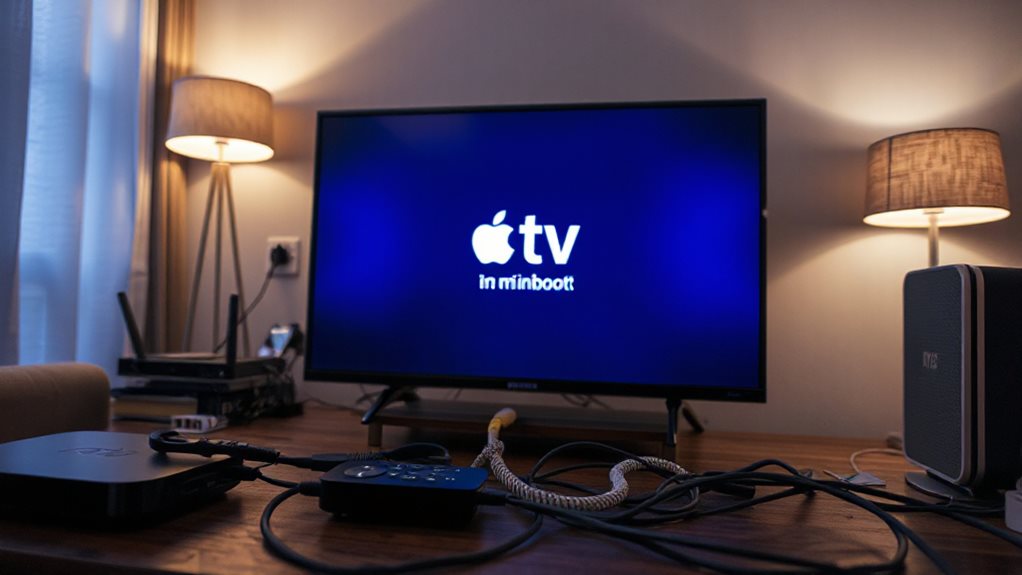
Apple TV channel won’t load on Roku? Start with a hard reset of both the TV and your router. Unplug the Roku for sixty seconds, then plug it back in.
Next, unplug the router for another sixty seconds, wait, and reconnect. After both devices power up, verify the network, launch Apple TV, and test playback.
This clears glitches and restores stable streaming. Verify network stability to ensure the internet is stable.
Power‑Cycle the Device Before Reinstalling Apple TV
After a quick power‑cycle, reinstall the Apple TV app to clear any lingering glitches. If the blinking white light persists, consult the recovery steps for your specific Apple TV model and consider restoring firmware via iTunes as a last resort. Power cycling can help resolve transient faults by resetting the device’s hardware state.
Remove and Reinstall the Apple TV Channel on Roku
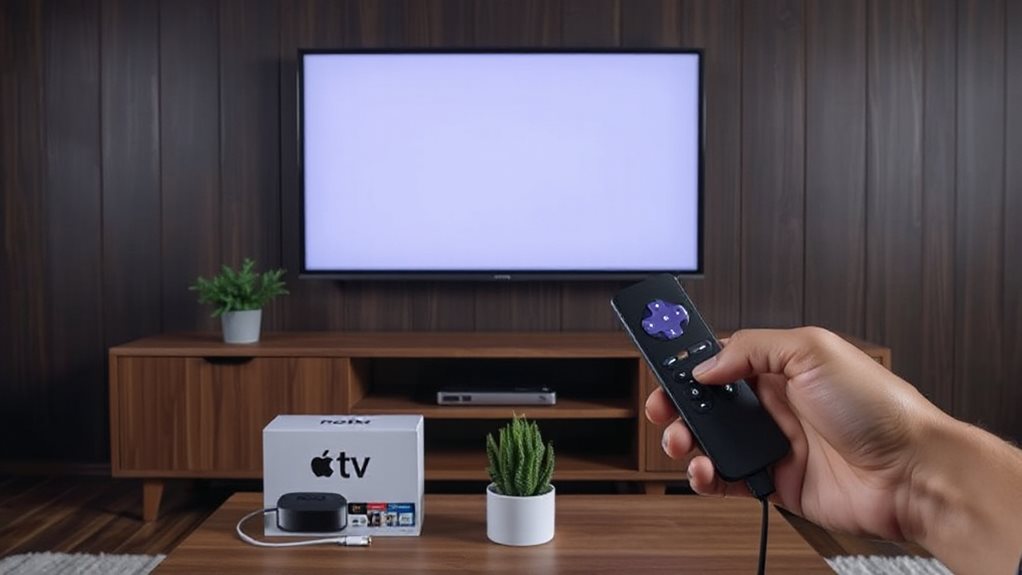
A quick power‑cycle clears temporary glitches, but the next step is to remove and reinstall the Apple TV channel to make sure a clean start.
Restart Roku, sign in again, and enjoy unrestricted streaming. Move to Manage Your Devices on the Roku website to ensure the Apple TV channel is properly linked and up to date account management.
Why Is My Apple TV Channel Stalling? Verify Network Settings?
Stalling Apple TV channels usually point to network problems, so checking your connection settings is the first step.
Verify Apple TV uses the same Wi‑Fi as your Home hub, forget and rejoin the network, and disable auto‑join.
Ensure router runs WPA2 or mixed mode, reserve Apple IP, and test Ethernet if possible.
Restart modem, router, then Apple TV before troubleshooting further.
Asset writer errors can also occur when system resources are constrained during recording or streaming, so monitoring system logs for any related codes may help identify underlying issues Asset writer and address them accordingly.
Update Roku OS and Apple TV Channel Before Restarting
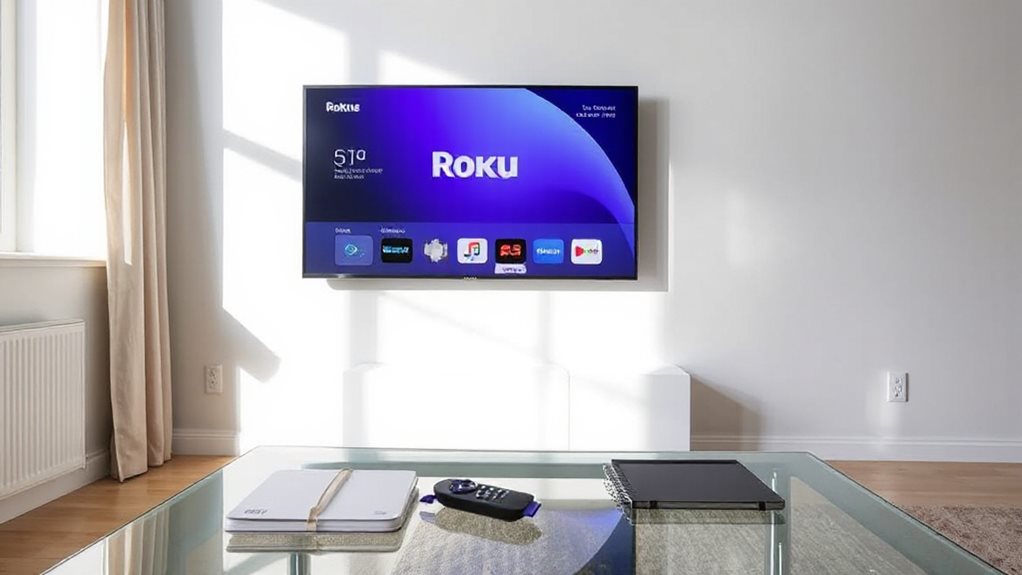
First, make sure your Roku is running the latest OS—check Settings > System > Software Update and install any available Roku OS 15.
Next, open the Apple TV channel, press the star button, and select “Check for Updates” to confirm the app is up to date.
Finally, after both updates finish, restart the Roku to let the new software take effect.
Additionally, ensure you have updated parental control settings if you’re using them to manage what appears on apps like Apple TV; updating these settings can help prevent issues with streaming content. Parental control
Ensure OS Latest
If you’re still seeing the Apple TV channel freeze or fail to launch on Roku, the first thing to do is make sure both the Roku OS and the Apple TV app are up to date before you restart the device.
Go to Home > Settings > System > Software Update, select Check Now, and install any available version.
OS 15 and 15.1 bring performance enhancements, bug fixes, and smoother playback, reducing freezes and crashes.
After updating, restart the Roku to apply changes and enjoy a more responsive experience.
Verify Channel Version
Wondering why the Apple TV channel still freezes after updating the OS?
First, open Settings > System > About to confirm your Roku model supports Apple TV. Then go to Home > Streaming Channels > Channel Store, search “Apple TV,” and check the channel details for an update. Install any update, then restart the device before streaming again.
Factory‑Reset or Use an External Streaming Device When Needed
If the Apple TV app keeps crashing, you can try a factory reset to clear corrupted settings, but only after you’ve confirmed that your Roku model supports the channel.
When a reset isn’t practical or your device is outdated, plugging in an external streaming stick—like a Fire Stick or Apple TV 4K—provides a dedicated, more reliable platform.
Make sure to verify compatibility first, then follow the reset steps or install the external hardware as needed. HDMI-CEC can help streamline input switching between devices when enabled on both the TV and Roku.
When to Factory‑Reset
A factory reset should be your last resort when all other troubleshooting steps have failed. Use it only if the Apple TV app freezes persistently, sign‑in errors remain after network checks, or video playback never works despite a solid connection.
Move to Settings > Factory Reset, confirm, and let the Roku Welcome screen appear. Then re‑setup accounts, reinstall the app, and test the connection before considering any other fix.
Benefits of External Devices
When you add an external streaming device to your Roku‑Apple TV setup, you instantly enhance performance and expand content options without overhauling your entire system. You gain 4K HDR support, dual‑band Wi‑Fi, and thousands of pre‑loaded channels.
Portable design lets you take it anywhere, while smartphone remotes and programmable buttons simplify wayfinding.
It’s affordable, easy to install, and works with any TV, keeping your viewing freedom intact.
Compatibility Considerations
Verify your Roku model’s compatibility before you try a factory reset or add an external streaming device. Check Settings > System > About or the official Roku support list; only models like Roku TV 7000X, C000X, 8000X, A000X, 6000X, Express 3900/3930, Stick 4K 3820, Ultra 4802 are guaranteed.
If unsupported, skip reset and connect an Apple TV box via HDMI for full functionality.
And Finally
By following these steps you’ll resolve most Apple TV channel problems on Roku. Resetting the TV and router clears temporary glitches, while power‑cycling and reinstalling the channel enables a fresh connection. Verify your network settings, keep Roku OS and the Apple TV channel up to date, and consider a factory reset or external device if issues remain. This systematic approach restores reliable streaming with minimal effort.


