
Make sure Silent, Theater, and Do‑Not‑Disturb are off on both iPhone and Watch, then check that the side switch isn’t orange and that Sleep Mode is disabled via the bed icon or the Watch app. Verify the alarm’s tone and haptic strength in Settings → Sounds & Haptics, and set the volume level to “Louder.” Restart both devices, delete the alarm, and recreate it with a standard ringtone. Test after each step to pinpoint the problem, and if it persists you’ll find deeper fixes ahead.
TLDR
- Turn off Silent, Theater, and Do Not Disturb modes on both iPhone and Apple Watch.
- Deactivate Sleep Mode (Digital Crown → bed icon) and disable “Track Sleep” in the Watch app.
- Ensure alarm volume is set to “Louder” in Settings → Sounds & Haptics → Tap Level.
- Restart both iPhone and Apple Watch, then delete and recreate the alarm in the Clock app.
- Update watchOS, and if the issue persists, unpair and re‑pair the Watch, then rebuild the alarm.
How to Fix a Silent Apple Watch Alarm
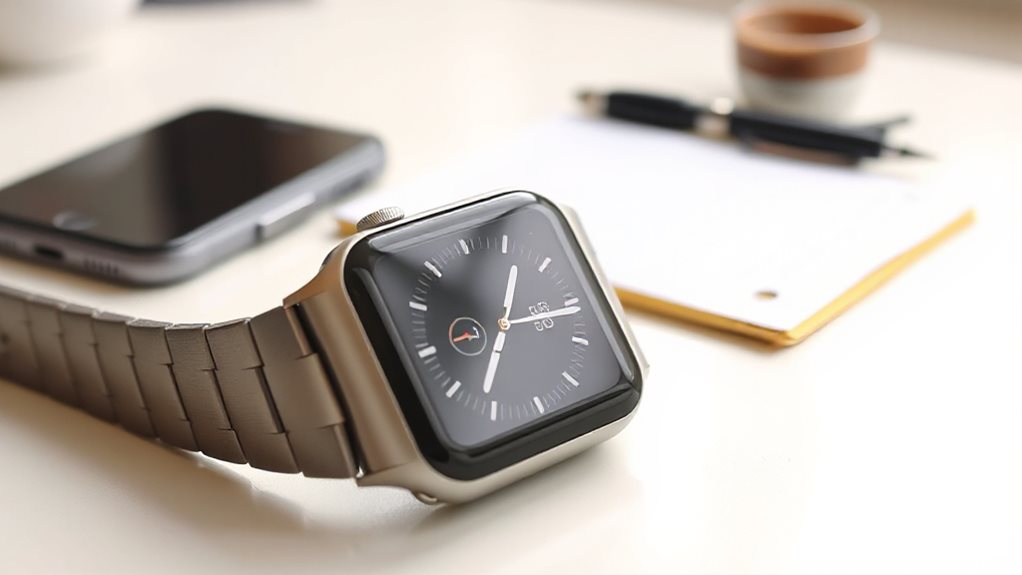
If your Apple Watch alarm stays silent, start by checking whether Break Through Silent Mode is enabled.
Open the Sleep app, tap Sounds & Haptics, and toggle it on.
Or go to Alarms, edit the active alarm, and enable the same toggle.
Make sure Silent Mode and Do Not Disturb are off in Control Center.
Update to watchOS 11.4, then restart the watch.
You can also adjust the alarm’s volume range by tapping Level and selecting Louder in Settings & Haptics.
Check Apple Watch Alarm Sound & Haptics Settings
How can you make certain your Apple Watch alarm sounds and vibrates exactly as you want?
Open Settings, tap Sounds & Haptics, then select Default Alerts to pick a tone.
Adjust Reminder Alerts for alternative sounds.
Choose Haptics → Default or Prominent for vibration strength.
Use the volume slider or enable Automatically Adjust Volume for ambient‑aware loudness.
Make certain the alarm switch in the Sleep app is on.
Turn Off Silent, Theater, and Do‑Not‑Disturb Modes on Watch and iPhone
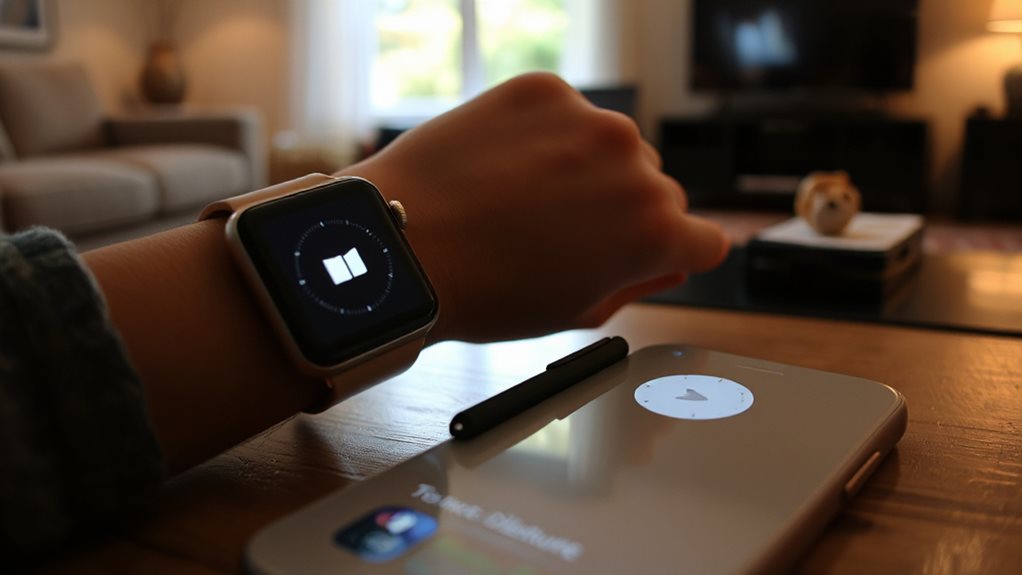
Even when your Apple Watch and iPhone are both set to silent, theater, or Do‑Not‑Disturb (DND) modes, alarms can be muted unexpectedly.
Open each device’s Control Center, tap the bell to disable Silent Mode, the theater mask to turn off Theater Mode, and the crescent moon to disable DND.
Make sure the iPhone side switch isn’t orange, check audio output, and restart the iPhone if needed. Also ensure that your device encryption and passcode settings are properly configured to prevent unexpected audio or notification interruptions from security features. Encryption status
Disable Sleep Mode and Attention Awareness That Silence Alarms
Because Sleep Mode and Attention Awareness can mute your alarms, you’ll need to turn them off before the watch can sound an alert. Swipe up from the watch face, press and hold the Digital Crown, then tap the bed icon to deactivate Sleep Mode.
In the Watch app on your iPhone, go to My Watch → Sleep and toggle off Track Sleep and “Don’t Use This Watch for Sleep.”
Delete any schedules in the Sleep app, turn off Wind Down, and uncheck Share Across Devices.
This frees your watch to ring without interruption.
During a restart if alarms are affected, ensure the device isn’t in charging mode, since charging can prevent full system resets and affect alarm functionality. Force Restart procedures should be performed with the watch off the charger to ensure a clean reboot. If alarms still fail after a restart, verify that the firmware is up to date and consider remote reset or professional support as needed.
Restart Apple Watch and iPhone, Then Delete & Re‑create the Alarm
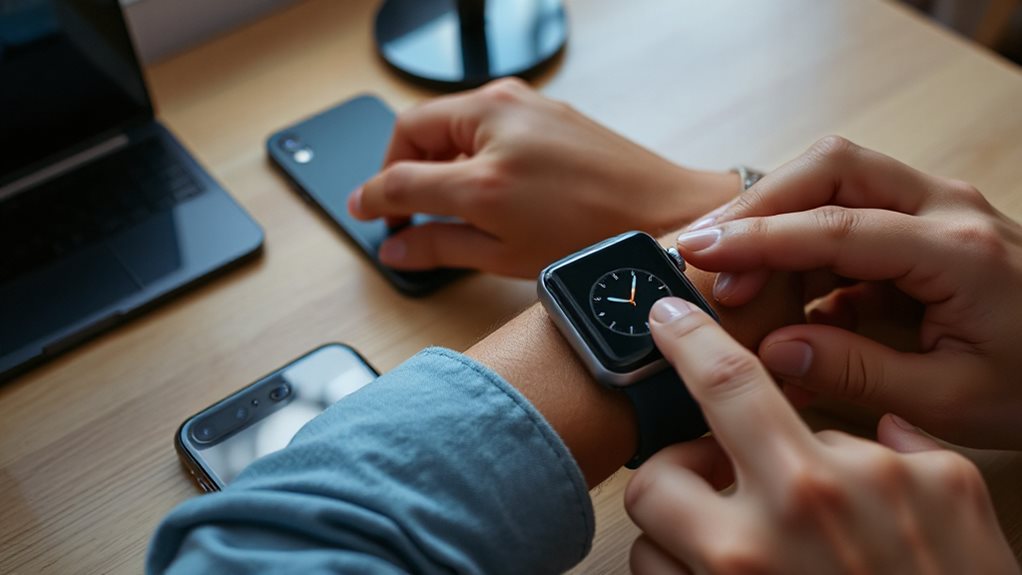
If the alarm still won’t sound after disabling Sleep Mode and Attention Awareness, a quick restart of both devices can often clear the underlying sync issue. Power off the Watch, hold the side button until the Apple logo appears, then force‑restart if needed.
Restart the iPhone, wait thirty seconds, and power it back on. Delete the alarm on each device, then recreate it in the Clock app, confirming sound and haptic settings.
Install the Latest watchOS and iOS Updates to Resolve Known Bugs
When you install the newest watchOS and iOS releases, you eliminate many of the bugs that can silence or disrupt your Apple Watch alarms. Open the Watch app, go to My Watch > General > Software Update, and follow the prompts.
Make sure the watch is ≥50 % charged, the iPhone is on Wi‑Fi, and both devices stay nearby until the install finishes.
This updates fix crashes, restarts, and unresponsiveness that affect alarms. Power cycling the Apple Watch and iPhone after updating can help reaffirm the new software on the devices and resolve any post-update glitches. Power cycle procedures and follow-on steps can ensure a clean update environment.
Unpair & Re‑pair Apple Watch to Refresh Alarm Firmware
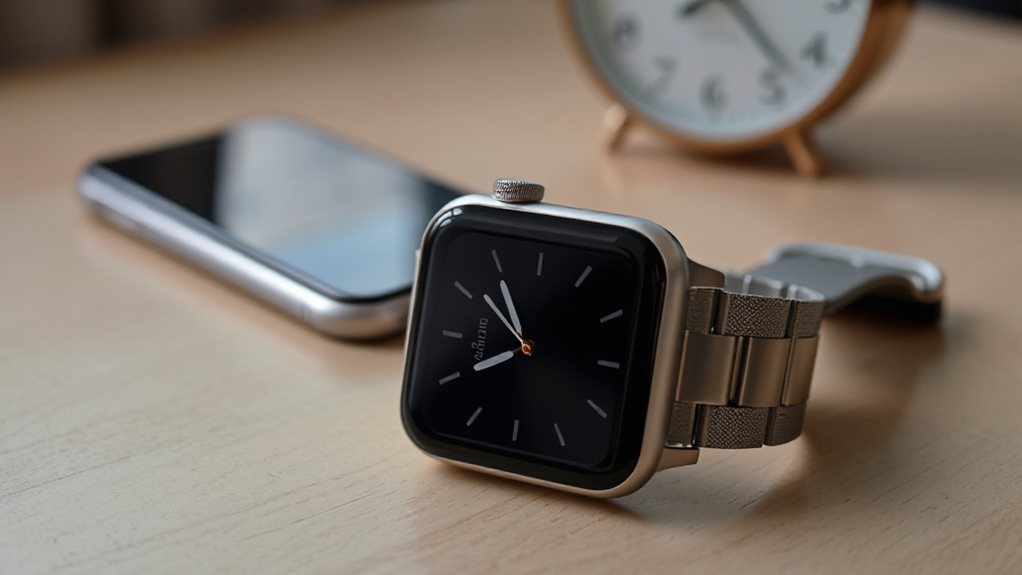
One effective way to revive a misbehaving alarm is to unpair and then re‑pair your Apple Watch, which forces the device to reload its firmware.
Open the Watch app, My Watch, My, tab to Un icon then, pair, Apple, Apple Apple ID Apple password.
After the backup finishes, bring the watch close to your iPhone, choose to restore from backup or set up fresh, and test the alarm. Unpair and Re-pair helps ensure the latest alarm settings are loaded by refreshing the device firmware.
Recreate the Alarm Using Only Standard Ringtones
After re‑pairing the watch, you can isolate the problem by rebuilding the alarm with a built‑in tone.
Open Settings → Sounds & Haptics → Reminder Alerts.
Choose a default ringtone, then save.
The alarm now uses firmware‑stored audio, bypassing third‑party files and cloud sync.
Verify it appears in the Alarms app and triggers both sound and haptic feedback.
local control ensures the alarm data stays on device and remains accessible even without cloud connectivity.
Test the Alarm After Each Change to Isolate the Issue
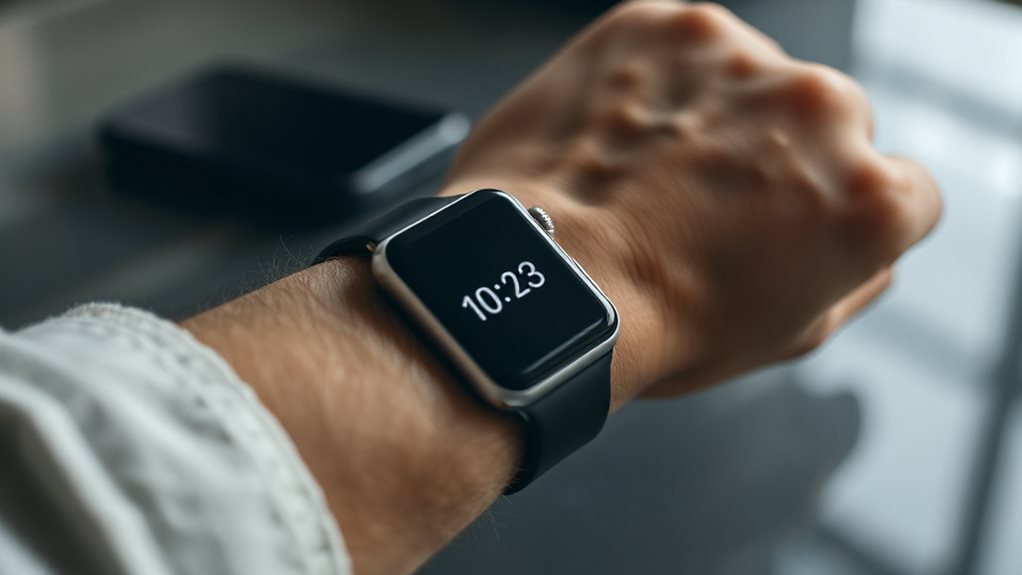
After you restart the watch or iPhone, set a quick test alarm and see if it rings; this tells you whether the reboot alone fixed the problem.
Next, check the volume and haptic settings to confirm they’re turned up and not muted, because a low setting can make the alarm seem dead.
Finally, open the Clock app and verify the alarm’s time, repeat, and “Break Through Silent Mode” option are correct before you move on to the next tweak.
Be sure to enable 2FA for your Apple ID and related services to strengthen recovery options and protect device access in case of account compromise two-factor authentication.
Test After Each Restart
Have you tried testing the alarm after each individual restart?
First, force‑restart the Watch by holding the side button and Digital Crown for ten seconds until the Apple logo appears.
Immediately after, force‑restart the iPhone using volume up, volume down, then the side button.
Confirm the Watch is off its charger, then test the alarm.
Repeat the sequence if the alarm still fails, isolating the restart’s impact.
Verify Volume Settings
To pinpoint whether volume settings are causing the alarm to stay silent, adjust the alert volume on the Watch and test the alarm after each change.
Open Settings → Sounds & Haptics, slide the alert volume, and listen for the test tone.
Toggle off Automatically Adjust Volume to lock the level.
Verify haptics are set to your preference, then set a test alarm and confirm sound and vibration.
Confirm Alarm Configuration
Where’s the problem? Open the Alarms app, set an alarm, and watch it appear in the list. Swipe to the preview to confirm the time.
Toggle Snooze, then verify the toggle stays visible. Test Siri commands like “Set alarm for 7 AM” and confirm the entry.
Finally, trigger the alarm, snooze, and dismiss to verify each step works.
Common Software Bugs That Silence Apple Watch Alarms (and How to Fix Them)
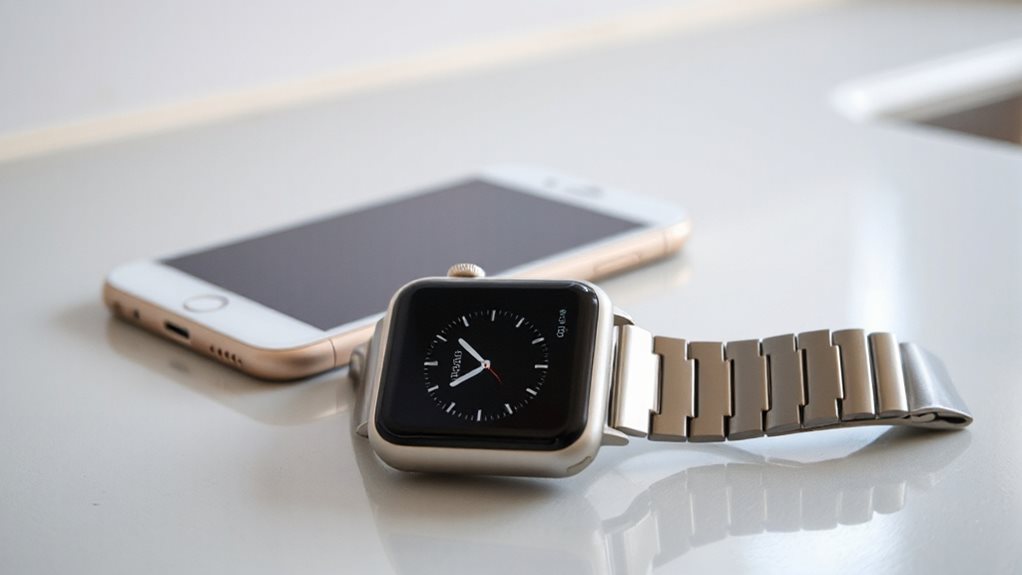
When a software bug interferes with your Apple Watch alarm, the device may stay silent or fail to vibrate, leaving you unprepared for the day ahead. iOS 26.4 adds an “Always Play on iPhone” toggle for Sleep Schedule alarms, but older versions still mute the iPhone when the watch is worn, causing missed wake‑ups. Regularly reviewing and adjusting AirDrop settings can help protect your device from unsolicited content that could indirectly impact performance, such as apps or profiles that interfere with notifications. Contacts Only settings for AirDrop can reduce exposure to unknown content that might affect system behavior.
When to Contact Apple Support for Persistent Alarm Failures
If you keep seeing the same alarm glitches even after installing the latest watchOS updates, it’s time to reach out to Apple Support.
Document the exact behavior, the steps you’ve already tried, and your device’s model and OS version before you call or chat.
This information lets the support team quickly determine whether the issue is software‑related or requires hardware inspection.
Be aware that persistent alarm failures can also be related to overheating or environmental factors on some devices, so note any unusual device behavior during alarms and in the surrounding conditions monitoring heat to help diagnose the problem.
Repeated Alarm Glitches
Even after you’ve tried the usual fixes—deleting every alarm with Siri, unpairing and re‑pairing the Watch, and turning off “Hey Siri” on both devices—persistent alarm glitches still surface, you should consider contacting Apple Support.
If daily missed alarms continue despite disabling the Watch sleep alarm and disabling Siri, open a support ticket.
Document each failure, note the iOS and watchOS versions, and request hardware diagnostics.
This escalation helps guarantee you regain reliable wake‑ups and preserve your schedule freedom.
Unresolved After Updates
After the usual fixes still haven’t stopped the alarm glitches, it’s time to evaluate whether the issue warrants Apple Support.
If alarms fail after recreating them, ignore time‑zone toggles, and stay silent despite full force‑restarts, a reset, and latest updates, you’ve exhausted DIY options.
Schedule a support call, share analytics logs, and cite the persistent post‑update firmware bug.
And Finally
If you’ve tried the steps above and the alarm still stays silent, it’s time to reset your Apple Watch to factory settings and pair it again. Back up your data first, then erase the watch through the iPhone Watch app. After re‑pairing, set a new alarm using a default ringtone. Should the problem persist, contact Apple Support for hardware diagnostics or a possible firmware issue.
