You’ve set a strong password—now add 2FA for real security. Two-factor authentication combines your password with a second step like a code from an app, biometric scan, or physical key, blocking 99% of automated attacks. Platforms like Google and Apple let you enable it in security settings, using authenticator apps or backup codes. Avoid SMS-only options for critical accounts—opt for phishing-resistant methods like hardware keys. Set up recovery codes and sync trusted devices to avoid lockouts. Understanding your options guarantees safer, smoother access.
Quick Guide
- Implement 2FA with two distinct factors (password + code, biometric, or key) for layered security.
- Enable 2FA on all accounts to block 99.9% of automated attacks and prevent identity theft.
- Use authenticator apps or hardware keys instead of SMS to reduce phishing and SIM-swap risks.
- Save recovery codes securely and set up backups to avoid account lockouts during 2FA failures.
- Major platforms like Google and Microsoft offer 2FA via apps, keys, or cloud backups for easy setup.
What Is Two-Factor Authentication (2FA) and How Does It Work?
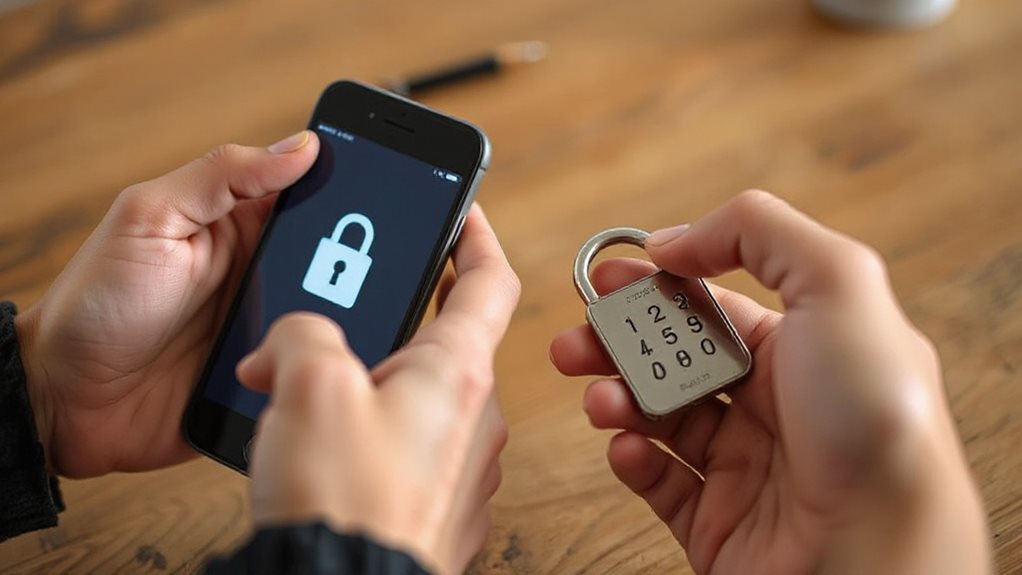
Two-factor authentication (2FA) keeps your online accounts secure by combining two different verification steps. You enter a password, then confirm with a code from your phone, a biometric scan, or a physical key. This dual-layer system blocks unauthorized access even if passwords leak. By requiring two distinct authentication factors, such as a password (knowledge factor) and a security token (possession factor), 2FA eliminates single points of failure in identity verification. Most services, like banks and email platforms, offer 2FA to guarantee only *you* control your data—no third-party tracking or gatekeeping required. It’s freedom through security, not surveillance. Many users should also enable mobile encryption on their devices to further protect 2FA codes and account data.
Why Every User Should Enable 2FA on All Accounts
Because your online security hinges on more than a single password, enabling multi-factor authentication (MFA) stops 99.9% of automated attacks and 99.2% of account compromises—attacks that steal identities, drain bank accounts, and erase critical data in seconds.
Passwords alone are easily cracked or phished—55% store them insecurely. MFA adds layers (biometrics, codes) to block 80–90% of breaches. You protect personal data, prevent financial loss, maintain freedom.
Organizations trust MFA to enhance loyalty; modern tools make it seamless. Don’t let hackers exploit weak defenses—enable MFA now. Recent device hijacks show streaming devices are often targeted, so secure all connected devices and monitor for unknown devices on your network.
How 2FA Blocks 99% of Automated Hacks: The Data
You’ve probably heard 2FA blocks most attacks, but Microsoft’s 2019 data shows it actually stops 99.9% of automated hacking attempts. This near-total defense slashes breach risks—Verizon links MFA to a 99.9% drop in data breaches, which cost companies $3.86 million on average. The rise of government mandatory data retention schemes and ISP logging makes using strong authentication and privacy tools even more important.
Microsoft’s 99.9% Blockage Rate
Microsoft’s security research reveals a striking defense advantage: 99.9% of compromised enterprise accounts lacked MFA. Attackers target weak points—like legacy protocols (SMTP/IMAP), password spray attempts, or brute-force assaults. With 300 million daily fraud attempts, MFA blocks 99.7% of automated credential attacks, slashing risk. Even basic MFA adoption stops phishing, BEC scams, and AI-driven breaches.
Small businesses lag (27% adoption), leaving freedom vulnerable—simple MFA activation protects your data from unrelenting global threats. Stay proactive; secure what’s yours.
Reduces Breach Costs Up To $3 Million
Every year, businesses face staggering financial losses from preventable security breaches. Implementing 2FA can block 99% of automated hacks and prevent breaches costing up to $3 million.
Credential-based attacks, the starting point for most breaches, become far less effective with 2FA. Microsoft’s 99.9% blockage rate proves its power. By reducing breach risks by 50% and avoiding costs like $42 million authentication failures, 2FA delivers ROI while protecting your freedom from crippling cyber threats.
How to Set Up 2FA on 5 Major Platforms
You’ve seen how 2FA blocks attacks — now secure your accounts across Google, Apple, Microsoft, Facebook, and Instagram.
Each platform offers options like authenticator apps, security keys, and recovery codes to customize your protection.
Let’s walk through selecting methods, accessing settings, and ensuring backups so you never lose access.
Use two-step verification to add an extra layer of protection and reduce the risk of unauthorized access.
Select Authentication Methods
Setup two-factor authentication (2FA) across major platforms like Google, Apple, Microsoft, Facebook, and GitHub to enhance account security.
Choose authentication apps (Google Authenticator, Authy), FIDO2 keys, SMS codes, or biometric passkeys.
Platforms like Microsoft and Apple support push notifications; GitHub relies on TOTP apps.
Always enable backup recovery codes and prioritize phishing-resistant methods like hardware keys for maximum protection.
Access Security Settings
Open your browser, then proceed to the account settings of your target platform—each secures 2FA access differently. For GitHub or Google, enable TOTP apps by scanning QR codes. Microsoft requires trusted phone/email setup. Apple auto-generates codes on trusted devices. FTC advises prioritizing security keys. Always save recovery codes securely—skip backup options for now. Adjust settings individually across accounts to balance control and convenience without overspending on complexity.
Configure Backup Options
Strengthening 2FA setups means securing backup options—skipped earlier—to guarantee access survives lost devices or app failures.
Google allows cloud backups and printed codes; Microsoft syncs across multiple devices.
Authy encrypts with PINs; Duo offers offline passcodes.
LastPass saves encrypted recovery keys—each prevents lockouts.
True security gives freedom without risk.
SMS vs. Authenticator Apps: Pros, Cons, and Best Choices
When selecting a secondary authentication method, SMS-based codes and authenticator apps each bring unique advantages and tradeoffs—text messages offer simplicity and accessibility but face growing risks from SIM-swapping and network flaws, while apps provide stronger security through time-limited, offline codes despite requiring initial setup effort and device safeguards.
SMS leans on convenience but crumbles under telecom vulnerabilities. Authenticator apps shield you from network threats but demand device control. Balance security and ease: prioritize apps for critical accounts, per CISA/FBI guidance, while SMS works for low-risk shifts. Your freedom thrives with informed choices—secure what matters most without overburdening daily access.
How to Choose the Right 2FA Method for Your Needs
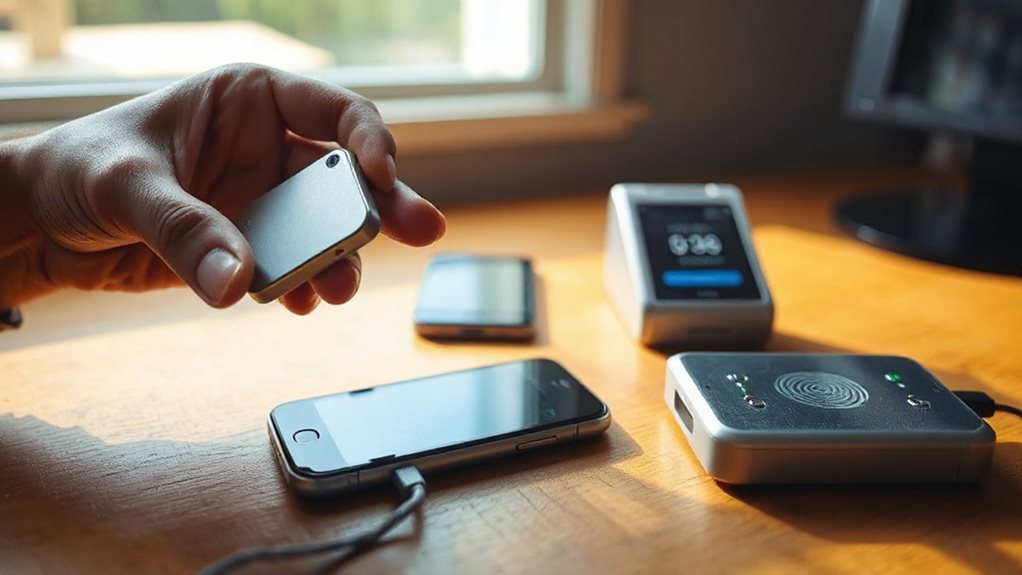
While the goal of stronger account security drives all 2FA adoption, choosing the right method depends on how you balance security strength against your specific needs.
If regulatory compliance (like HIPAA or GDPR) matters, prioritize true 2FA methods combining distinct factors, such as hardware keys or authenticator apps. High-security needs justify hardware keys’ phishing immunity; for convenience, push notifications cut friction.
Always weigh ease of use against risk—any 2FA trumps none, but freedom lies in picking what aligns with your control and accessibility preferences.
What’s Next After 2FA? Biometrics and Multi-Factor Trends
Authentication technology is moving beyond two-factor as attackers outpace traditional methods.
You’re adopting biometrics with passive liveness checks, replacing passwords via passkeys and FIDO2.
Decentralized IDs give you control through blockchain wallets, while AI-driven continuous authentication verifies you seamlessly.
These trends prioritize your freedom—no shared secrets, minimal friction—by merging security with user-friendly access.
They’re not just maturing; they’re redefining how you interact with identity and protection in a digital world craving both safety and simplicity.
Wrapping Up
You’ve seen how 2FA stops 99% of automated attacks. It’s a quick, essential step everyone should take. Pick methods that balance security and ease: SMS works but risks exist; authenticator apps like Authy offer stronger protection. Prioritize high-risk accounts—email, banking, social media. Don’t wait—enable 2FA on all platforms now. Though not flawless, it’s far safer than passwords alone. As tech evolves, watch for biometrics like facial scans or fingerprints to enhance protection. Stay proactive: revisit account settings regularly to update 2FA options and adopt stronger methods as they emerge. Your future self will thank you. (75 words)