A blinking white light means your Verizon router can’t finish the network handshake, so it’s stuck in a connectivity state. First, power‑cycle the unit: unplug it, wait 15 seconds, then plug it back in and give it a few minutes to reboot. If the light keeps blinking, check that all coax and Ethernet cables are securely attached and that the router isn’t in WPS mode. Verify the SIM is seated properly and that 5G signal strength is adequate. Log into 192.168.1.1 to see if a firmware update is pending, and confirm your account isn’t on hold for billing or verification issues. If the blinking persists after these steps, you may be facing a broader outage or a device‑specific fault—continue for details on how to differentiate and contact support.
TLDR
- A blinking white LED signals a failed network handshake; check Verizon’s outage page or ask neighbors to see if it’s a widespread issue.
- Power‑cycle the router (unplug 10‑30 s, plug back, wait 2‑5 min); repeat once if the blink persists.
- Verify all coaxial, Ethernet, and power connections are secure and the router isn’t stuck in WPS pairing mode.
- Run diagnostics via the My Verizon app or router admin page and install any pending firmware updates.
- If blinking continues, perform a hard reset (hold the recessed reset button ~10 s), then document the pattern and router details for support.
Why Your Verizon Router Shows a Blinking White Light
If your Verizon router is flashing a white light, it’s trying to connect to the network and can’t finish the handshake. The blink usually means a connectivity issue, not hardware failure. It can stem from a local outage, outdated firmware, overheating, loose cables, or account problems. Each factor blocks proper synchronization, leaving the router stuck in an error state. Identify and address the specific cause to restore service. Power cycling often clears temporary glitches. A blinking white light can also indicate startup or connection issues, and following basic troubleshooting steps such as checking cable connections and performing a power cycle helps reset the device. Regular power cycling can resolve temporary software issues and restore normal operation. signal strength and error logs can be reviewed to pinpoint where the failure originates.
Power‑Cycle the Router to Stop the Blinking Light
When the white LED on your Verizon router keeps blinking, a quick power‑cycle often clears the issue.
Unplug the power cable, wait 10‑30 seconds to let residual power drain, then plug it back in.
Allow 2‑5 minutes for reboot.
Check the LED; it should turn steady.
If it still blinks, repeat once or twice before moving on.
During the process, ensure you have a stable power source and avoid using a surge protector with other high‑draw devices attached firmware updates and behavior to minimize reboot interruptions.
Hard‑Reset the CR1000A (and Other Verizon Models)
First, locate the tiny recessed reset button on the back of the CR1000A near the power and network ports.
Then, insert a paperclip or similar tool and hold the button down for about ten seconds until the lights start blinking.
This hard‑reset will restore the router to its factory defaults, clearing any custom settings. Additionally, ensure you perform a power cycle if you encounter issues after the reset to verify the device boots up normally power cycling and reconfigure as needed.
Hold Locate Reset Button
The reset button on the CR1000A and most other Verizon routers sits on the rear panel near the DC power jack, tucked into a small pinhole that’s labeled “Reset.” You’ll need a thin, non‑conductive tool—like a paperclip, pin, or toothpick—to press it.
Locate the pinhole, insert the tool, and gently press until you feel a click. This simple step lets you initiate a soft reboot without losing your custom settings.
Hold for Ten Seconds
If you need to restore the CR1000A to its factory defaults, press and hold the reset button for at least ten seconds.
The lights will flash, then go dark and return solid white after a few minutes, confirming the hard reset.
All custom settings disappear; the router reboots automatically.
Reconnect using the default Wi‑Fi credentials on the label and reconfigure as needed.
Secure All Cable Connections Before Continuing
Before moving forward, make sure every cable is firmly attached. Plug the coaxial line from the wall jack into the router’s coax port, confirming a tight grip.
Connect an Ethernet cable from the gateway’s LAN port to the router’s WAN port, then secure the power adapter in a stable outlet.
Verify each connection is snug to prevent signal loss and keep the router stable. Additionally, ensure the router is not in WPS pairing mode, which can cause intermittent blinking as the device searches for a connection WPS pairing mode.
Verify SIM Card Placement and 5G Signal Strength
Usually the blinking white light points to a SIM‑card issue or weak 5G reception.
Power off the router, remove the cover, and reseat the SIM firmly, clearing any dust.
Then power on and hold the reset button for 15 seconds to clear glitches.
Open the My Verizon app, check RSSI/RSRP—aim for ‑100 dBm or better.
If bars are below three, move the router toward a window for stronger signal.
Regular firmware updates on the router can help prevent authentication failures and improve overall security. Security settings and proper access control help safeguard the network while maintaining performance.
Run Router Diagnostics in the My Verizon App
Open the My Verizon app and tap the router icon to launch the built‑in diagnostics, which run a quick check of your network and equipment. If the diagnostic reports a blinking issue, you’ll see specific guidance and suggested next steps to address the problem. Lightning-fast provisioning and the rest of the app’s results will help you decide whether a simple reboot, a reset, or further support is needed.
Access Diagnostics Quickly
If you see a blinking white light on your Verizon router, you can diagnose the issue in seconds by using the My Verizon app.
Open the app, log in with your Verizon number, then tap Devices > Select Router > Run Diagnostics.
The AI‑powered scan finishes in under a minute, checking signal strength, Wi‑Fi status, and connectivity.
Use cellular data if Wi‑Fi is down, and note any firmware‑update or boot‑cycle alerts.
Interpret Diagnostic Results
When you launch the My Verizon app and tap Devices → Select Router → Run Diagnostics, the AI‑powered scan instantly returns a set of error codes and status details that explain why the router’s white LED is blinking.
You’ll see slow‑blink codes indicating boot mode or power issues, rapid‑blink codes flagging network or firmware problems, and outage status.
Follow the app’s power‑cycle or software‑update suggestions; if the light persists, use the error info to request remote support or a technician.
Check Firmware Updates via the Admin Panel (192.168.1.1)
Looking to verify your Verizon router’s firmware without hassle?
Open a browser, go to 192.168.1.1 or myfiiosgateway.com, and log in with “admin” and the serial‑number password.
Change those credentials right away.
Click Advanced → System → Firmware Update, then hit Check for Updates.
If a version appears, follow the prompts; the router will reboot and take about ten minutes.
Do this every few months. Also, verify your device’s basic call and network settings if you’re experiencing connectivity issues that might affect Wi‑Fi Calling or emergency services. Network coverage
Identify Account or Billing Issues That Cause Blinking
After confirming the firmware is up to date, the next step is to check whether your account or billing status is blocking the router’s connection.
Look for unpaid bills, policy flags, or unverified account details.
Use the My Verizon app or contact support to confirm eligibility.
Resolve any billing delinquency or verification hold, then restart the router; the white light should steady. Also verify that the device is not in a network outage area, as service interruptions can mimic billing flags and prevent connectivity. account status
Distinguish Service Outage From Router‑Specific Problems
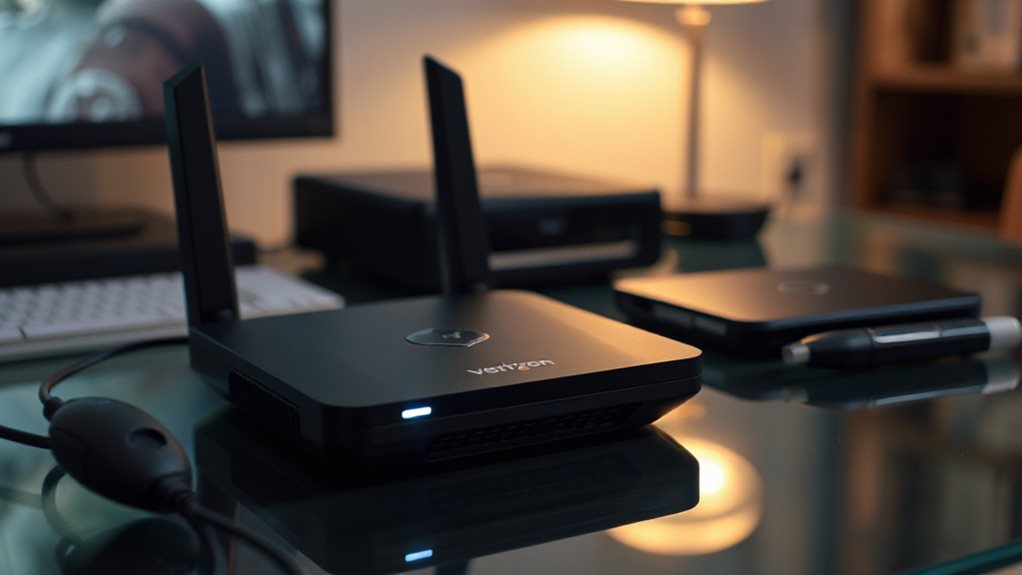
If the white LED on your Verizon router keeps blinking, first determine whether the issue stems from a broader service outage or a problem isolated to your device.
Check Verizon’s status page or ask neighbors; widespread blinking suggests an outage.
Power‑cycle the ONT and router for 60 seconds; if blinking persists only on your unit, inspect cables and reboot.
A solid white light confirms normal operation.
Document any outages and steps taken for reference, including the date and time of outages or outages alerts service status and the steps you performed to resolve issues.
Contact Verizon Support – Info to Have Ready
When you call Verizon, have your account number or billing ZIP ready so the rep can verify you quickly.
Also gather your router’s model and serial number, plus a brief note on the blinking‑light pattern and any recent changes.
Choose whether you’ll speak on the phone or use the online chat, and keep your preferred contact method handy for any follow‑up.
Be prepared to describe the light pattern (for example, a white blinking light) and any recent service changes or outages, as these details help verify and resolve the issue faster. blinking light pattern
Account Information to Provide
For a smooth call with Verizon Support, have your account number, service address, and billing address ready, as these details let the representative locate your file instantly.
Also keep your full name, birth date, last four of SSN or Tax ID, and email handy.
Know your four‑digit PIN, router model, serial, and current plan.
Have recent billing and any recent address changes ready.
Preferred Contact Method
Now that you’ve gathered your account details, decide how you’ll reach Verizon Support.
Call 1‑800‑VERIZON for service issues, 800‑922‑0204 (8 AM‑7 PM Mon‑Sat, 8 AM‑5 PM Sun), or 800‑225‑5499 (8 AM‑10 PM ET Mon‑Sat, 9 AM‑10 PM Sun).
Use the online portal at verizon.com/support for chat or forms.
Choose the method that fits your schedule and device.
And Finally
If the white light keeps blinking, follow the steps you’ve just read: power‑cycle the router, hard‑reset it if needed, check all cables, confirm the SIM is seated and the 5G signal is strong, and verify firmware is up to date. Look for billing or account alerts, and make sure there isn’t a broader service outage. If the problem persists, contact Verizon support with your device details and account information.