A blinking blue light on your Verizon router typically indicates it's in WPS pairing mode, attempting to connect with another wireless device. This can happen due to an accidental press of the WPS button or various connectivity issues. You can resolve this by power cycling your router – turn it off, unplug all cables, wait five minutes, then reconnect everything properly. If the blinking persists, check for loose cables, router overheating, or outdated firmware that needs updating. For most users, a simple power cycle fixes the issue, but understanding additional troubleshooting steps can help tackle more stubborn connection problems.
Quick Guide
- A blinking blue light on your Verizon router indicates the device is in WPS pairing mode attempting to connect with another device.
- The light should stop blinking and become solid blue or white once a successful connection is established.
- Continuous blinking may signal connection problems, software issues, or an accidental press of the WPS button.
- Power cycling the router by unplugging it for five minutes often resolves persistent blinking light issues.
- Check for loose cables, overheating problems, or outdated firmware if the blinking continues after power cycling.
Understanding the Blinking Blue Light

When you notice a blinking blue light on your Verizon router, it's typically indicating that the device is in WPS (Wi-Fi Protected Setup) pairing mode.
This means your router is actively trying to connect to a WPS-enabled device. Once a successful connection is established, the light should stop blinking and turn solid blue or white.
If it continues blinking, you may have a connection or software issue to address. Persistent blinking blue lights often result from software glitches affecting your router's normal operation.
Common Causes of Blue Blinking
A blinking blue light on your Verizon router can stem from several common causes.
Your router might be in WPS pairing mode, often triggered by accidentally pressing the WPS button.
It could also indicate connection issues with your internet service or modem. Inspecting for loose cable connections is an important troubleshooting step.
Additionally, the blinking might result from overheating problems or outdated firmware that needs updating.
Local Network Outage Verification

Verifying a local network outage requires systematic investigation using multiple tools and resources.
Start by checking Verizon's service outage portal and outage maps to see if others in your area are experiencing similar issues.
Run diagnostic tools like traceroute and ping commands to identify network disruptions. Monitoring key metrics like latency and jitter can provide valuable insights into network performance issues.
Contact Verizon's support if you need confirmation, and provide them with your diagnostic results.
Power Cycling Your Router
During router troubleshooting, power cycling stands as your first line of defense against connectivity issues.
To power cycle your Verizon router, turn it off and unplug all cables. Wait five minutes to let the capacitors discharge, then reconnect everything properly.
This process clears temporary glitches and memory issues while preserving your network settings, often resolving dropped connections and slow speeds.
Firmware Update Process

Successful firmware updates require a methodical approach to guarantee your Verizon router continues working properly.
Access your router's web interface by entering its IP address in your browser and logging in with admin credentials. Explore the firmware section, download the latest compatible update from Verizon's website, and follow the installation prompts.
Don't interrupt the process while it's updating.
Cable and Connection Inspection
Proper cable and connection inspection serves as the foundation for resolving a blinking blue light on your Verizon router.
Check all cables for wear, fraying, or damage and replace them if necessary.
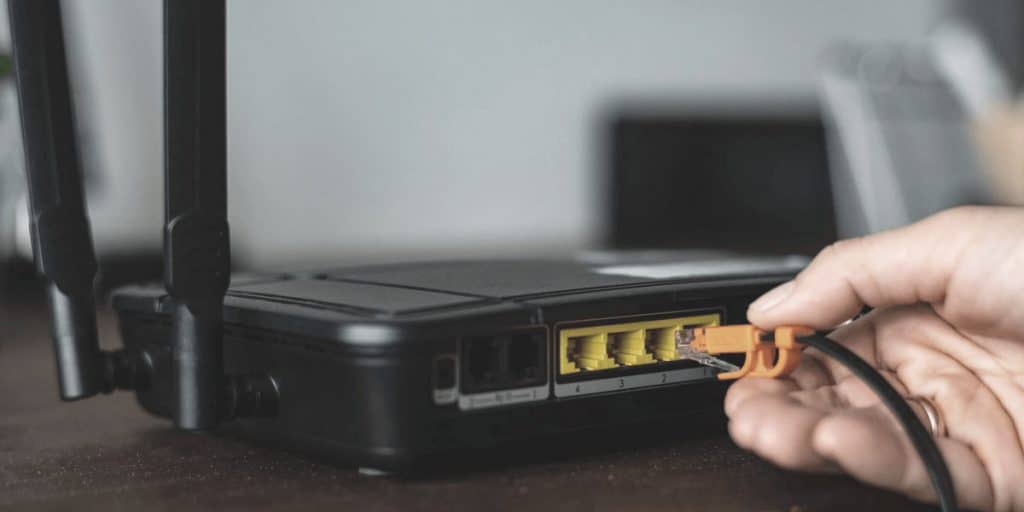
Make certain your coaxial and Ethernet cables are securely connected to their designated ports, and verify that no cables are incorrectly plugged in.
Test connections by disconnecting and reconnecting equipment.
Router Location and Ventilation

Positioning and airflow management play vital roles in resolving a blinking blue light on your Verizon router.
Place your router in a central, raised location away from walls and metal objects. Don't keep it near microwaves or cordless phones.
Guarantee proper ventilation by maintaining clear space around the router's vents, and regularly clean off dust.
If it's overheating, move it to a cooler, well-ventilated area.
WPS Pairing Problems
Beyond physical placement and ventilation concerns, WPS pairing issues often cause the blinking blue light on your Verizon router.
When you press the WPS button, the router's LED should flash blue for up to two minutes during pairing.
If your device doesn't connect within this window, you'll need to make sure it's close enough to the router, check for loose cables, and restart both devices.
Router Temperature Management

In accordance with ideal thermal performance, managing your Verizon router's temperature is crucial for preventing the blinking blue light and maintaining stable connectivity.
You'll need to guarantee proper ventilation by placing your router in an open space, away from heat sources.
Keep it dust-free, monitor the number of connected devices, and consider using a small fan if needed.
Factory Reset Guidelines
When your Verizon router's overheating issues persist despite proper temperature management, a factory reset might be your next best solution.
Before performing a reset, back up your custom settings and try a soft reset first by unplugging the router for 30 seconds.
For a hard reset, locate the small button on your router's back or bottom, press it with a paperclip for 15 seconds, and wait for the restart to complete.
Support and Service Options

Verizon's support network offers multiple pathways to resolve your blinking blue light issues.
You can start with basic troubleshooting through the My Fios app or website, checking for local outages and cable connections.
If issues persist, contact standard technical support or upgrade to Tech Support Pro for 24/7 assistance.
For advanced problems, TechSure services and the Verizon Community Forum provide additional help options.
Wrapping Up
A blinking blue light on your Verizon router isn't always cause for alarm. If basic troubleshooting steps don't resolve the issue, you'll want to contact Verizon support for professional assistance. Remember to document any error messages and keep track of when the problem started. With proper maintenance and timely updates, you can prevent many common router issues and guarantee reliable internet connectivity for your home or office.