If you just need audio alerts and have strong 2.4 GHz coverage, the basic Ring Chime is enough; it’s cheap and simple. Choose the Ring Chime Pro when you want dual‑band Wi‑Fi, a built‑in Wi‑Fi extender, and a night‑light that turns on in darkness, especially in larger or crowded homes where dead zones are common. The Pro draws a bit more power and costs about $21 more, but it gives more reliable coverage and extra convenience. Keep reading to see how each model fits your setup.
TLDR
- Choose Ring Chime for simple audio alerts, 2.4 GHz only, and lower power draw; Ideal for small spaces with strong Wi‑Fi.
- Choose Ring Chime Pro for dual‑band (2.4 GHz + 5 GHz) support, Wi‑Fi extender capability, and larger home coverage.
- Pro adds a built‑in night light that auto‑activates in darkness and can be toggled or dimmed via the Ring app.
- Both devices share the same 30+ tone library, volume control, and app‑based customization for doorbell and motion alerts.
- Pro costs about $21 more, justified by improved reliability, reduced dead zones, and extra features like night light and status indicator.
Ring Chime vs Ring Chime Pro – Quick Decision Summary
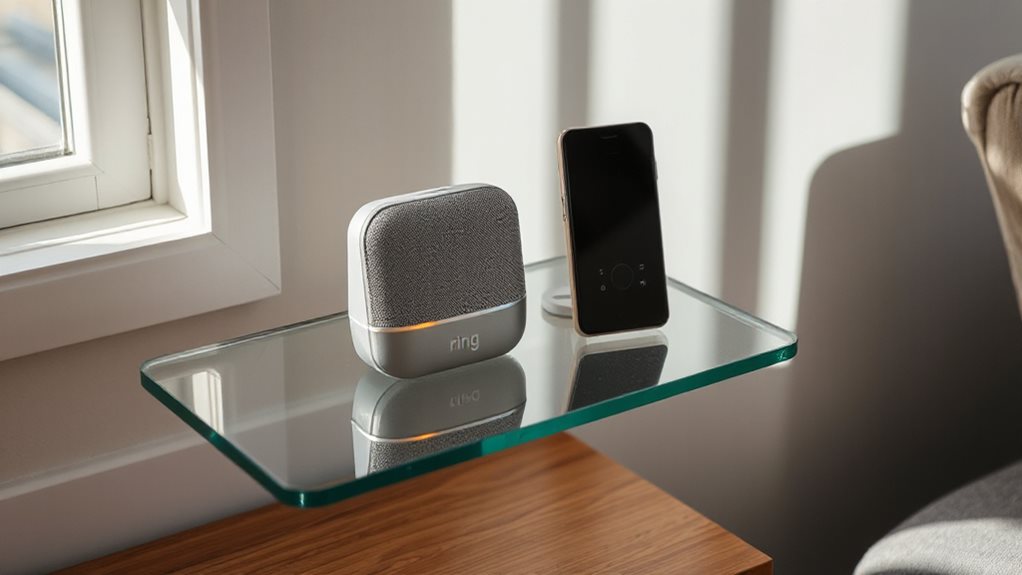
The Ring Chime and Ring Chime Pro serve the same core purpose—delivering audio alerts for your Ring doorbell or camera—but they differ in key capabilities.
Choose the basic Chime if you have solid 2.4 GHz coverage and only need alerts.
Opt for Pro when you need 5 GHz support, a Wi‑Fi extender for Ring devices, or a night‑light, accepting higher power draw for broader, more reliable coverage.
The Pro model also includes a night light that turns on in low‑light conditions.
Core Audio Alerts – Shared Capabilities of Both Devices
You’ll notice that both the Chime and Chime Pro sync audible alerts with your Ring doorbell and cameras, so you hear a sound the moment someone rings or motion is detected.
The Ring app lets you pick from a variety of tones and even set seasonal sounds, giving you full control over what each notification sounds like.
You can also toggle motion alerts on or off and adjust the volume, ensuring the audio feedback matches your preferences and household layout.
Audible Alerts Synchronization
Syncing audible alerts between the Ring Chime and Ring Chime Pro is simple: both devices listen for button presses on any Ring Video Doorbell and for motion detections from linked cameras, then deliver a tone through the plug‑in speaker.
You link them via the Ring app, scan the QR code, and connect to Wi‑Fi.
Alerts propagate instantly to all chimes, and volume adjusts in the app, giving you seamless, wireless coverage throughout your home.
Customizable Chime Tones
Ever wondered how you can personalize the sound that alerts you to a visitor or motion?
You can choose from 30+ classic, seasonal, doorbot, and Ding‑Dong tones directly in the Ring App.
Assign one tone to doorbell presses and another to motion detection, then adjust volume or snooze as needed.
Both Chime and Chime Pro share this exact library and app‑based control.
Motion & Doorbell Notifications
How do you stay instantly aware of a visitor or motion without checking your phone? Both Ring Chime and Chime Pro emit the same audible alert when a doorbell is pressed or motion is detected, regardless of smartphone proximity.
You configure event triggers in the Ring app, scan the QR code, connect to Wi‑Fi, and test signal strength.
Alerts sound simultaneously with phone notifications, and a snooze option lets you quiet them temporarily without disabling detection.
Wi‑Fi Setup Choices: 2.4 GHz Only vs Dual‑Band Extender (Ring Chime vs Ring Chime Pro)
If you have a crowded 2.4 GHz network, the Ring Chime Pro’s dual‑band capability can keep your devices from dropping out, while the standard Chime will stay stuck on the slower, more congested band.
The Pro connects to 5 GHz for faster, less‑interfered links and acts as a Wi‑Fi extender for Ring doorbells and cameras, reducing dead zones.
The basic Chime only uses 2.4 GHz, so it’s simpler to set up but more prone to interference.
Choose the Pro for reliable, high‑speed connectivity across your smart home.
Regular troubleshooting and firmware updates can help prevent authentication failures and improve overall security, contributing to more stable access for your Ring devices.
Night Light Feature – Why the Pro’s Light Matters
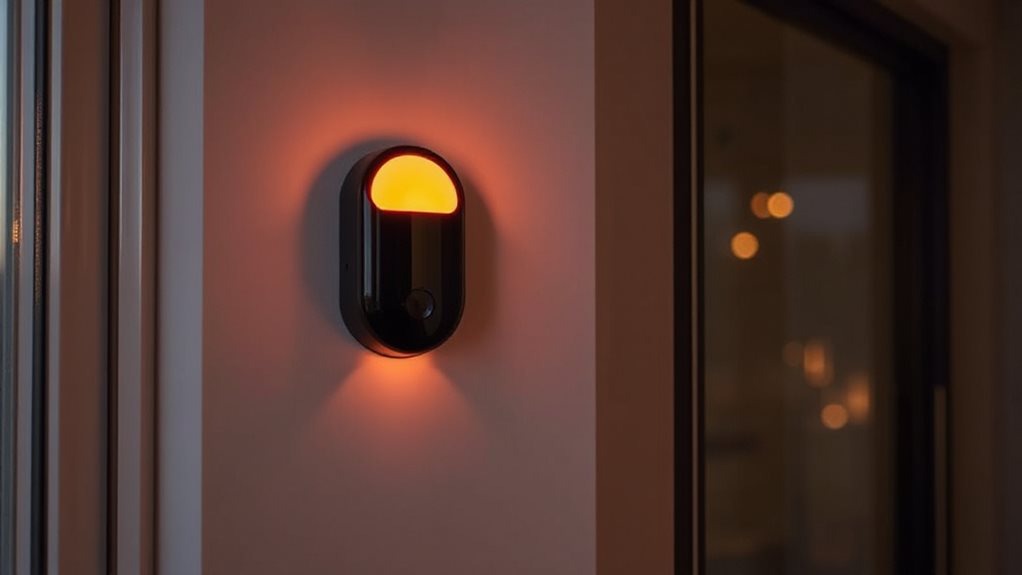
One of the most noticeable upgrades on the Ring Chime Pro is its built-in night light, which automatically turns on when the sensor detects darkness.
You’ll love the hands-free glow that guides you through hallways and marks the doorway without extra fixtures.
The app lets you toggle or override the light, so you control brightness.
This safety feature reduces trips, saves space, and adds a subtle, comforting ambience.
A blue status indicator can also help confirm the device is updating or pairing during setup, which can be useful when you’re using the light to navigate. blue indicator
Ideal Home Sizes for Ring Chime vs Ring Chime Pro
The night‑light feature shows how the Pro adds convenience, and the next factor to evaluate is how each device fits your home’s size.
A single Ring Chime works well in a 2‑floor house with a central outlet, covering rooms up to opposite the front door.
The Chime Pro, with its built‑in Wi‑Fi extender, reaches larger layouts—up to 120 feet—making it ideal for spacious or multi‑device homes.
Remote viewing of Blink cameras requires an internet connection, ensuring access to live feeds and recordings from anywhere with connectivity. Extended Live View can enhance remote monitoring but may strain your network during longer sessions.
Power Impact of Night Light & Wi‑Fi – Standby vs Active Consumption
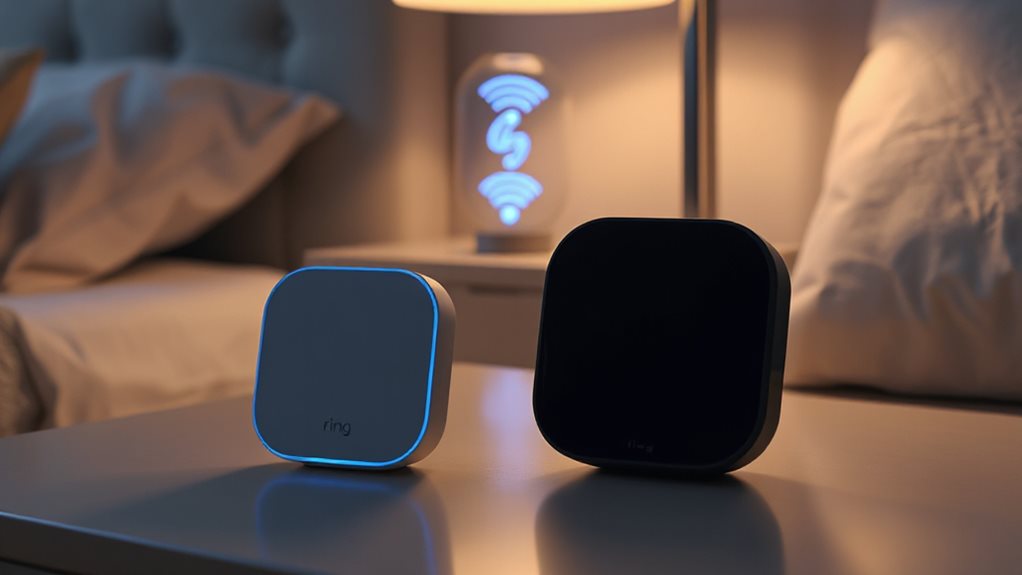
Because the night‑light and Wi‑Fi extender are always on when the Ring Chime Pro is plugged in, they raise both standby and active power draw compared with the basic Chime. In standby the Pro sips 2.6‑3.1 W, while the basic stays lower. When the nightlight glows and Wi‑Fi runs, active consumption climbs beyond the 0.35 A rating, adding a modest but continuous load. You’ll notice louder alerts and dual‑band usage increase draw, limiting overall energy freedom.
Cost‑Benefit Analysis: When the Pro’s Higher Price Pays Off
A $21 price jump can be justified when the Ring Chime Pro’s Wi‑Fi extender eliminates dead zones that would otherwise cause missed alerts or delayed video streams.
You’ll gain dual‑band 5 GHz speed, a dedicated connection that bypasses router congestion, and reliable alerts across thick walls or outdoor devices.
If your home’s layout strains the standard 2.4 GHz signal, the Pro’s extra cost pays off in uninterrupted security freedom.
The Pro also supports Plex‑style media streaming optimization by reducing buffering on remote devices when the network is congested network topology.
Installation & Setup – Step‑by‑Step Guide for Both Models – Final Recommendation – Which Ring Device Fits Your Ecosystem?
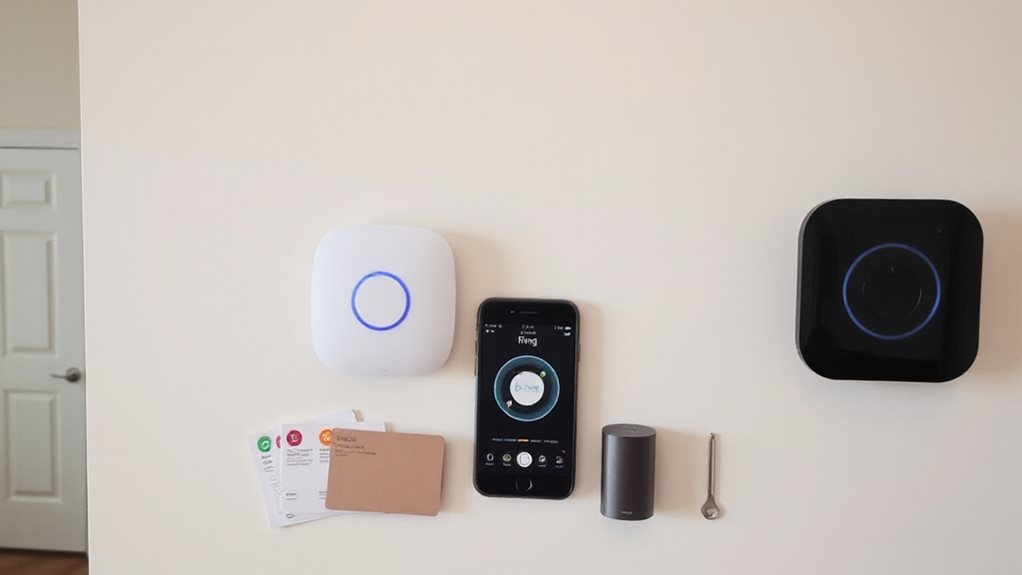
You’ll find the basic Chime a true plug‑and‑play device, while the Pro adds dual‑band Wi‑Fi setup and a night‑light toggle you can enable during installation.
Just follow the in‑app prompts, connect to your home network, and the Pro will guide you through extending the Ring Wi‑Fi mesh to other devices.
Choose the model that matches your ecosystem’s size and whether you need the extra network enhancement and night‑light feature.
A full factory reset option is available if you need to reconfigure and re‑pair devices after setup LED indicators to troubleshoot potential issues during installation.
Simple Plug‑and‑Play
Most users can get either the standard Ring Chime or the Ring Chime Pro up and running in under ten minutes with no special tools. Plug the device into a standard outlet near your router and doorbell.
Open the Ring app, tap “Set Up a Device,” scan the QR code, and follow the on‑screen prompts. Connect to your Wi‑Fi, name the chime, and confirm the green power light.
Setup completes quickly, giving you freedom to place the chime where it fits best.
Dual‑Band Network Configuration
After plugging in the device and completing the quick QR‑code setup, the next step is to configure its Wi‑Fi connection.
Choose your home network, enter the password, and let the Chime Pro decide whether to use 2.4 GHz or 5 GHz.
The original Chime only joins 2.4 GHz.
For extended Ring coverage, place Chime Pro halfway between router and distant devices, then connect each Ring camera or doorbell via the Ring app’s Change Network option.
Choose Chime Pro for large, congested homes; stick with standard Chime for small, strong‑signal spaces.
Night Light Toggle Setup
If you want the Ring Chime Pro’s night‑light to work correctly, start by completing the standard device setup and then toggle the feature in the Ring app.
Plug the Pro in, confirm “I Am Near The Device,” and hold the side button if the light won’t flash.
In the app, enable night‑light; it will auto‑activate in darkness.
The basic Chime lacks this option, so you’ll only set tones and Wi‑Fi.
Test placement if the light stays on despite toggling.
Choose Pro for dark‑area visibility; choose Chime for simple alerts.
And Finally
If you need a basic alert and a low‑cost option for a small apartment, the Ring Chime does the job. For larger homes, stronger Wi‑Fi coverage, and a night‑light that doubles as a visual cue, the Ring Chime Pro justifies its higher price. Choose the standard model for simplicity and budget; pick the Pro when you value extended range, dual‑band support, and added lighting. Your decision should match your home size, network setup, and feature priorities.