You can easily encrypt your smartphone or tablet by setting a strong passcode of at least 8 characters with letters, numbers, and symbols. On iOS, this automatically enables full-device encryption with AES 256-bit protection. Android devices typically use file-based encryption, which activates when you set a passcode. Check your encryption status in Security settings to confirm it’s active. For extra security, lock sensitive files using trusted tools—there’s more to investigate on keeping your data fully protected.
Quick Guide
- Check your device’s encryption status in Settings under Security or Security & Privacy to confirm if full-disk encryption is already enabled.
- Enable a strong 8-character passcode with letters, numbers, and symbols to activate encryption on both Android and iOS devices.
- On Android 7.0+, File-Based Encryption automatically protects individual files and requires a passcode to unlock data.
- iOS devices automatically encrypt data when a passcode is set, using AES 256-bit encryption for all stored information.
- Use the EDS app with VeraCrypt-compatible external storage to encrypt sensitive files on Android, accessible later via PC.
Check If Your Phone Is Already Encrypted
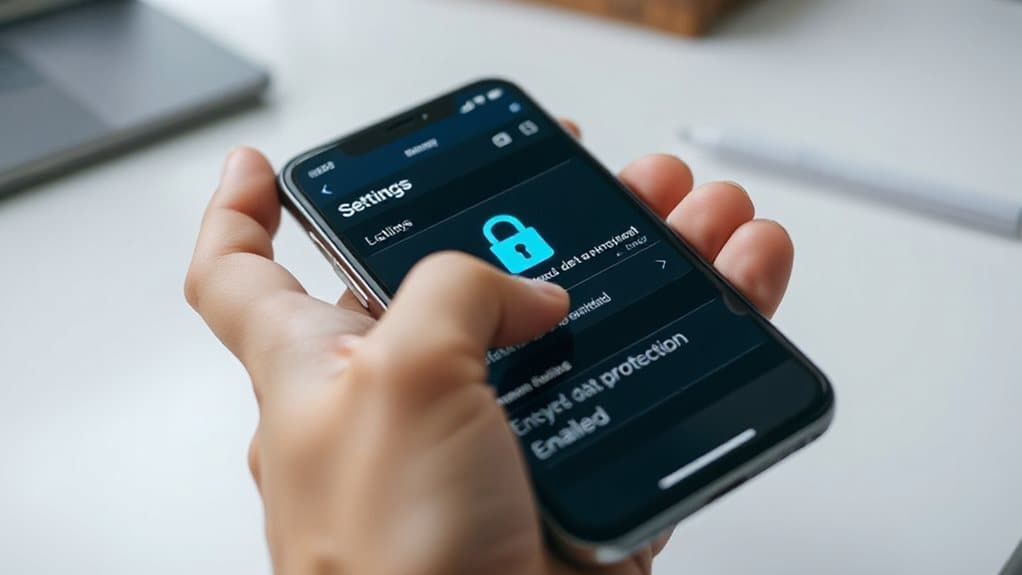
Start by checking your phone’s settings to see if encryption is already turned on. Go to Settings > Security (or Security & Privacy), then look for Encryption & Credentials.
If it says Encrypted or Full-disk encryption ON, you’re covered. Most phones from 2015 onward do this by default. Consider also enabling a strong screen lock and using a password manager to protect your device access.
No option? It might already be encrypted. Use apps like Is Phone Encrypted or GeminiMan to confirm.
To locate the setting, navigate to Security and privacy, then scroll down to Other settings.
Use a Strong Passcode to Enable Encryption
Once you’ve confirmed your device isn’t already encrypted, it’s time to secure it with a strong passcode—this step not only locks your phone but also activates encryption to protect your data.
Use at least 8 characters with a mix of upper and lower case letters, numbers, and symbols. Avoid common phrases. On Android, go to Settings > Security > Encrypt Phone; on iOS, turning on a passcode automatically enables encryption.
Keep your device plugged in during the process, which can take hours. A strong passcode means stronger protection for your personal information. Encrypting your device also helps guard against risks like data exposure if your device is lost or stolen and complements features such as mobile encryption that enhance security.
Turn On Android File-Based Encryption
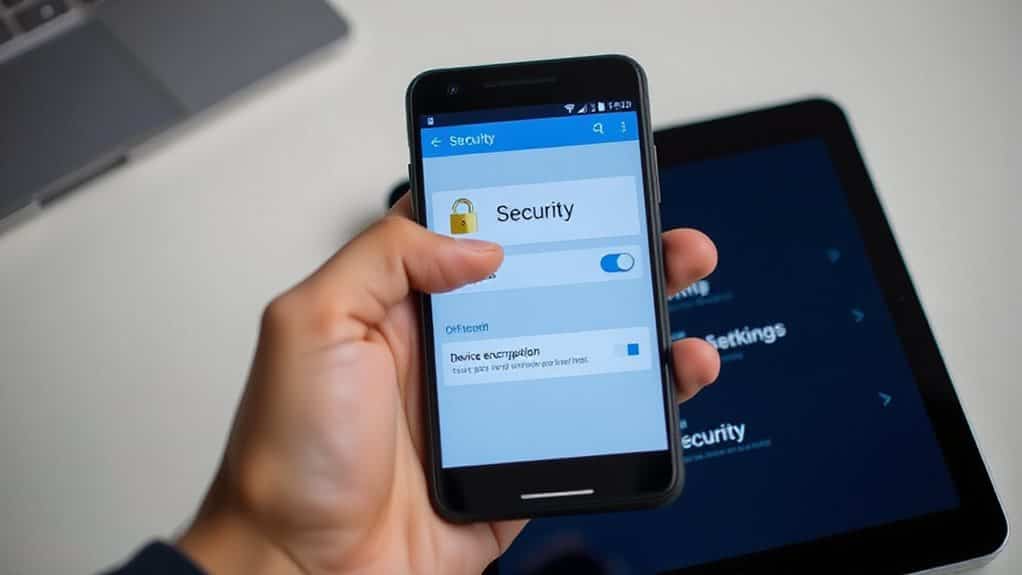
Typically, modern Android devices running version 7.0 or later already support file-based encryption (FBE), so you don’t need to manually turn it on in most cases.
If your device runs Android 10 or higher, FBE is required and automatically enabled. It encrypts files separately, letting you access alarms and calls before disarming.
Just set a strong passcode to secure your data fully.
High idle temperatures around 45 to 60°C can indicate cooling or environmental issues that indirectly affect device performance.
Enable iOS Data Protection and Encryption
When you set a passcode on your iPhone or iPad, iOS automatically activates Data Protection with AES 256-bit encryption to secure your data at rest.
Your passcode ties to the encryption key, so your device stays locked to others.
Enable “Advanced Data Protection” in iCloud settings to extend end-to-end encryption to backups, notes, and more—keeping even Apple from accessing your data.
PIA also offers a no-logs policy that emphasizes user privacy and anonymity.
Encrypt Sensitive Files and Apps
To keep your most sensitive files and apps truly secure, you’ll want to go beyond device-wide encryption and focus on protecting specific data directly.
Use Android’s File-Based Encryption (FBE) to lock individual files with separate keys. Your essential apps work at boot, but personal data stays encrypted until you access it with your passcode or biometrics—giving you control, speed, and real privacy.
Use Mobile Encryption Apps Like VeraCrypt
Secure your mobile data beyond built-in protections by using trusted encryption tools like VeraCrypt in combination with mobile-compatible apps.
You can’t run VeraCrypt directly on Android or iOS, but the EDS app lets you encrypt external cards.
Use it to lock sensitive files, then access them on a PC with VeraCrypt.
Always use strong passwords and enable hardware encryption where possible.
Check Your Encryption Is Working
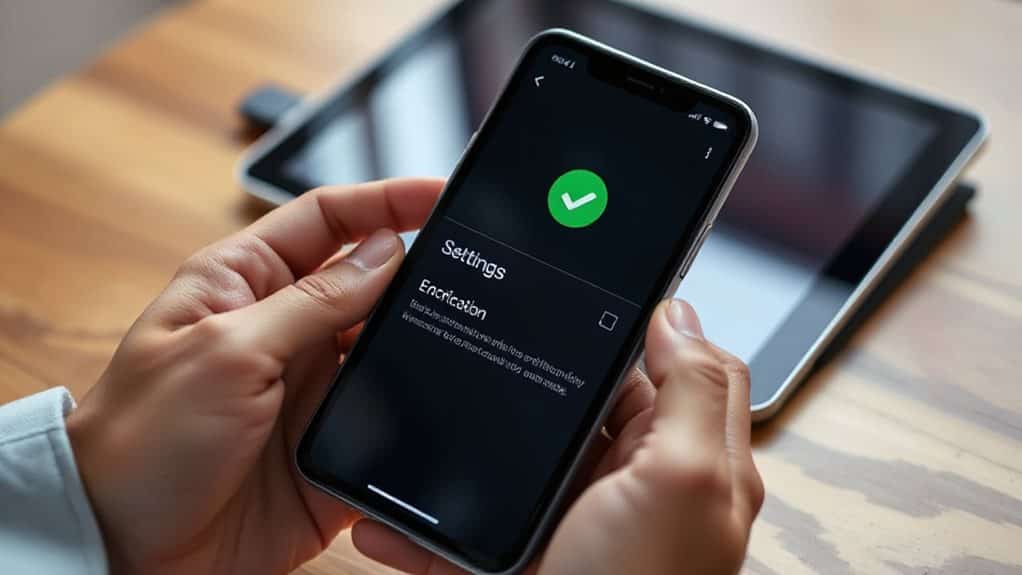
Now that you’ve taken steps to protect your data using tools like VeraCrypt with compatible mobile apps, it’s important to confirm your device is actually encrypting information as expected.
On Android, check Settings > Security for “Encrypted” status. On iOS, enabling a passcode activates automatic encryption. Verify encryption via device settings or use built-in tools—no extra steps needed. Stay in control.
Wrapping Up
You’ve taken the right steps to protect your data. Now, double-check that encryption is active on your device. Use a strong passcode, enable built-in encryption, and lock down sensitive files with trusted apps. With these measures, your information stays secure if your device is lost or stolen. Stay safe—your privacy depends on it. Keep your software updated to maintain protection over time.