
To stream Australian Netflix, Disney+, Stan and other services on any Apple TV, install a native VPN app (like NordVPN, PureVPN, or PrivadoVPN) from the tvOS 17 App Store, sign in, pick an Australian server and tap Connect; for older models, flash a DD‑WRT or Tomato router, configure the same VPN, and route the Apple TV through it. Use Ethernet, choose a low‑latency WireGuard or UDP server, and keep your OS and app updated for best performance. Continue for detailed setup steps and troubleshooting tips.
Quick Guide
- Use a native VPN app (e.g., NordVPN, PureVPN, PrivadoVPN) on tvOS 17+ Apple TV for direct, encrypted streaming.
- For older Apple TV models, install a VPN‑enabled router (DD‑WRT/Tomato) and route all traffic through it.
- Choose a VPN with fast WireGuard/UDP servers near Australia (ExpressVPN, Surfshark, NordVPN) to minimize latency.
- If speed is critical, consider Smart DNS for DNS‑only unirection, but it lacks encryption and a kill switch.
- Troubleshoot by restarting devices, updating firmware, selecting a low‑load server, and ensuring your ISP plan exceeds 100 Mbps.
Install VPN Directly on Apple TV tvOS 17

Want to install a VPN directly on your Apple TV? First, make sure your device runs tvOS 17 or later—check Settings > System > Software Updates.
Open the App Store, search for a native VPN like NordVPN, PureVPN, or PrivadoVPN, and click Get. After the app appears on the home screen, launch it, sign in or create an account, pick a server, and tap Connect.
tvOS will prompt you to allow the VPN configuration; approve it, then enjoy unrestricted streaming.
PureVPN offers native support for Apple TV, eliminating the need for router or DNS workarounds.
Set Up Router‑Based VPN for Older Apple TV Models
If your Apple TV can’t run a native VPN app, you can still protect it by routing all traffic through a VPN‑enabled router. In addition, you can leverage cloud-based privacy features offered by some providers to enhance security across devices VPN security. Choose a DD‑WRT or Tomato‑compatible router, flash the firmware, then upload it via the admin panel at 192.168.1.1. Restart, log in with new credentials, and configure your VPN provider’s settings. This gives older Apple TVs full encryption and geo‑unblocking. Use a 30‑day money‑back guarantee to test the VPN setup and ensure it works with your streaming needs, including access to overseas content. router firmware
Apple TV VPN vs Smart DNS: Which Is Better for Australian Streaming?
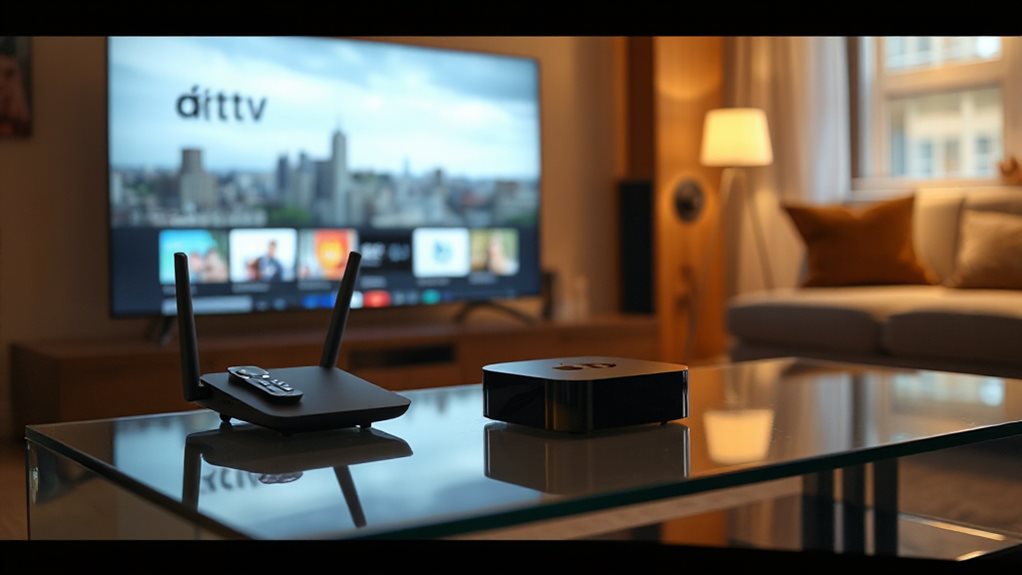
You’ll notice that a VPN gives you full‑traffic encryption and hides your IP, which is great for security but can add latency.
A Smart DNS, on the other hand, swaps only your DNS queries, so it’s faster and easier to set up, though it leaves your real IP exposed.
We’ll compare these two approaches to see whether you should prioritize speed or privacy for Australian streaming.
TV Security vs Speed
How do you prioritize security versus speed when streaming on Apple TV in Australia? If you value privacy, choose a VPN: it encrypts traffic, masks your IP, and includes a kill switch, but adds latency and occasional buffering. If speed matters more, a Smart DNS redirects only DNS queries, keeping raw streaming speed high but leaving your data exposed. Decide based on whether freedom from surveillance or uninterrupted playback matters most.
Smart DNS Simplicity vs Flexibility
Where does simplicity end and flexibility begin when you stream on Apple TV in Australia?
Smart DNS changes only DNS queries, giving you instant, full‑speed access to US Netflix without a VPN app or router flash. It’s easy to set up, but it can’t encrypt traffic or hide your IP.
A VPN encrypts everything, offering privacy and broader geo‑unblocking, yet it adds latency and requires compatible hardware or router configuration. Choose Smart DNS for speed‑focused freedom, or a VPN for comprehensive protection and flexibility.
Top Apple TV VPNs for Fast Australian Streaming: Speed, Locations, Compatibility
You’ll want a VPN that pairs high speeds with a broad server network, especially those offering multiple Australian locations for reliable local streaming. Choose a provider that supports the latest tvOS 17 apps natively, so you can install and connect without extra hardware. With those criteria in mind, the top services deliver both the performance and compatibility you need for seamless Australian content.
VPN Speed & Server Count
Ever wondered which VPN gives your Apple TV the fastest, most reliable streaming in Australia? ExpressVPN tops with 4,500+ servers in 108 countries and Lightway Turbo hitting 1400+ Mbps.
Surfshark’s 800+ servers in 100 countries deliver 1600 Mbps locally via WireGuard.
NordVPN offers 190+ Australian nodes within a 9,000‑server global pool, averaging 37.5 Mbps.
Choose a provider with broad coverage and proven speed for uninterrupted freedom.
Compatibility With tvOS 17 Apps
How does tvOS 17 change the way you secure your Apple TV streaming? You now download VPN apps straight from the Apple TV App Store, bypassing router tweaks. Update to tvOS 17, open Settings → Privacy & Security → VPN, import a profile, and toggle connections on or off. Compatibility covers Apple TV 4K and HD models (2015+). Choose any listed VPN, connect, and stream freely.
Unlock Netflix, Disney+, Stan & Other Aussie Services on Apple TV

Want to watch Netflix, Disney+, Stan, and other Australian services on your Apple TV no matter where you are? Use a router‑based VPN or Smart DNS to mask your IP, then select Australia in Settings > iTunes Store. Choose NordVPN or ExpressVPN for reliable unblocking and 4K performance. Newer tvOS 17+ models can run native VPN apps directly, simplifying the process.
Boost Apple TV Speed: Ethernet, Server Choice, Bandwidth Tips
Why settle for buffering when you can maximize your Apple TV performance with a few simple tweaks? Plug into Ethernet for steady 40‑plus Mbps, bypass Wi‑Fi latency.
Choose the nearest low‑load VPN server; WireGuard/UDP gives the fastest flow.
Keep your ISP plan above 100 Mbps, disable heavy firewalls, and restart equipment when speeds dip.
These steps secure smooth 4K streaming.
Troubleshoot Apple TV VPN Issues: Disconnects, Buffering, Geo‑Blocks
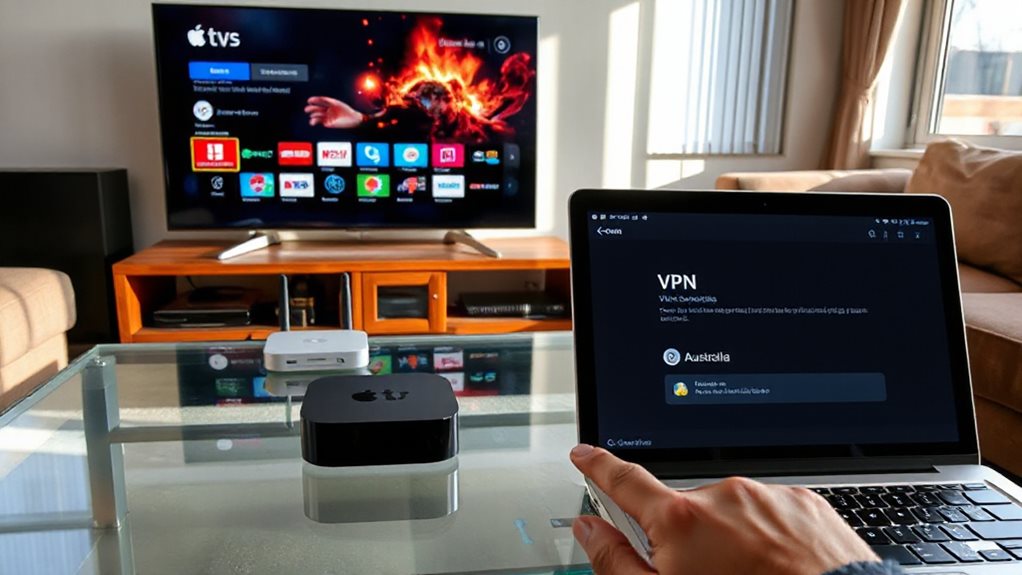
Restart your Apple TV and router, then power-cycle both fully. Update the TV OS and VPN app, then switch protocols—IKEv2, OpenVPN, or WireGuard—to find the most reliable. Test different server locations, reset network settings, and delete unused profiles for stable, uninterrupted streaming. VPNs and Smart DNS can also help bypass geo‑blocks when content is restricted by location, especially if you’re traveling or using non‑native networks IP address can determine access.
Create & Switch Region Profiles on Apple TV for Instant Catalog Changes
If you need the Apple TV catalog to reflect a different country instantly, you can do it by creating and switching region profiles. Open Settings → Profiles on Apple TV, add a new profile, then assign a country‑specific Apple ID created on the web. Use Switch Current Profile to toggle between them. Each profile keeps its own watchlist, recommendations, and restrictions, letting you instantly change catalogs without leaving the device.
Wrapping Up
By installing a VPN directly on tvOS 17 or routing it through your network, you’ll stream Australian content securely and without geo‑blocks. Choose a fast, reliable provider, select optimal server locations, and use Ethernet for best performance. If issues arise, troubleshoot connection drops or buffering promptly. Switch region profiles as needed to access different catalogs. Follow these steps, and your Apple TV will deliver uninterrupted, high‑quality streaming from anywhere.


