Power‑cycle your TV, router, and modem for about a minute each, then reinstall Hulu from the app store after noting your login info. Clear the cache (Settings → Apps → Hulu → Clear Cache) or force‑quit on Apple TV, and make sure sleep and screensaver settings won’t interrupt playback. If the problem persists, switch to a more reliable device like Roku, Fire Stick, or Apple TV 4K for a permanent fix. Continue for deeper troubleshooting steps.
TLDR
- Power‑cycle TV, router, and modem for at least 60 seconds each to reset network connections.
- Clear Hulu’s cache (or data) on the device, then force‑quit and restart the app.
- Uninstall and reinstall the official Hulu app, ensuring storage, firmware, and internet are ready.
- Adjust sleep, screensaver, and background settings to keep the device from auto‑returning to the home screen.
- Use a more stable streaming device (e.g., Roku, Fire Stick, Apple TV 4K) and keep its software up to date.
Give Your TV, Router, and Modem a Quick Power‑Cycle for Hulu
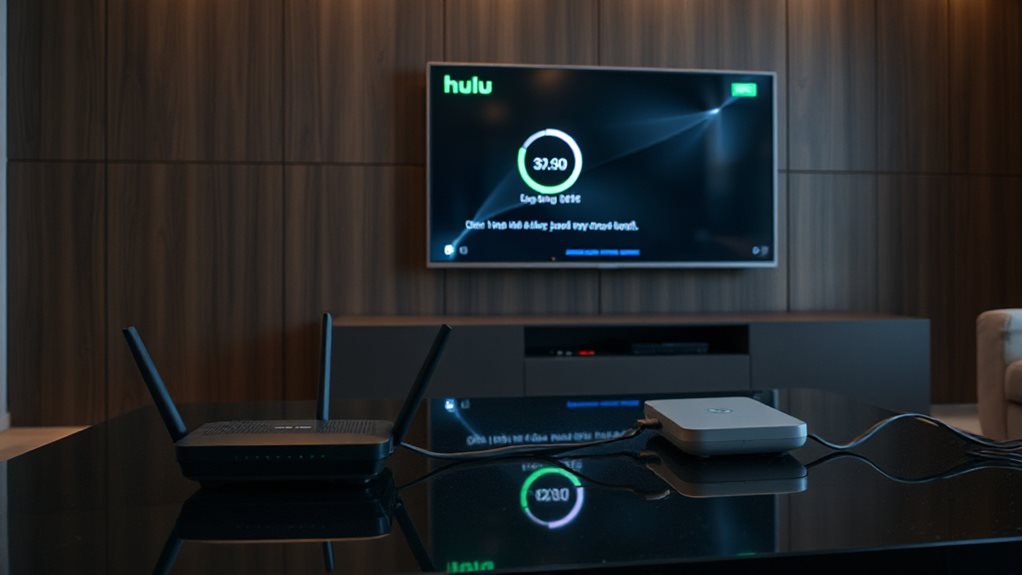
If Hulu keeps bouncing back to the home screen, start by power‑cycling your TV, router, and modem.
Unplug the TV for 60 seconds, then plug it back in to clear its internal memory.
Do the same with the router, waiting a full minute before restoring power.
Finally, unplug the modem for a few minutes, then reconnect it.
Test Hulu after each step; the fresh reset usually resolves loading loops.
Power cycle the streaming device and router by unplugging for 30 seconds to reset connections and refresh processes. Power cycle helps refresh both device and network state to reduce loading issues.
Test Hulu after each step; the fresh reset usually resolves loading loops.
Reinstall the Hulu App From Scratch
After power‑cycling your TV, router, and modem, the next step is to reinstall the Hulu app from scratch.
Verify storage, internet, and firmware are ready, then note your credentials and watchlist.
Uninstall Hulu via your device’s settings—hold the icon on Samsung, use Manage Storage on Apple TV, or Manage Installed Applications on Fire TV.
Open the app store, search “Hulu,” install the official version, launch, and sign in.
Verification Successful shows the app is ready to use.
To minimize future startup issues, ensure your network meets Hulu’s minimum speed requirements and keep the Hulu app updated to the latest version update maintenance.
Clear Hulu Cache on Android TV (and Force‑Quit on Apple TV)
Sometimes the Hulu app on Android TV gets stuck in a loop that keeps sending you back to the home screen, and the quickest way to break the cycle is by clearing its cache.
Press Home, go to Settings → Apps → See all apps, select Hulu, then tap Clear Cache and confirm.
If needed, also choose Clear Data.
On Apple TV, hold Select + Play/Pause, highlight Hulu, then Delete or Restart to force‑quit.
Restart the device afterward.
Adjust Sleep, Screensaver, and Background Settings for Hulu
When you set the sleep, screensaver, and background options correctly, Hulu stays on screen instead of dropping back to the home menu.
Additionally, ensure your device remains connected to the same network as your streaming device for a stable experience and to avoid interruptions during playback. Streaming device alignment helps reduce automatic returns to the home screen.
Use a Roku, Fire Stick, or Apple TV 4K as a Permanent Hulu Fix
Roku and Fire Stick reliably stream Hulu Live TV, while Apple TV 4K offers a premium, stable experience. Resetting or reinstalling the TV app becomes unnecessary, granting you uninterrupted viewing freedom.
To ensure consistent playback, verify your network setup and keep all streaming devices updated to the latest software versions, as compatibility issues can cause recurring home-screen drops. Stable streaming ensures fewer interruptions and smoother playback across devices.
And Finally
By power‑cycling your TV, router, and modem, reinstalling Hulu, clearing its cache, and tweaking sleep and background settings, you’ll stop the app from repeatedly returning to the home screen. If those steps don’t work, switch to a dedicated streaming device like Roku, Fire Stick, or Apple TV 4K for a more stable experience. Follow each instruction carefully, and the issue should be resolved quickly.