
You’ll need a PVR backend like NextPVR or TVHeadend to enable Kodi’s live TV capabilities, or you can use dedicated streaming addons that provide hundreds of channels without traditional broadcast equipment. Hardware tuners such as VBox TV Gateway or HDHomeRun Prime convert broadcast signals to network streams, while IPTV Manager auto-configures the PVR IPTV Simple Client to expose channels in Kodi’s TV section. Popular addons like The Crew, Umbrella, and sports-focused options deliver organized content with EPG integration. This guide covers setup, recording features, and optimization strategies for your complete live TV experience.
Quick Guide
- Kodi requires external PVR backend software like NextPVR or TVHeadend to enable live TV, recording, and timeshift functionality.
- Hardware tuners such as HDHomeRun Prime or VBox TV Gateway convert broadcast signals into network streams for Kodi.
- IPTV Manager auto-configures PVR IPTV Simple Client to expose channels by importing M3U URLs into Kodi’s TV section.
- Popular streaming addons include Umbrella, The Crew, and sports-focused options like Daddy Live and Mad Titan Sports.
- Schedule recordings through the TV guide with series passes for automatic episode capture and configurable padding times.
Understanding Kodi’s Live TV Functionality and Requirements
While Kodi presents itself as an all-encompassing media center, it doesn’t provide live TV capabilities on its own. You’ll need to integrate external PVR backend programs to enable this functionality. These third-party backends process live content and streaming, then display everything through Kodi’s interface. Hardware solutions like VBox TV Gateway or HDHomerun Prime tuners convert broadcast signals into IP streams across your network. Alternatively, dedicated live addons can provide access to hundreds of channels including sports, news, and entertainment without requiring traditional broadcast equipment. Many users also supplement live setups with popular third-party repositories like Kodil Repo to find compatible add-ons and builds.
Setting up IPTV Manager With PVR IPTV Simple
Setting up IPTV Manager alongside PVR IPTV Simple Client releases Kodi’s full Live TV potential by bringing together multiple streaming sources under one unified interface. You’ll install IPTV Manager from Catch-up TV & More settings under “TV Integration,” then enable channel selections. IPTV Manager automatically configures PVR IPTV Simple Client, organizing channels within Kodi’s native TV section. Paste your M3U URL into the configuration address field to add your streaming sources. Refresh channels and guides through IPTV Manager to complete integration. For access to a wider range of live channels, consider adding third-party repositories that include cCloud TV streams to expand your options.
Essential Live TV Addons and Their Features
You’ll find dozens of live TV addons available for Kodi, each offering different strengths in streaming quality, content variety, and channel organization.
The most popular options range from sports-focused addons like ACE IPTV and Rising Tides to all-inclusive platforms such as The Crew and Ghost that bundle live channels with on-demand content.
Your choice depends on whether you’re prioritizing specific sports leagues, international coverage, or multi-genre entertainment across organized categories.
Be aware that some addons may require additional components like InputStream/Adaptive to function correctly.
Top-Rated Streaming Addons
Kodi’s streaming addon ecosystem offers dozens of options for accessing live TV content, ranging from all-in-one solutions to specialized platforms.
Umbrella provides debrid-only access with exhaustive streaming capabilities, while The Crew functions as an all-in-one solution with paid link options.
Scrubs V2 delivers free links and ranks among November 2025’s top performers.
Magic Dragon offers extensive collections of new and classic content with dedicated children’s sections.
Channel Organization and Categories
When finding your way through live TV addons, you’ll uncover that effective channel organization separates premium experiences from frustrating ones.
Modern addons employ category-based sorting systems that group channels by genre—Sports, News, Entertainment, Movies, and Religion.
You’ll also find per-country filtering for international content, with dedicated sections for UK, US, French, German, and Latino programming.
EPG integration displays scheduled programming, making content discovery markedly easier.
Sports and Events Coverage
Sports enthusiasts consistently find Kodi’s live TV addons revolutionizing how they access athletic competitions and major events.
You’ll uncover addons like Daddy Live and Mad Titan Sports providing hundreds of channels covering NFL, NBA, Premier League soccer, UFC, and boxing.
Most platforms offer both live streams and video-on-demand replays in HD quality, featuring integrated guides, live calendars, and PPV event access without requiring account registration.
Hardware Configuration for Optimal Streaming Performance
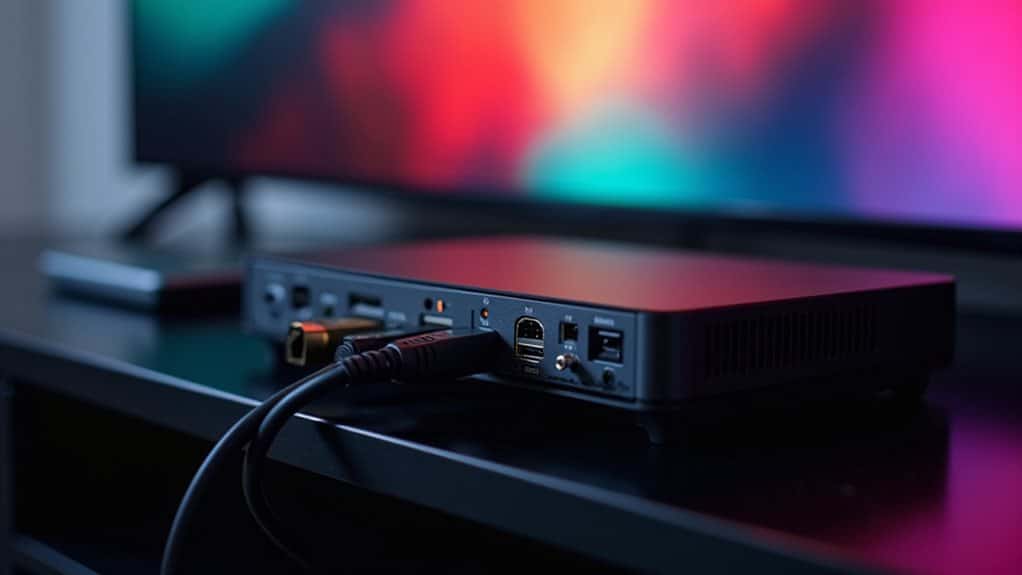
To achieve the best live TV streaming performance on Kodi, you’ll need to configure both your operating system and PVR backend properly.
LibreELEC offers a streamlined, Linux-based environment that’s specifically optimized for Kodi, making it an excellent choice for dedicated streaming devices.
Once you’ve installed LibreELEC, you can integrate a VBox Gateway PVR to connect your cable or satellite TV sources directly into Kodi’s interface for seamless channel browsing and recording capabilities.
Using a reliable VPN can help protect your privacy while streaming from third-party sources.
LibreELEC Installation and Setup
LibreELEC serves as a lightweight Linux distribution purpose-built to run Kodi efficiently on minimal hardware, making it an ideal choice for dedicated streaming devices.
Download the official image and flash it to a USB stick or SD card using tools like Raspberry Pi Imager.
Configure your BIOS for USB boot, then complete the initial setup by selecting language preferences and enabling network services for remote access.
VBox Gateway PVR Configuration
With your LibreELEC installation running smoothly, you’re ready to configure the VBox Gateway hardware that’ll bring live television streaming into your Kodi setup.
The XTi TV Gateway device serves as your primary interface, connecting through your local network for direct communication with Kodi.
You’ll need to configure HTTP port settings, typically defaulting to port 80, while ensuring UPnP protocol support remains enabled for seamless connectivity.
VBox TV Gateway Integration for Broadcast Television
For users seeking to integrate broadcast television into their Kodi setup, the VBox TV Gateway offers a dedicated hardware solution that bridges traditional TV signals with the media center interface.
The VBox Communications XTi device streams antenna, satellite, or cable broadcasts directly to Kodi through the pvr.vbox addon.
You’ll access live channels, EPG data, and radio broadcasts seamlessly.
The system supports both local and remote connections, enabling viewing from anywhere.
The VBox device is compatible with Kodi and can be set up on most supported devices, including Windows and Android, making it a versatile option for device compatibility.
Installing Kodi on Fire Stick and Streaming Devices
Installing Kodi on an Amazon Fire Stick converts the compact streaming device into a complete media center, granting access to live TV, on-demand content, and countless add-ons through a single interface.
You’ll need to enable “Apps from Unknown Sources” in Settings, then install the Downloader app. Enter Kodi’s official download URL, select your device’s appropriate version, and click “Install” when prompted to complete setup.
Customizing Channel Groups and TV Guide Management
Once you’ve set up Kodi on your streaming device, you’ll want to organize your live TV channels into manageable groups that match your viewing habits.
Kodi allows you to create custom channel groups manually through its group management tools or by editing configuration files. You can filter channels by content type, source, or preference, and merge streams from multiple IPTV addons into one unified guide for easier browsing.
Recording, Timeshift, and Advanced Live TV Features
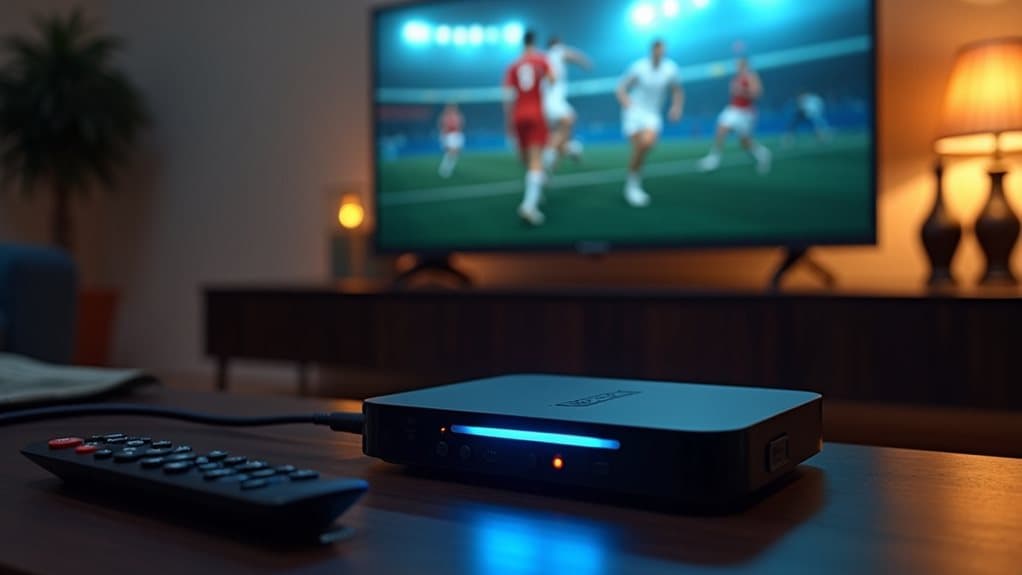
Beyond simply watching live channels, Kodi enables powerful DVR capabilities that convert your streaming setup into a full-featured recording system.
You’ll need a compatible PVR backend like TVHeadend or VBox TV Gateway to enable recording and timeshift features.
Schedule recordings through the TV guide, create series passes for automatic episode capture, and pause live TV with timeshift buffers.
Configure padding times to compensate for broadcast variations and manage everything through Kodi’s recordings section.
Wrapping Up
You’ve now got the knowledge to convert Kodi into a powerful live TV platform. Whether you’re using IPTV services, integrating broadcast television through VBox, or installing on a Fire Stick, you can customize your viewing experience to match your preferences. Start with basic PVR setup, investigate different addons, and gradually implement advanced features like recording and timeshift. With proper hardware configuration, you’ll enjoy seamless streaming and a personalized entertainment hub.


