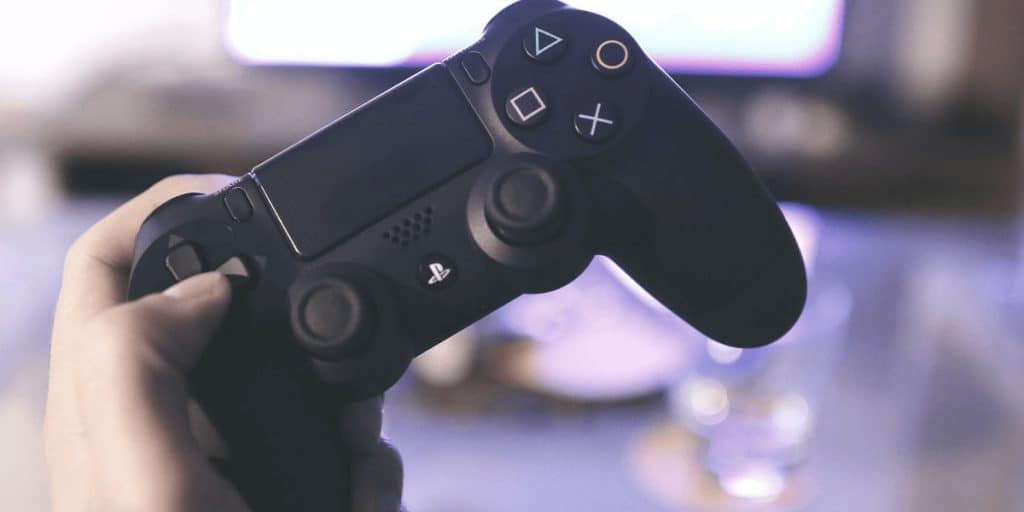
Reset the DualSense by pressing the pinhole near L2 for five seconds, then reconnect it via USB and re‑pair. Open the Control Center, go to Accessories → Controller Settings, and set Vibration Intensity (and Trigger Effect) to Off for instant relief. Check the firmware under Accessories → Controller General and update if needed, using the PlayStation Accessories app on PC if you prefer. Verify the settings in Settings → Accessories → Controllers, and inspect the sticks, buttons, and cable for debris or damage. If the buzz persists, more steps will show you how to fix game‑specific glitches.
TLDR
- Reset the DualSense by holding the pinhole near L2 for five seconds, then reconnect via USB to stop the endless buzz.
- Turn off vibration in the PS5 Control Center: Accessories → Controller Settings → Vibration Intensity → Off.
- Update the controller’s firmware through Settings → Accessories → Controller General or the PlayStation Accessories PC on PC.
- Verify the setting by testing the D‑pad after setting Vibration Intensity to Off; restart the console if it persists.
- Clean button gaps, sticks, and cables of debris or damage, and check game‑specific haptic settings if vibration continues.
Reset DualSense to Stop Vibration
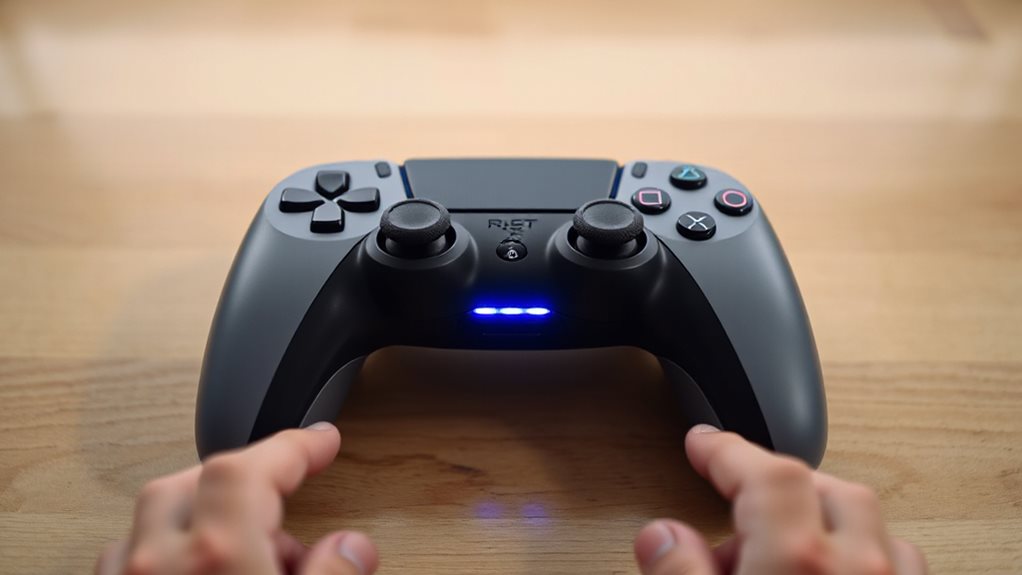
If your DualSense keeps vibrating nonstop, a quick physical reset often solves the problem.
Locate the pinhole near the L2 button on the back, press a paperclip or similar tool inside, and hold for five seconds.
The controller will power off, reset, and stop the endless buzz.
Afterward, reconnect via USB, re‑pair wirelessly, and check battery levels before playing.
Remember to perform any console or controller power-cycle if the issue persists after a reset. Power-cycle reset
Adjust PS5 Vibration Settings for Immediate Relief
Often the quickest way to stop unwanted rumble is to adjust the vibration settings directly from the console.
Press the PS button, open Control Center, select the Accessories icon, then choose Controller Settings.
Set Vibration Intensity to Off, and optionally set Trigger Effect Intensity to Off.
Changes apply instantly, freeing you from persistent buzz.
If you’re concerned about privacy and data handling while using online features, consider reviewing how your console communicates with services and accounts. privacy practices
Update DualSense & PS5 Firmware
First, check your controller’s firmware version in the PS5 Settings under Accessories → Controller General. If it’s outdated, enable automatic updates so the system can download and install the latest 0x0630 (or 0x0217 for Edge) firmware without you having to intervene. Keeping the firmware current not only fixes vibration bugs but also guarantees security patches and performance improvements are applied. VPN-privacy updates can help protect your connection when downloading firmware from the internet securely.
Check Firmware Version
Wondering whether your DualSense or DualSense Edge needs a firmware update?
Open Settings > Accessories > Controllers, select Device Software to see the version; an Update button appears if it’s outdated.
For Edge, go to Settings > Accessories > DualSense Edge Wireless Controller.
On PC, launch the PlayStation Accessories app, connect via USB‑C, and check the Firmware screen.
Update promptly to stop unwanted vibration.
Enable Automatic Updates
You’ll want to make sure both your DualSense controller and the PS5 system stay up‑to‑date, because automatic updates prevent the unwanted vibration that can arise from outdated firmware.
Open Settings ▸ Accessories ▸ Controller ▸ DualSense Wireless Controller Device Software. Plug the controller via USB‑C, then follow the on‑screen prompt to install any update.
The console will also auto‑install firmware on startup, keeping you free from vibration issues.
Verify Vibration Settings Took Effect
Open the Settings menu, then go to Accessories → Controllers to locate the Vibration Intensity option. Choose Strong, Medium, Weak, or Off, then confirm the Trigger Effect Intensity matches.
Test instantly by moving the D‑pad; feel the rumble adjust.
If it’s still wrong, mute the mic, restart the console, or reconnect the controller.
Verify the setting stays the same across games and menus.
Inspect DualSense Buttons, Sticks & Cables
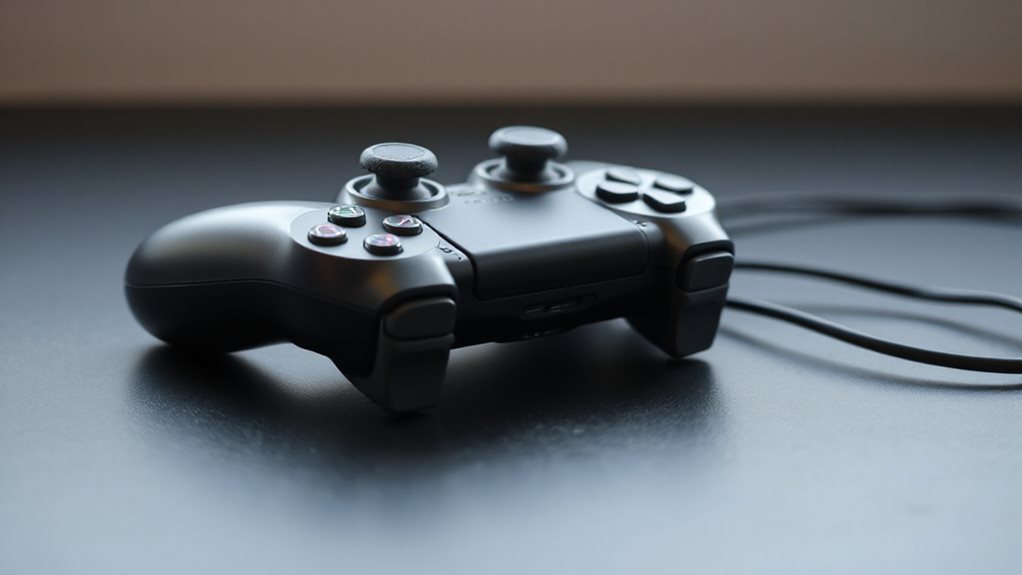
If the vibration settings are correct but the controller still rattles, the next step is to check the physical components that trigger the rumble.
Examine button gaps for debris; slide thin cardboard to dislodge particles.
Blow or vacuum out residue, then press buttons with a dab of isopropyl alcohol.
Use compressed air on sticks and inspect charging cables for frays, bends, or corrosion.
Replace damaged parts as needed.
Be aware that the DualSense vibration can also be influenced by software settings or firmware updates, so consider checking for updates software updates and recalibrating the controller if necessary.
Fix Game‑Specific Vibration Glitches (and When to Reinstall)
When a particular game causes the DualSense to vibrate erratically, start by checking that game’s own haptic settings; many titles let you toggle vibration or adjust its intensity directly in the options menu. Verify the game supports haptics, update it, and test again.
If glitches persist, restart the game, forget and reconnect the controller, clear the cache, or reinstall the title. Exodus Redux and the related troubleshooting steps can also help ensure your streaming setup remains stable if you’re testing across apps, as proper device performance reduces the chance of peripheral hiccups.
And Finally
If your DualSense keeps vibrating, start by resetting the controller and checking the PS5’s vibration settings. Update both the controller and console firmware, then confirm the changes took effect. Inspect the sticks, buttons, and cables for damage that could cause unintended feedback. For game‑specific issues, verify in‑game settings and consider reinstalling the title. Following these steps should stop the unwanted vibration and restore normal controller behavior.