
You’ll need to configure your Firestick remote through Equipment Control settings to manage TV volume. Find your way to Settings, select Equipment Control, then Manage Equipment to pair your TV brand. Your television must support HDMI-CEC technology—enable it in your TV’s system settings, though it may have different names like Samsung’s Anynet+ or Sony’s Bravia Sync. Test the power button first to confirm pairing works correctly. If you’re experiencing issues, removing batteries or unplugging your Fire TV for 20 seconds often resolves connectivity problems, and there are additional troubleshooting methods you can investigate.
Quick Guide
- Ensure TV supports HDMI-CEC, which enables Firestick remote volume control through HDMI cable communication between devices.
- Navigate to Settings > Equipment Control > Manage Equipment > TV to configure Firestick remote pairing with your television.
- Enable HDMI-CEC in TV settings menu; feature names vary by brand like Samsung Anynet+ or Sony Bravia Sync.
- Reset connection issues by removing remote batteries, unplugging Fire TV for 20 seconds, then reconfiguring Equipment Control settings.
- Use Amazon Fire TV Remote App or CetusPlay on smartphone as alternative volume control via Wi‑Fi connection.
Essential Requirements for Firestick Volume Control
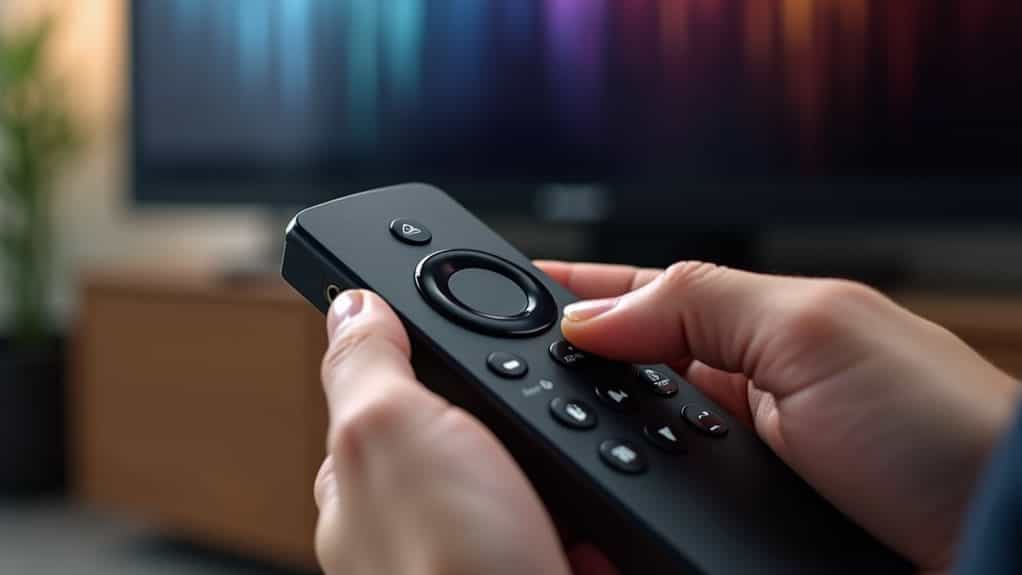
Getting your Firestick remote to control your TV’s volume isn’t automatic—your television must support HDMI-CEC (Consumer Electronics Control) for this feature to work. This protocol enables communication between your Firestick and TV through the HDMI connection.
You’ll need to enable HDMI-CEC in your TV’s settings, which varies by brand and model. Without it enabled, volume and power control through your Firestick remote won’t function. The volume buttons are typically located on the side or top of the remote for easy access during streaming. Many Vizio TVs have HDMI-CEC enabled by default, which can also cause devices to power on unexpectedly if not configured properly.
Step-by-Step Equipment Control Configuration
Once you’ve confirmed your TV supports HDMI-CEC, you’ll need to configure your Firestick’s equipment control settings to enable volume functionality.
Access Settings from your home screen, then select Equipment Control. Choose Manage Equipment, select TV, and pick Change TV. Scroll through the manufacturer list to find your TV brand. The Firestick will initiate a guided setup process with on-screen instructions to sync your remote. For best results, ensure your Firestick is connected via Ethernet or strong Wi‑Fi to reduce communication issues during setup.
During the test phase, press the Power button on your remote and wait to see if your TV turns off. If it does, wait 10 seconds before turning it back on to confirm successful pairing.
Enabling HDMI-CEC on Your Television
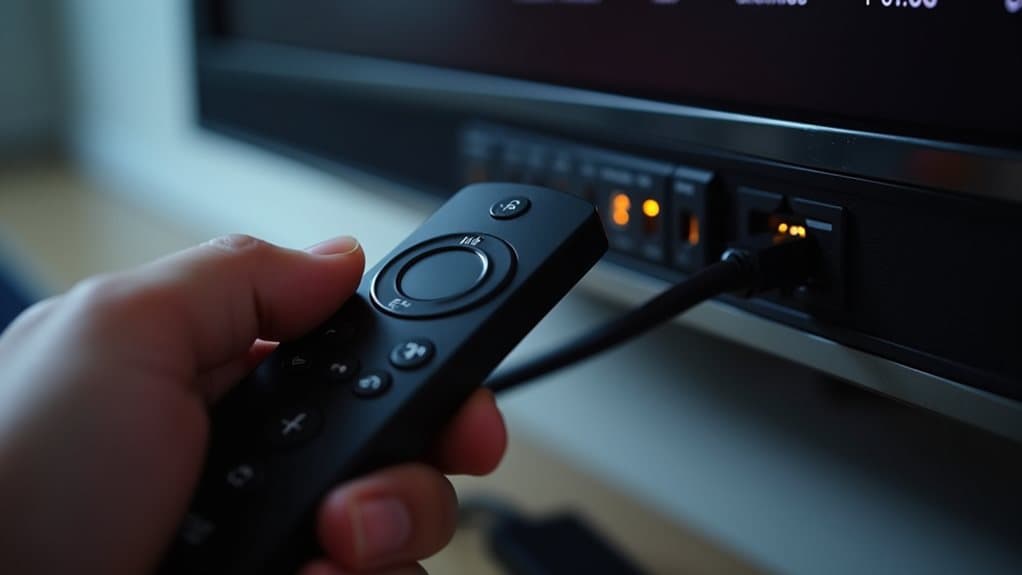
After completing the Firestick configuration, you’ll need to activate HDMI-CEC on your television to establish the connection between devices.
Access your TV’s system or HDMI settings menu to locate the CEC option. Note that manufacturers use different names—Samsung calls it Anynet+, while Sony uses Bravia Sync. Enable the setting, and your TV will automatically assign addresses to connected devices for seamless communication. Enabling HDMI-CEC can also allow connected devices to automatically switch the TV’s input source when they power on.
Fixing Common Volume Control Problems
When your Firestick remote’s volume buttons stop working, you’ll typically encounter one of several fixable issues that don’t require technical know-how.
Start by removing and reinserting the batteries to reset the pairing connection.
If that doesn’t work, unplug your Fire TV for 20 seconds to perform a complete system reset.
You can also access Equipment Control settings to reconfigure your TV device pairing through automatic detection mode.
Enabling HDMI-CEC on both the TV and Fire TV (if available) can allow the remote to control TV volume automatically and improve device communication.
Alternative Ways to Manage TV Volume
Running into volume control issues with your Firestick remote doesn’t mean you’re stuck with manual TV adjustments. You can download the Amazon Fire TV Remote App or third-party alternatives like CetusPlay on your smartphone. These apps connect via Wi-Fi and provide full volume management capabilities.
HDMI-CEC technology offers another solution, enabling your TV to communicate directly with your Fire TV Stick for seamless volume control. BINGE also offers a two-week free trial for new users, making it easy to test streaming quality on your setup before subscribing (two-week free trial).
Wrapping Up
You’ve now mastered controlling your TV’s volume through your Firestick remote. Whether you’ve configured HDMI-CEC, troubleshot common issues, or explored alternative control methods, you’re equipped to streamline your viewing experience. Remember to verify your TV’s compatibility first and make certain all settings are properly enabled. If problems persist, don’t hesitate to revisit the troubleshooting steps or consider using your original TV remote alongside your Firestick. You’ll enjoy seamless entertainment control with these techniques at your disposal.