
When your AirPods show as connected but sound plays through your device speakers, it’s because your system hasn’t automatically selected them as the audio output. You’ll need to manually choose AirPods in Control Center (iOS), System Preferences (Mac), or Sound settings (Windows/Android). If that doesn’t work, restart your device or place your AirPods in the charging case for 30 seconds before reconnecting. For persistent issues, resetting your AirPods by holding the setup button for 15 seconds resolves most connectivity problems that affect audio routing.
Quick Guide
- Manually select AirPods as the audio output device through Control Center or system sound settings.
- Restart your device to clear temporary audio routing glitches causing incorrect output selection.
- Place AirPods in the charging case for 30 seconds, then reconnect them via Bluetooth settings.
- Restart the app playing audio to ensure it recognizes AirPods as the correct output device.
- Reset AirPods by holding the setup button for 15 seconds until amber then white light flashes.
Why Your AirPods Show Connected But Audio Plays Through Device Speakers
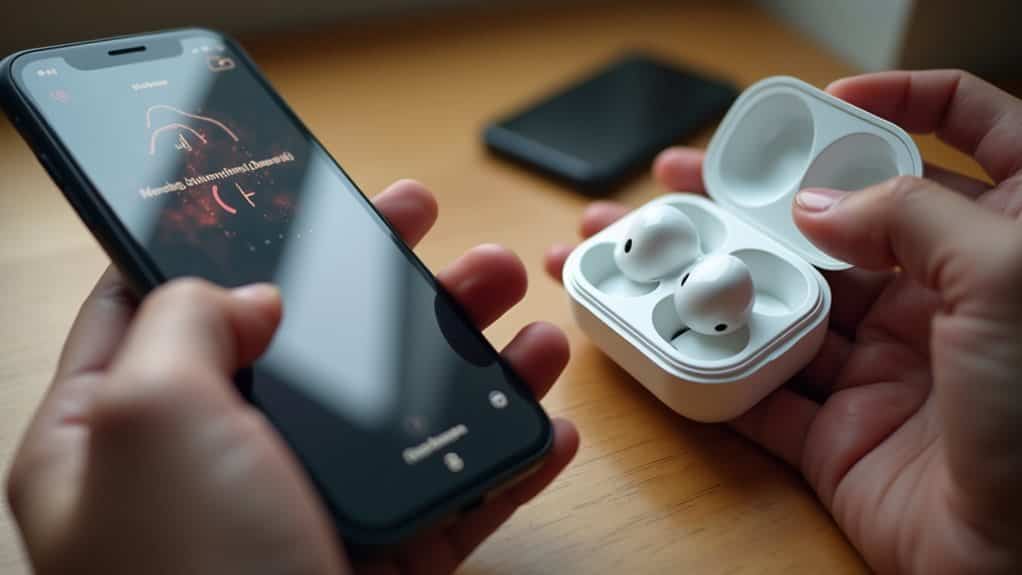
When you pop in your AirPods and see them connected on your device, it’s frustrating to hear audio still playing through your phone or computer speakers. This happens because your device’s sound output settings often default to internal speakers despite the Bluetooth connection.
Your system may require manual selection of AirPods as the audio output device, or applications might need restarting to redirect sound properly. Some users experience disconnection after a few seconds of use, which can be resolved by changing the Communications settings to “Do nothing” in your system’s Sound control panel. Immediate action is important because water exposure can cause short circuits and corrosion that affect audio hardware.
Quick Fixes to Redirect Sound Back to Your AirPods
Before diving into complex troubleshooting, you’ll want to try a few straightforward solutions that typically resolve the AirPods audio redirection issue within minutes.
Start by restarting your connected device to clear temporary audio glitches.
Next, place your AirPods in the charging case, close the lid for 30 seconds, then reconnect them.
Check your device’s audio output selection in Control Center or quick settings to ensure AirPods are chosen as the active speaker.
These simple steps often fix persistent sound problems immediately. Consider also verifying that your device’s VPN or network settings aren’t interfering with audio routing by checking the network configuration.
Adjusting Bluetooth and Audio Output Settings
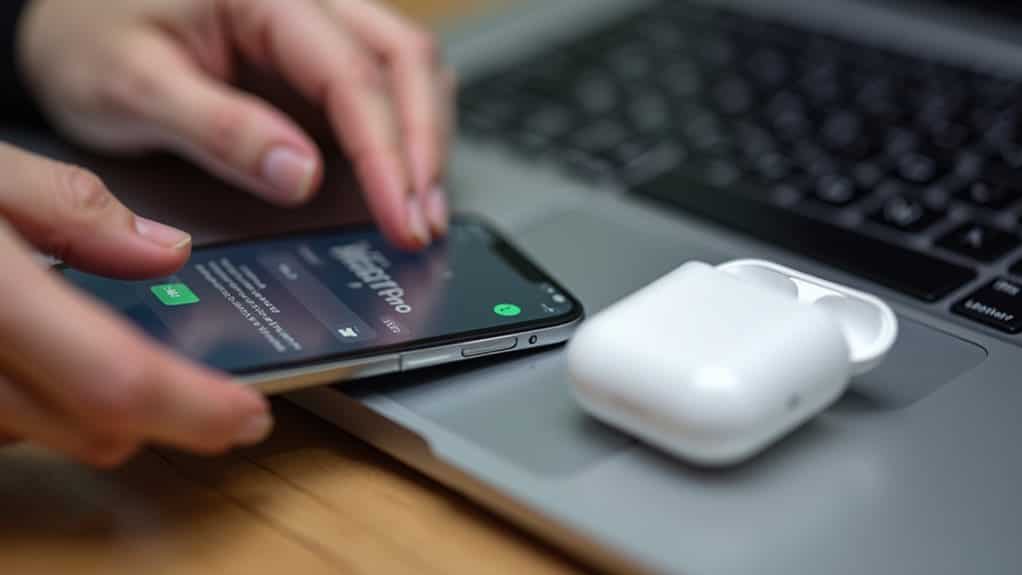
In most cases where AirPods remain connected but audio continues playing through your device’s speakers, the issue stems from incorrect audio output settings rather than a hardware malfunction.
You’ll need to manually select your AirPods as the output device through Control Center’s audio menu. Open Control Center, tap the audio button, and choose your AirPods from the available device list to redirect sound properly.
Note that AirPods Max are not water resistant, so avoid using them in heavy sweat or rain to prevent damage to the headphones no water resistance.
Resetting Your AirPods and Device Connections
Sometimes a complete reset of your AirPods and their device connections provides the most effective solution when audio refuses to play through your earbuds despite showing a connected status.
Place your AirPods in the charging case, then press and hold the setup button for 15 seconds until the status light flashes amber, then white. After resetting, you’ll need to reconnect them to your devices through Bluetooth settings. This process can resolve issues caused by insufficient power or connectivity problems common to wireless devices.
Platform-Specific Solutions for Iphone, Mac, Windows, and Android
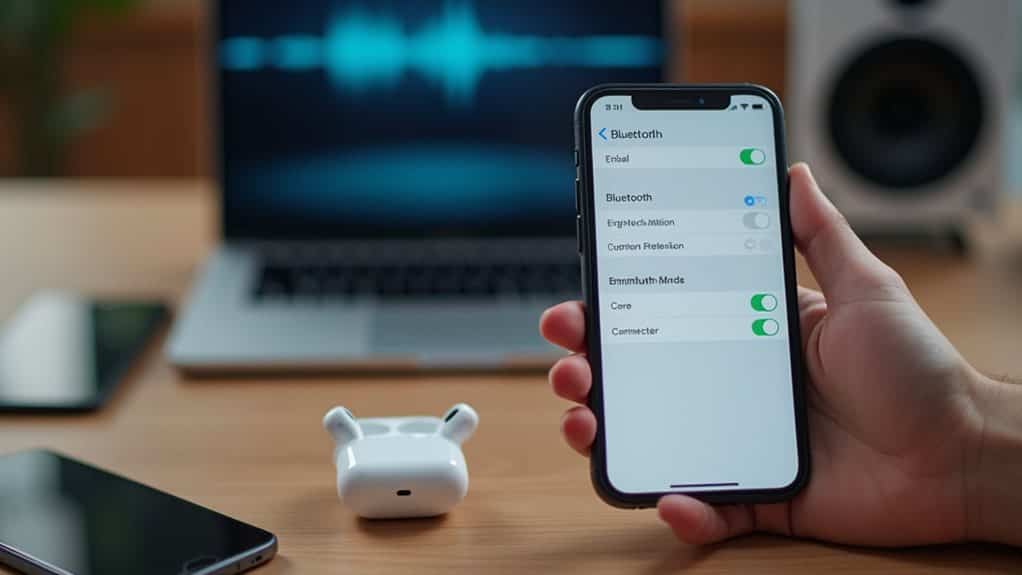
Each operating system handles audio routing differently, which means your AirPods connection issue requires platform-specific troubleshooting steps customized to whether you’re using an iPhone, Mac, Windows PC, or Android device.
For iPhone users, verify AirPods appear in Control Center’s audio output menu and check the headphone icon displays at the top of your screen.
Mac users should access System Preferences to confirm AirPods are selected as the default output device.
Ensure both your device and AirPods have the latest firmware and software updates to avoid connectivity problems with device compatibility.
Wrapping Up
Sound routing issues between AirPods and device speakers typically stem from incorrect audio output settings or connection glitches. You’ve now learned how to verify Bluetooth pairing, manually select audio output, and reset connections when needed. If problems persist after trying these platform-specific solutions, consider updating your device’s operating system or contacting Apple Support. Regular firmware updates help prevent these connectivity issues from recurring in the future.