Check the power cord and make sure it’s firmly plugged into both the gateway and a working outlet; test the outlet with another device or try a different one. Tighten the coaxial cable at the wall and the modem, replace any damaged or kinked cable, and avoid splitters. Power‑cycle the modem by unplugging it for at least 30 seconds, then plug it back in and wait for the lights to reset. If the online light stays off, use Xfinity’s status tools or contact support for further help.
TLDR
- Verify the power cord is firmly plugged into both the gateway and a working wall outlet; test the outlet with another device.
- Ensure the coaxial cable is securely connected at both the wall and the modem, and that it’s undamaged and using RG6.
- Power‑cycle the modem: unplug for at least 30 seconds, then plug back in and allow it to fully reboot.
- Check the Xfinity Status Center or My Account app for local outages before further troubleshooting.
- If the online light remains off after power, coax, and outage checks, contact Xfinity support or schedule a technician visit.
Why Is My Xfinity Modem’s Online Light Off?
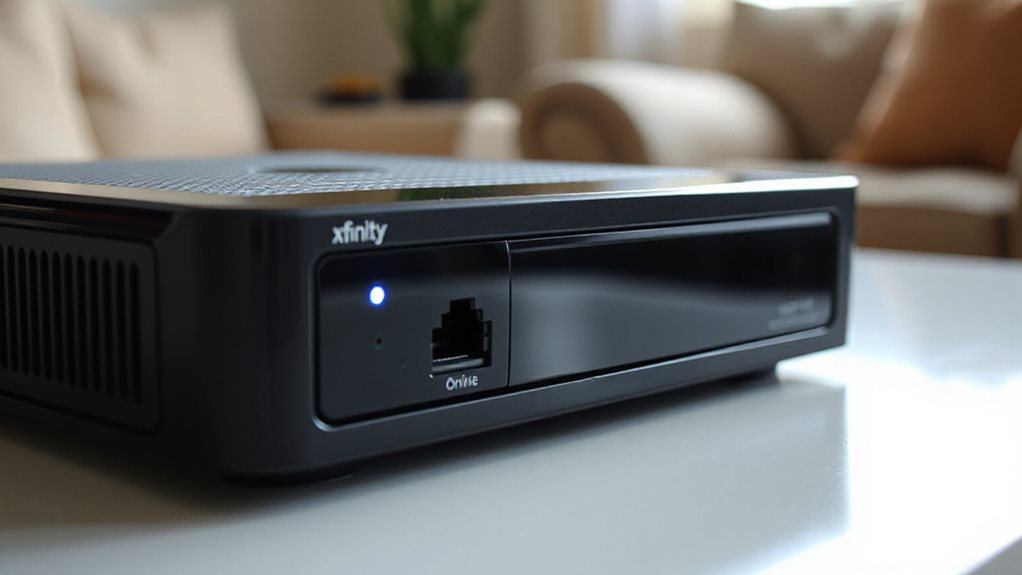
Why is your Xfinity modem’s online light off? A loose or damaged coax connection can stop the signal, keeping the light dark.
If you moved the gateway, the new outlet may not be active. Check that the coax is firmly seated at both the wall and the modem.
Inspect the cable for kinks or breaks, and replace it if needed.
This quick check restores your freedom to stream. Power cycle source and connection to ensure the modem receives electricity.
Verify Xfinity Modem Power Supply and Outlet
First, make sure the white power cord is firmly plugged into both the Xfinity gateway and the wall outlet, and inspect it for any visible damage.
Next, test the outlet by plugging in another device or trying a different outlet to confirm it’s transmitting power.
If the modem still shows no lights, replace the cord or move the gateway to a known‑good outlet before proceeding.
Secure Power Cord Connection
If the power cord isn’t secured tightly, the modem will lose power and the online light will turn off.
Plug the cord directly into the wall and into the modem’s socket, making sure it doesn’t wobble.
Inspect both ends for fraying or exposed wires.
Gently wiggle the cord while the modem runs; the LED should stay steady.
Replace any worn cord at an Xfinity store or via their return service.
Check Wall Outlet Functionality
After securing the power cord, the next step is to verify that the wall outlet supplying the modem is actually providing power and signal.
Plug the modem into the outlet, power it on, and watch the lights for five minutes.
If they stay off, test the outlet with a TV or another device.
Tighten any loose coax connectors, and if the outlet remains dead, contact Xfinity support or building management for activation.
Check Xfinity Modem Cable and Coaxial Connections
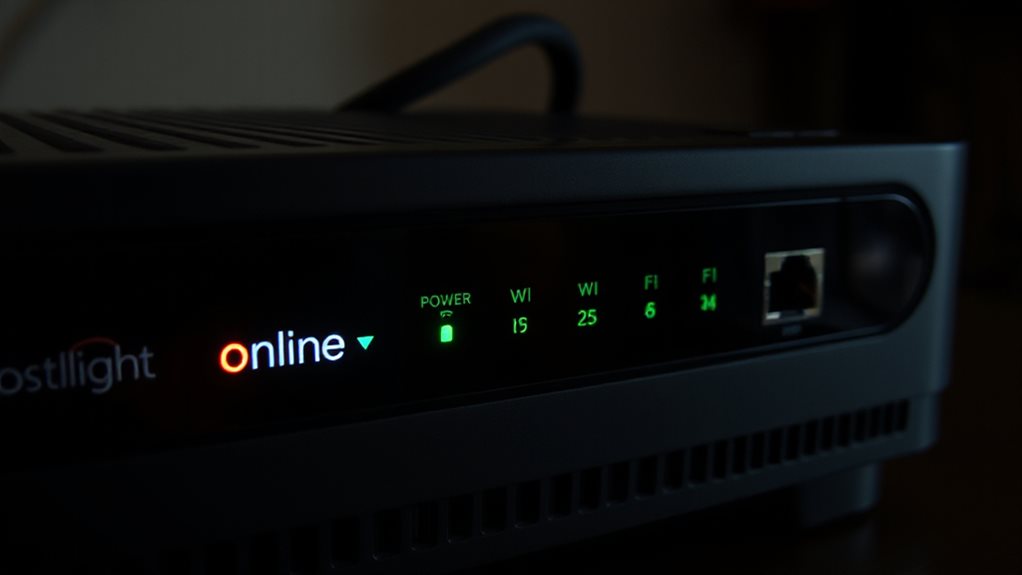
To verify your Xfinity modem’s cable and coaxial connections, start by plugging the modem directly into a wall coax outlet and watching the indicator lights.
If lights stay off, use a DSS‑01 tester—green means signal, red means none.
Replace any RG59 with RG6, tighten loose fittings, and avoid splitters.
Check the modem’s web UI at 10.0.0.1 for signal levels; single‑digit errors confirm a solid connection.
Ensure the power supply is stable and the modem is not overheating, as power-related issues can manifest as red or off indicators power stability.
Power‑Cycle Your Xfinity Modem Properly
First, make sure the modem’s power plug is firmly seated in the outlet before you start.
After you unplug it, wait at least 30 seconds, then plug it back in and let the device reboot fully.
Finally, double‑check that all coaxial and Ethernet cables are securely re‑engaged so the lights can come back online.
Add a quick power cycle if the device doesn’t respond: unplug the modem for 10 seconds, then plug it back in and allow it to finish the reboot. Power cycling
Secure Power Connection
Ensuring a secure power connection is the cornerstone of a proper power‑cycle for your Xfinity modem. Plug the cord into a reliable outlet, avoid extensions, and confirm the plug clicks firmly.
If you have a battery‑backed model, remove the battery before unplugging, wait 30‑60 seconds, then reconnect.
After plugging back in, give the modem 2‑5 minutes to boot and restore the online light.
Proper Cable Re‑Engagement
If the online light stays off after a power‑cycle, the most common cause is a loose or improperly seated coaxial connection.
First, strip the jacket ½ inch, fold back the braid, and trim the dielectric to expose the center pin.
Align the F‑connector with the “Cable In” port, twist clockwise, and torque 25‑30 in‑lb.
Verify 360° shield contact, then power‑cycle for 60 seconds and check the green light.
Use Xfinity Status Tools for Online Light Issues
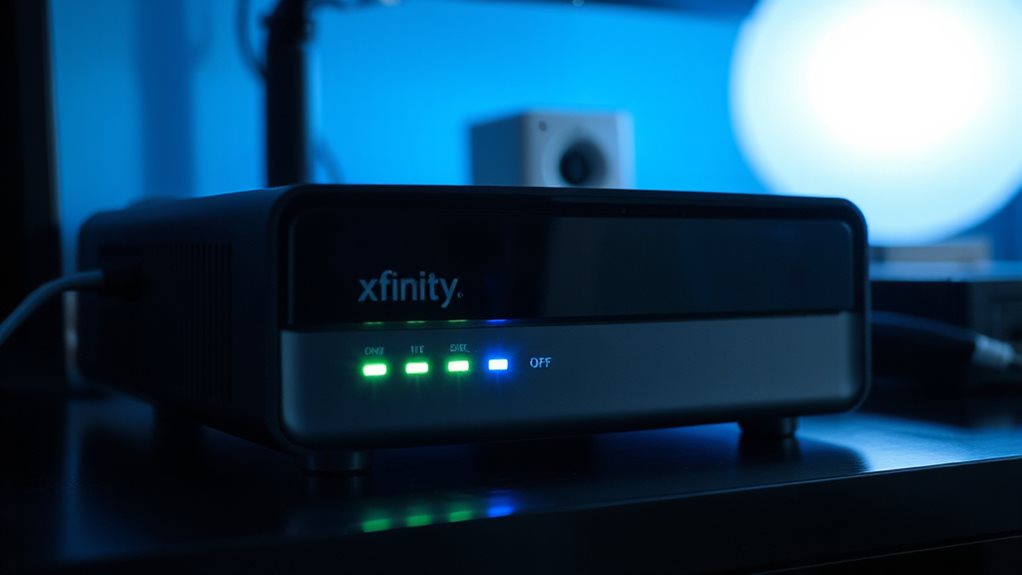
Why is your Xfinity modem’s online light staying off?
Check the Xfinity Status Center in your browser and sign in to see local outages.
Open the My Account app, tap the outage section, and confirm if your area is affected.
View the outage map at xfinity.com/support/articles/cable-not-working or text “OUT” to 266278 for alerts.
Use the Xfinity Assistant for quick diagnostics and real‑time status.
If the tools show no outage, contact support.
A possible cause of outages is network congestion during peak hours, so try again after a short period and consider scheduling a service check if the issue persists. network congestion
Reset the Modem and Re‑configure Settings Safely
After checking the Xfinity Status Center and confirming there’s no outage, the next step is to reset the modem and safely re‑configure its settings.
Press the recessed reset button with a paperclip for 10‑30 seconds, then wait ten minutes for reboot.
Note Wi‑Fi SSIDs, passwords, and custom router rules before resetting.
Once online, log in at the default IP, change the admin password, and restore your saved settings.
Bridge mode is the state where the Xfinity gateway operates as a modem only, which can affect how your saved router settings interact with the gateway.
When Should You Call Xfinity Support or Request a Technician?
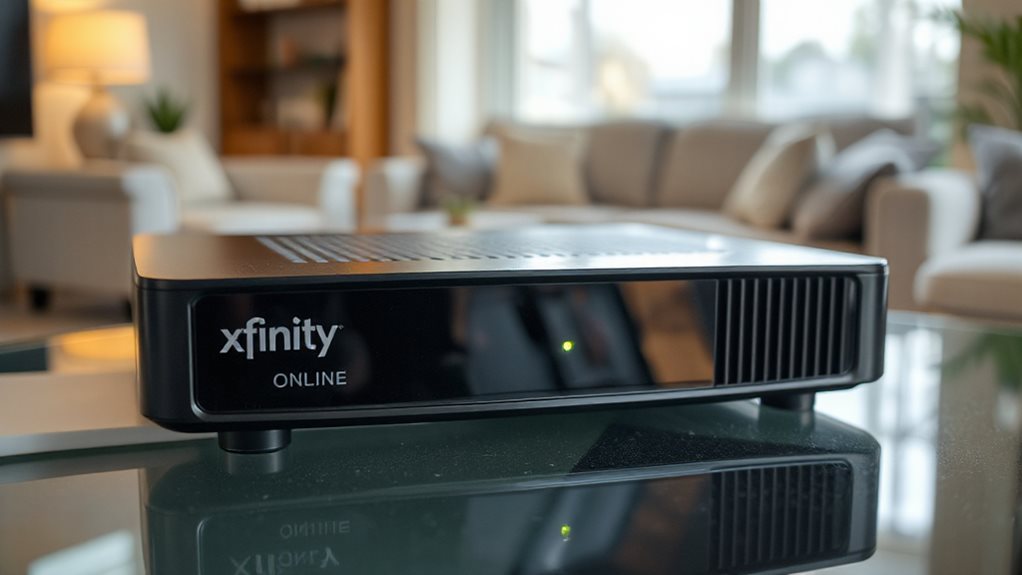
When the online light stays off after you’ve verified power, checked the outlet, and confirmed there’s no reported outage, it’s time to reach out to Xfinity Support or request a technician.
Call if the outlet works, the adapter is fine, but the modem still shows no power.
Request a tech when coax issues persist, signal remains weak, or after all troubleshooting fails.
Consider checking for potential network outages in your area and verify that the issue isn’t isolated to a single device or connection signal strength.
And Finally
If the online light stays off after checking power, cables, and performing a proper power‑cycle, use Xfinity’s status tools to verify service. Reset the modem and re‑configure any custom settings if needed. Should the problem persist, contact Xfinity support or schedule a technician visit. Acting promptly helps prevent prolonged outages and ensures your connection returns to normal.