
When Fios On Demand isn’t working, start by power cycling your router and set-top box—unplug both devices, wait 30 seconds, then reconnect them in sequence. Next, check that all coaxial and HDMI cables are firmly connected and undamaged. You should also verify your subscription tier through the My Fios portal to make sure you have access to the content you’re trying to watch.
If problems persist, run the built-in troubleshooter by navigating to Menu > Customer Support > Fix Fios TV Issues on your set-top box to diagnose hardware issues and clear error codes automatically. Below, you’ll find detailed solutions for persistent connectivity problems and account restrictions.
Quick Guide
- Power cycle your router and set-top box in sequence, then wait 15 minutes for stabilization to clear temporary glitches.
- Check all coaxial and HDMI cable connections are secure and remove unnecessary splitters to prevent signal degradation.
- Run the built-in troubleshooter via Menu > Customer Support > Top Support Tools > Fix Fios TV Issues.
- Verify your subscription tier and check for outstanding balances that may block On Demand rentals or purchases.
- Ensure MoCA signal strength is between -20 dBm and -50 dBm through your router’s web interface settings.
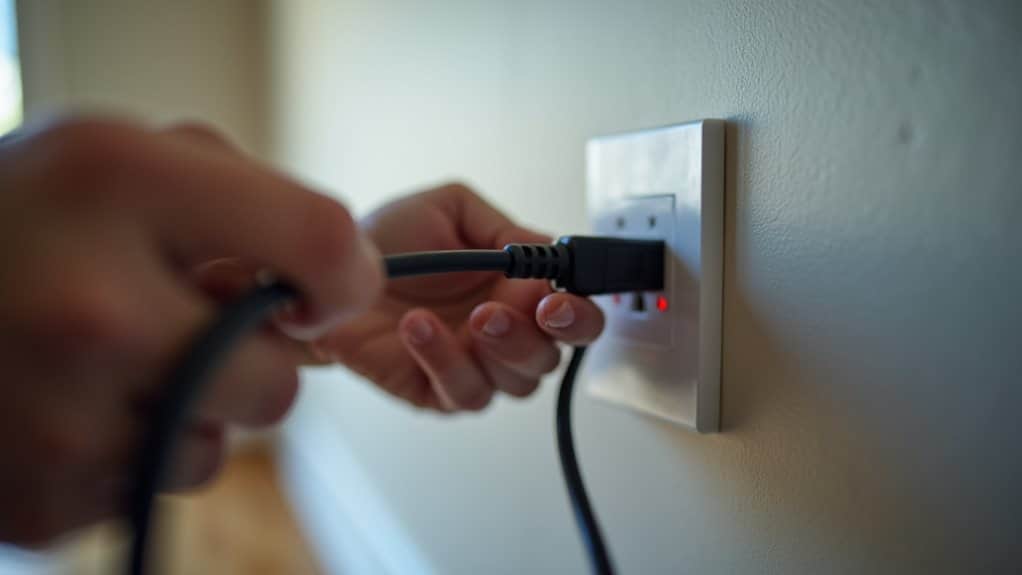
Quick Fixes: Power Cycle Your Equipment
Before diving into complex troubleshooting steps, you’ll want to start with the simplest solution that fixes most On Demand issues: power cycling your equipment.
This process clears temporary glitches by completely shutting down and restarting your devices. You’ll need to reboot both your router and set-top box in the correct sequence to restore your On Demand service effectively.
You can also initiate a remote reset by visiting www.verizon.com/repair and logging in with your email to access the quick fix set top box option.
Move your extender to an optimal location within about 30 feet of the router to avoid signal issues and improve connectivity.
Check Your Network and Cable Connections
After power cycling your equipment, you’ll want to zero in on your physical connections, as loose or damaged cables account for the majority of On Demand failures.
Inspect all coaxial and HDMI cables linking your set-top box, router, and wall jacks. Disconnect and firmly reconnect each cable, ensuring no visible damage exists.
Remove any unnecessary splitters or adapters that could degrade signal quality and compromise your connection.
Also verify that your router and modem lights indicate a stable connection by running basic network diagnostics to spot potential issues.

Use the Built-In Fios Troubleshooter
Your Fios set-top box comes equipped with a powerful built-in troubleshooter that can diagnose and resolve most On Demand issues without requiring a service call.
Access it by going to Menu > Customer Support > Top Support Tools > Fix Fios TV Issues.
The automated system performs diagnostics, initiates equipment resets, interprets error codes, and generates reports for technical support if escalation becomes necessary. If problems persist after using the troubleshooter, you may need to repeat this process for each viewing session, as some users report that fixes don’t permanently resolve VOD playback issues.
Verify Your MoCA Signal Strength
When Fios On Demand fails to load content or displays buffering errors, the problem often traces back to weak MoCA signal strength in your home network.
Access your router’s web interface and go to Network > Network Connections > Coax > Settings > LAN Coax Stats. Check that signal strength readings fall between -20 dBm and -50 dBm, with SNR values above 25 dB for peak performance. If problems persist, verify that your router’s DHCP and WAN settings match your ISP requirements and consider cloning the MAC to resolve ISP-side address mismatches.
Review Your Subscription and Account Status
Before troubleshooting technical issues, you’ll want to confirm your Fios account is in good standing and includes the channels you’re trying to access.
If your subscription doesn’t cover premium networks like HBO or SHOWTIME, you’ll see payment prompts when attempting to view their On Demand content.
Additionally, any outstanding balance or credit limit issues on your account can block access to On Demand services entirely, even for channels in your basic package.
Verify Active Subscription Level
If Fios On Demand isn’t working properly, the issue often stems from subscription-level mismatches between your account status and the content you’re trying to access.
Check your subscription tier through Verizon’s My Fios portal or recent billing statements. Verify you’re subscribed to the required package—premium content like HBO requires corresponding premium subscriptions. Contact Verizon support if subscription details don’t sync properly with On Demand listings.
Check Account Credit Limits
Beyond subscription tier verification, credit limit restrictions on your Fios account can prevent On Demand rentals and purchases from completing successfully.
Verizon sets spending limits—typically $150 to $500—based on your credit score and account history.
When you reach this threshold, transactions fail until you pay down your balance. Contact the Usage Verification Center at 866.266.3424 to check your current limit and resolve restrictions.
Disable or Adjust Parental Controls
Parental controls can inadvertently block On Demand content even when you’re trying to access it yourself.
To adjust them, press Menu on your Fios TV remote, then go to Settings > System > Parental/Purchase Controls. Enter your 4-digit PIN to access the settings. You can disable controls temporarily or adjust restrictions to allow specific content.
Alternatively, manage these settings through the Fios TV Mobile app for easier access.
Address Credit Blocks and Fraud Alerts
When your Fios On Demand service suddenly stops working, the culprit might be a credit block or fraud alert on your account rather than a technical issue.
Check your account status through the My Fios app or online portal for notifications. Credit blocks typically stem from late payments or billing disputes, while fraud alerts activate after suspicious activity.
Resolve credit blocks by clearing outstanding balances. Address fraud alerts by verifying your identity through Verizon’s security team and updating your password.
Optimize Your Router and Splitter Configuration
Account issues aren’t the only obstacle that can disrupt your Fios On Demand experience—improper router and splitter setup frequently causes streaming failures and connectivity problems.
Place your router directly next to a coax outlet and use only Verizon-provided splitters when sharing outlets with other devices. Avoid daisy-chaining splitters, as this degrades signal quality.
Make sure all connections are tight and allow 15 minutes for the router to stabilize after setup.
When to Contact Verizon Support
After exhausting all troubleshooting steps without success, you’ll need to escalate the issue to Verizon’s technical support team.
Contact them when experiencing persistent access failures, hardware malfunctions, MoCA connection strength below 180, or unexplained error messages. You can call Verizon customer service directly, use the MyFios app to connect with an agent, or reach out through Twitter @VerizonSupport for faster response times.
Reach the Usage Verification Center at 866-266-3424 for credit blocks or fraud alerts.
Support can address subscription mismatches, billing concerns, and backend system errors requiring technician intervention.
Prevent Future On Demand Problems
Preventing future On Demand issues requires proactive maintenance rather than reactive troubleshooting.
You’ll want to establish a routine that includes checking your coaxial cables and MoCA signal strength monthly, keeping your set-top box firmware updated, and verifying your internet bandwidth meets streaming requirements.
Maintain Strong Signal Connections
Position your router centrally and raised to reduce signal loss through walls. Keep firmware updated on both your router and devices to guarantee compatibility with the latest network technology. Use wired Ethernet connections for streaming devices when possible to bypass wireless signal issues entirely.
Schedule Regular Equipment Checks
Verizon recommends annual equipment checks through the My Verizon app or website. During these visits, technicians inspect all components, verify connections, apply firmware updates, and test On Demand functionality.
Monitor Account Status Monthly
Review your bill statements monthly through My Verizon to verify line-by-line charges and identify unexpected fees. Check for service plan modifications, payment confirmations, and account credits. This proactive approach prevents service disruptions before they affect your streaming experience.
Wrapping Up
Fixing Fios On Demand issues typically requires systematic troubleshooting. Start with simple power cycles and connection checks before moving to advanced solutions like MoCA verification or router optimization. Most problems stem from equipment hiccups, network disruptions, or account status issues—all manageable through these steps. If you’ve exhausted these options without success, don’t hesitate to contact Verizon Support. Regular maintenance and prompt attention to error messages will help you avoid future interruptions.


