Your smart TV tracks what you watch using features like Automatic Content Recognition (ACR) and shares it with advertisers. Disable ACR in your settings—turn off Live Plus on LG, Viewing Information on Samsung, or Smart TV Experience on Roku. Reset your advertising ID and turn off interest-based ads on Fire TV or Sony. Block tracking at the network with tools like Pi-hole or a privacy-focused router. You’ll still see ads, but they’ll be less targeted—there’s more you can do to stay in control.
Quick Guide
- Disable Automatic Content Recognition (ACR) in your TV’s settings to stop screen and audio data from being logged and shared.
- Turn off viewing history and data-sharing options in brand-specific menus like LG’s Live Plus or Samsung’s Privacy Choices.
- Reset your TV’s advertising identifier regularly to break links to past viewing behavior and reduce targeted ads.
- Limit app permissions for microphone, camera, location, and storage access to prevent apps from tracking your activity.
- Use network-level tools like Pi-hole or a no-log VPN to block tracking servers from receiving your viewing data.
How Your Smart TV Spies on What You Watch
While you’re watching your favorite show, your smart TV might be watching you—using a technology called Automatic Content Recognition (ACR) to capture what’s on your screen.
It snaps images every few seconds, even from HDMI sources, and sends them to servers.
This data tracks what you watch, how long, and when—powering ads and recommendations without your active consent.
Standby mode often maintains network connectivity, allowing the TV to send viewing data and receive updates even when the screen is off.
Some TVs also use HDMI-CEC or connected devices to wake and transmit usage data even when you think the TV is inactive.
Stop LG TV Tracking: Disable ACR and Live Plus
Your LG Smart TV could be sending details about what you watch to third-party advertisers through a feature called Live Plus, which uses Automatic Content Recognition (ACR) technology.
You can stop this by disabling ACR in Settings. Go to Viewing Information or Smart TV Experience, turn off Live Plus, and uncheck “Use Info from TV Inputs.” This halts data sharing and enhances your privacy.
Cable networks are under pressure from streaming services, which is why channels like CMT are shifting toward digital strategies and may reduce traditional distribution household reach.
Turn Off Samsung’s Viewing Data and Ad Tracking
Take control of your privacy by turning off Samsung’s Viewing Information Services, which tracks what you watch and shares it with advertisers.
Press Home, open the sidebar, select Privacy Choices, then disable Viewing Information Services. Turn off SyncPlus, Marketing, and Voice Recognition too.
Reset your advertising ID and remove apps tied to Continue Watching. Block data sharing by managing app permissions. Done. Also, verify your TV’s date, time, and timezone settings to help prevent possible authentication and tracking issues.
Opt Out of Roku’s Viewing and Ad Data Collection
You can reduce Roku’s data collection by resetting your advertising identifier in Privacy Settings.
Turn off TV input tracking to limit content recognition from external devices like cable boxes.
These steps won’t stop all data sharing, but they do help minimize how much info Roku collects and sends to advertisers.
You can also remove a linked TV from your account via the Roku website by using Manage Your Devices to unlink the device.
Reset Advertising Identifier
Start fresh with your Roku’s ad tracking by resetting the advertising identifier—a simple step that breaks the link to your past viewing habits.
Go to Settings, select Privacy, then Advertising, and choose Reset Advertising Identifier. Confirm to replace it with a new one.
This stops old data from shaping ads, though tracking resumes with the new ID.
Combine with Limit Ad Tracking for stronger privacy.
Disable Tv Input Tracking
Break the connection between your viewing habits and data collection by disabling TV input tracking on your Roku. Go to Settings > Smart TV Experience, then uncheck *Use Info from TV Inputs*. This turns off ACR, stopping tracking of antenna or external device content.
Disabling this also turns off auto notifications. Roku may still collect some app data, but your live TV viewing stays private.
Disable Fire TV Interest-Based Ads and Reset ID
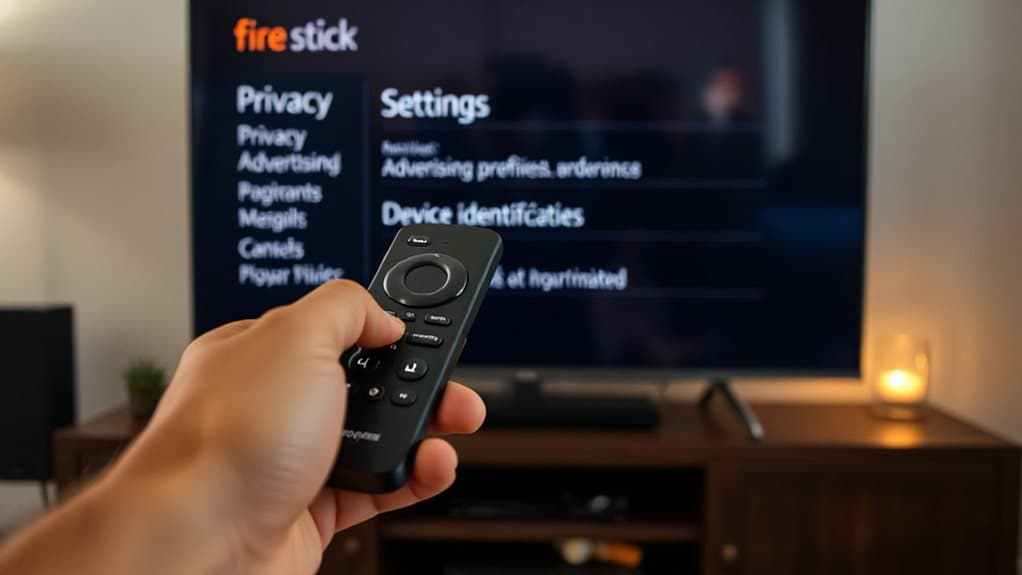
While exploring your Fire TV’s settings, you’ll find privacy controls that directly impact how ads are personalized. Go to Settings > Preferences > Privacy Settings. Turn off Interest-Based Ads to stop targeted ads. Reset your Advertising ID to generate a new one.
Disable Device Usage Data and App Usage Data to limit Amazon data collection. Turn off Video Auto-Play and Ambient Experience to reduce ads further.
Stop Sony and Vizio From Sharing Your Viewing Habits
You’re in control of who sees what you watch, and taking a few quick steps can keep your viewing habits private on both Sony and Vizio smart TVs. Disable Vizio’s Viewing Data in Settings > Admin & Privacy.
For Sony, turn off Personalized Ads in Google account settings and adjust app permissions. Both let you opt out of data sharing while still using core features—your choices, your privacy.
Block Streaming App Tracking on Any Smart TV
You can stop streaming apps from tracking you by adjusting their permissions directly on your smart TV.
Turn off access to location, microphone, and ad tracking in the privacy settings to limit data collection.
Most TVs let you manage these controls app by app, so you stay in charge of your viewing privacy.
Manage App Permissions
Start by opening the Settings app from the top right corner of your Android TV or Google TV screen.
Go to Apps, select See all apps, then choose the app you want.
Tap Permissions and toggle off access for files, microphone, camera, or location.
Only allow what’s necessary. This stops apps from tracking your activity and keeps your viewing history private.
Take control now.
Limit Ad Tracking
Often, smart TVs track what you watch to serve targeted ads, but you can limit this tracking across most major brands with a few simple steps. Toggle off ad personalization, disable ACR, and reset your advertising ID.
Use privacy settings to limit data collection and turn off viewing history sharing. Block telemetry with DNS tools if needed.
Take control—your viewing habits stay yours.
Stop Hidden TV Trackers With DNS and Privacy Upgrades
Behind the scenes of your smart TV, hidden trackers like ACR technology are actively logging what you watch—pulling audio clips and screen data from every input, even HDMI sources like gaming consoles or laptops.
You can block these trackers using DNS tools like Pi-hole at the router level. This stops data from reaching ACR servers without killing your TV’s internet. Set up a no-log router VPN for stronger privacy. Regularly audit settings—firmware updates often re-enable tracking by default.
Wrapping Up
You’ve taken the right steps to protect your privacy. Now, disable tracking features on your smart TV and streaming apps. Turn off ACR, reset advertising IDs, and opt out of data sharing. Use private DNS to block hidden trackers. These simple changes stop companies from collecting your viewing history. Stay in control of your data—review settings regularly and update them as needed. Privacy starts with action, and you’ve just made it harder to be watched.