
To reset your Verizon WiFi router, you can perform either a soft or hard reset depending on your issue’s severity. For a soft reset, unplug the router for 20-30 seconds, then plug it back in and wait 1-3 minutes for full reboot. For a hard reset, hold the recessed reset button with a paperclip for 10-15 seconds while powered on, then wait several minutes for factory restoration. Understanding the complete process guarantees successful troubleshooting.
Quick Guide
- Soft reset: Unplug router for 30 seconds, then plug back in and wait 1-3 minutes for reboot.
- Hard reset: Hold recessed reset button with paperclip for 10-15 seconds, then wait several minutes for restoration.
- Before resetting, backup network settings and record Wi-Fi credentials from the router’s admin interface or label.
- After hard reset, connect using default SSID/password on router label and access 192.168.1.1 to reconfigure settings.
- For 5G routers, activate Setup Mode by holding the WPS button after completing the reset process.
Understanding the Difference Between Soft Reset and Hard Reset
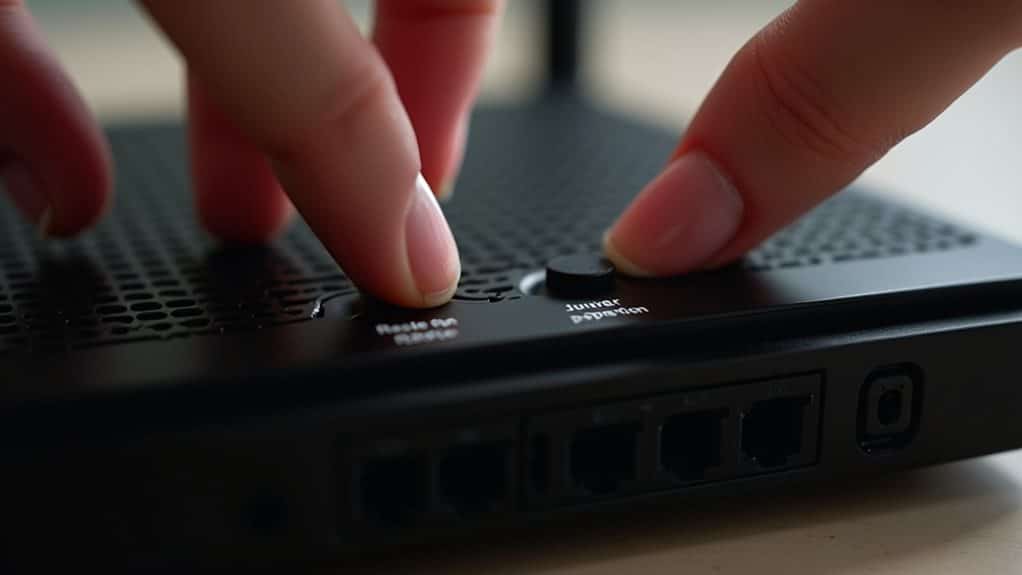
When troubleshooting your Verizon WiFi router, you’ll encounter two primary reset methods that serve different purposes and produce vastly different outcomes.
A soft reset simply reboots your device without erasing settings, while a hard reset completely restores factory defaults.
Soft resets resolve minor connectivity issues quickly.
Hard resets address severe problems but require complete reconfiguration afterward. A hard reset can also clear potential malware that may be affecting your router’s performance.
When You Should Reset Your Verizon WiFi Router
You’ll need to reset your Verizon WiFi router when specific problems persist despite basic troubleshooting attempts.
The most common scenarios include ongoing connectivity issues that disrupt your internet access, forgotten login credentials that prevent you from accessing router settings, and corrupted network settings that cause devices to malfunction. Additionally, you should consider resetting when your router disconnects every 4-6 hours and requires manual intervention to restore service.
Recognizing these situations helps you determine when a reset becomes necessary rather than continuing with less effective solutions.
Persistent Connectivity Issues
Although occasional WiFi hiccups are normal, persistent connectivity problems signal that your Verizon router needs immediate attention.
You’ll notice continuous internet drops requiring multiple daily reboots, slow speeds despite strong signals, or devices losing internet access while showing connected status.
These symptoms indicate deeper issues that simple power cycling can’t resolve, making a router reset necessary.
Forgotten Login Credentials
Forgotten login credentials represent one of the most frustrating scenarios that’ll force you to reset your Verizon WiFi router.
When you can’t access the admin portal or connect devices due to unknown passwords, resetting becomes your best option.
This situation commonly occurs after forgetting custom-set credentials that differ from factory defaults printed on your router’s label.
Corrupted Network Settings
When network settings become corrupted on your Verizon WiFi router, you’ll experience a range of frustrating connectivity problems that standard troubleshooting can’t fix.
You’ll notice frequent disconnections, slow speeds, corrupted downloads, and routing failures. These issues persist despite good signal strength and often affect WiFi while Ethernet connections work fine, indicating wireless configuration corruption requiring a factory reset.
Preparing Your Router for the Reset Process
Before diving into the actual reset procedure, you’ll need to take several preparatory steps to guarantee the process goes smoothly and minimize potential complications.
First, power off all connected devices and disconnect them from your Wi-Fi network.
Next, backup your current network settings by accessing the router’s admin interface and recording your Wi-Fi name and password.
Performing a Soft Reset on Your Verizon Router
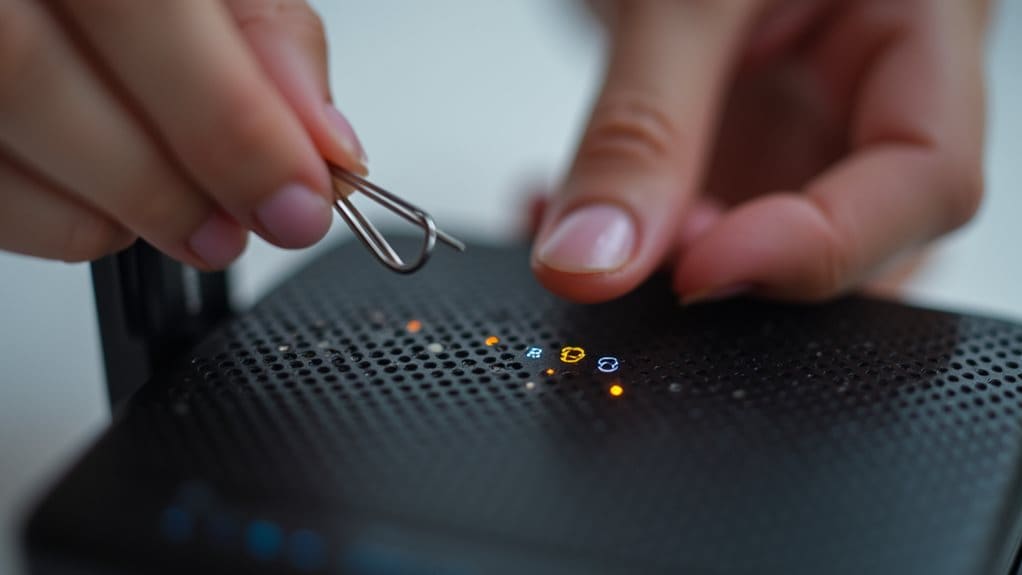
A soft reset can resolve minor connectivity issues like slow internet speeds or intermittent connections without erasing your custom settings.
You’ll simply power cycle your router by unplugging it, waiting 20-30 seconds, then plugging it back in.
The entire process takes about 3 minutes as your router reboots and reestablishes its internet connection.
When Soft Reset Helps
While more aggressive troubleshooting methods exist, a soft reset often provides the perfect solution for common Verizon router issues without the hassle of reconfiguring your entire network.
You’ll find it resolves temporary connectivity glitches, intermittent connection drops, and slow speeds caused by cached data buildup.
It’s particularly effective for correcting IP conflicts and addressing sluggish performance.
Power Cycle Steps
Power cycling your Verizon router involves a straightforward process that’ll restore your network connection in most cases.
First, unplug the power cord from your router’s back panel. If your device has battery backup, remove the batteries completely.
Wait thirty seconds for internal components to discharge, then reconnect power and reinstall batteries if applicable.
Expected Reboot Time
After you’ve completed the power cycling steps, your Verizon router will typically take 1 to 3 minutes to fully reboot and restore your internet connection.
You’ll notice the LED indicators turn off initially, then sequentially illuminate as the router boots up.
Newer router models generally reboot faster, while complex configurations or firmware updates may extend the restart duration slightly.
Executing a Hard Factory Reset Step-by-Step
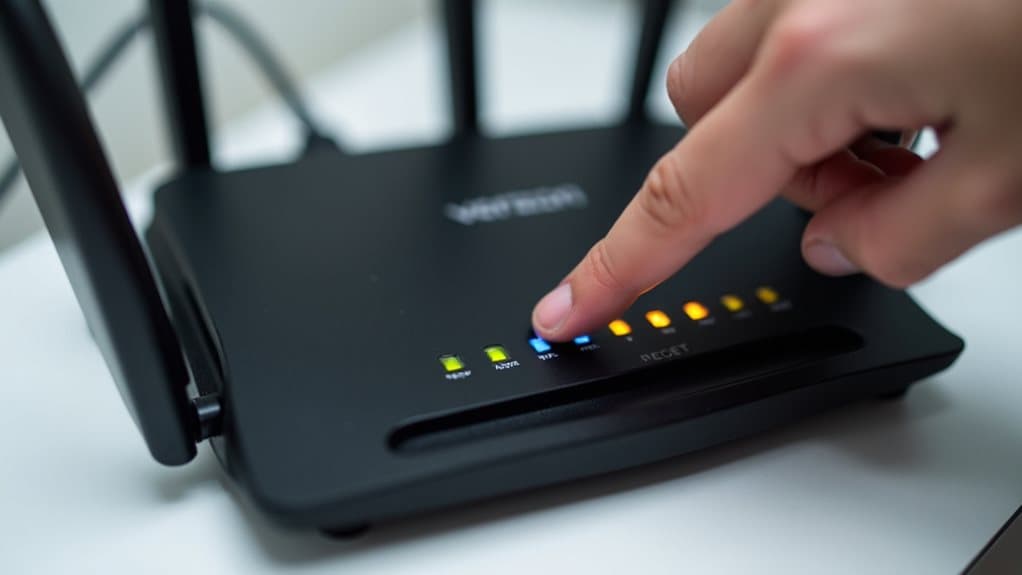
Performing a hard factory reset requires careful preparation and precise execution to restore your Verizon router to its original settings.
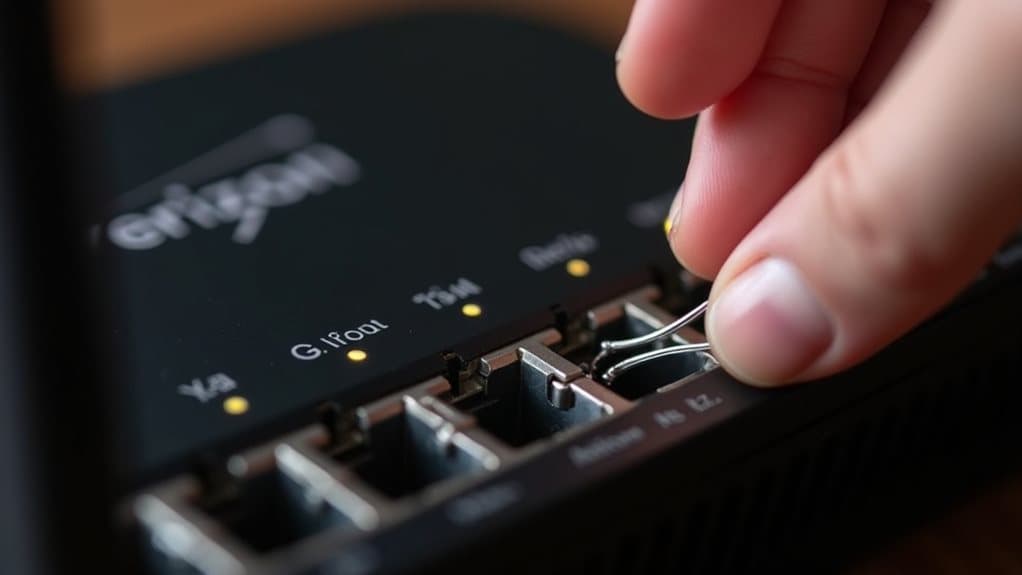
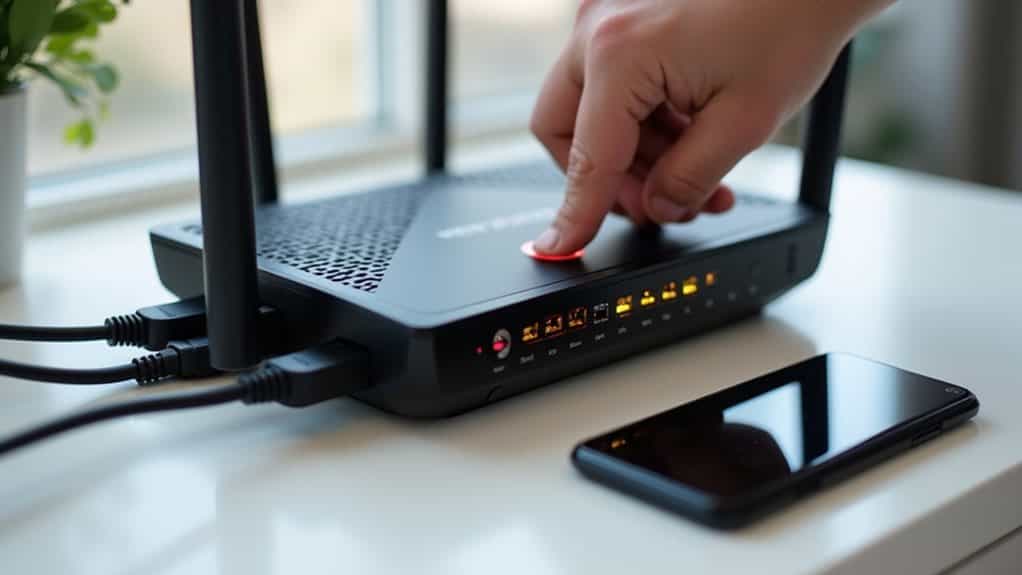
Insert a paperclip into the recessed reset button hole. Hold the button continuously for 10-15 seconds, then release it.
The router’s lights will blink during the reset process. Wait several minutes for complete reboot and factory restoration.
Accessing Your Router After Reset Using Default Settings
Once your router completes the factory reset process and fully reboots, you’ll need to connect to it using the default settings that were restored.
Look for the label on your router’s back or bottom to find the default SSID and Wi-Fi password.
Connect your device to this network, then access the admin interface using the default IP address 192.168.1.1.
Reconfiguring Your WiFi Network Name and Password
Now that you’ve regained access to your router with the default credentials, you’ll want to customize your network settings to restore your personalized WiFi name and create a secure password.
Use the My Verizon app by traversing to Account > Home Internet > Wi-Fi Networks > Edit Wi-Fi Details, or access your router’s web interface directly through the management URL.
Special Considerations for Verizon 5G WiFi Routers
While Verizon’s 5G WiFi routers share basic reset principles with traditional models, they include unique features and procedures that require special attention.
After rebooting, you’ll need to activate Setup Mode by holding the WPS button for five seconds once the white LED turns solid. This step’s essential for activating new 5G Home Internet plans and differs from standard Fios routers.
Troubleshooting Post-Reset Issues and Getting Support
After completing your Verizon WiFi reset, you’ll need to address several common issues that can prevent your network from functioning properly.
Allow several minutes for your router to fully reboot.
Verify your modem connection and check device compatibility with frequency bands.
If problems persist, contact Verizon customer support through their app, website, or schedule a technician visit. Additionally, you may want to consider monitoring your final bill for any unexpected charges related to your service.
Wrapping Up
You’ve now become proficient in resetting your Verizon WiFi router through both soft and hard methods. Remember that soft resets solve most connectivity issues, while factory resets require complete reconfiguration. Always try troubleshooting steps before resetting, and keep your network credentials handy for setup afterward. If you’re still experiencing problems post-reset, contact Verizon support for additional assistance. Regular maintenance and proper reset procedures will keep your network running smoothly and efficiently.