Open Settings → General → iPhone Storage, tap the app, then choose “Offload App” to remove its binary while keeping documents and login data. For cache and offline files, go into the app’s own settings (e.g., YouTube → Storage & Cache → Clear Cache; Spotify → Settings → Storage → Clear Cache) and delete downloaded media. You can also reset app preferences in Settings and clear Safari data via Settings → Safari → Clear History and Website Data. Restart the iPhone to purge background snapshots, and if storage still seems full, reinstall the app to purge hidden caches—continue for deeper steps.
TLDR
- Offload the app via Settings → General → iPhone Storage → Select app → Offload App; this removes the binary but keeps documents and login data.
- Use each app’s built‑in settings to clear its cache or offline media (e.g., YouTube → Settings → Storage & Cache → Clear Cache).
- Turn on “Offload Unused Apps” in Settings → App Store to automatically free space while preserving app documents.
- Reinstall the app from the App Store without uninstalling; this refreshes the app while retaining stored documents and preferences.
- Delete specific Safari website data via Settings → Safari → Advanced → Website Data, or clear all history and website data to free space.
Understand iPhone App Data and What It Includes

When you look at an iPhone’s storage, “Documents & Data” refers to everything an app keeps locally besides the app binary itself. It includes cached files, cookies, login details, preferences, and downloaded media like images, videos, and messages. This data speeds up loading, remembers settings, and accumulates over time, consuming significant space. You can view it in Settings > General > iPhone Storage. Apps such as social media and streaming platforms often store the most Documents & Data due to frequent content downloads. An important concept to understand here is that managing System Protection and restore points can help you recover from app-related issues without losing the app itself, though this is more applicable to computer environments than iPhone storage management.
Identify the Apps That Use the Most Storage on iPhone
Open Settings, tap General, then iPhone Storage to see a list of apps sorted by total size.
Use the Filter option and choose Documents & Data to isolate the apps that are eating up space with media, caches, and offline files.
This view lets you spot the biggest storage hogs—like WhatsApp, Facebook, and streaming services—so you can decide which data to clear.
To help prevent asset writer-like errors during screen-related tasks, ensure there is enough free space and that permissions are properly set for apps handling media and downloads. storage management
Storage iPhone Storage
If you want to see which apps are hogging space on your iPhone, head to Settings → General → iPhone Storage. The list ranks each app by total size, including cached data and documents.
Tap an app for details and see hidden caches in System Data.
Regularly restart, offload unused apps, and enable iCloud Photos to keep storage free.
Filter by Documents & Data
After checking which apps dominate your iPhone’s storage, tap “Filter by Documents & Data” to see exactly how much each app’s personal files, caches, and media consume.
You’ll spot WhatsApp’s hidden gigabytes, Facebook’s bloated assets, and massive gaming caches. Identify the culprits, then decide which data to purge.
This frees space while keeping the apps intact.
Offload an App to Clear Its Data and Save Space
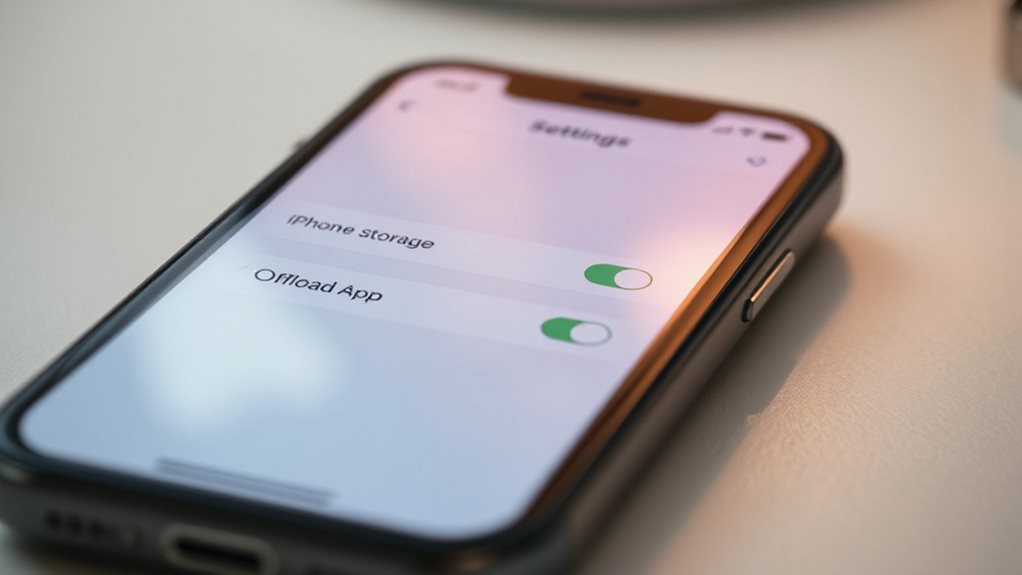
When you offload an app, iOS removes the app’s executable while keeping any documents, settings, and login information stored outside the package.
Open Settings → General → iPhone Storage, select the app, tap Offload App, and confirm.
The icon stays, indicating a cloud download.
Reinstall later by tapping the icon; all saved data returns automatically.
This frees binary space without losing your progress.
Clear Cache Inside Individual Apps (Youtube, Spotify, Etc.)
Clear the cache inside individual apps by using each app’s built‑in settings rather than the iOS system menu.
Open YouTube Settings → Storage & Cache → Clear Cache; tap, restart YouTube.
In Spotify, go to Settings → Storage → Clear cache; confirm.
Other apps, Reddit or Twitter, have similar buttons.
Check iPhone Storage to verify freed space.
Delete Offline Media to Clear iPhone App Data
You can free up space by removing YouTube offline videos, managing Spotify downloads, and clearing Reddit’s image cache.
Start by opening each app’s download or storage settings, selecting the unwanted media, and confirming deletion.
This instantly reduces the app’s local data without uninstalling the app itself.
AirPods may benefit from troubleshooting steps like ensuring the device outputs to the intended audio device in Control Center, which helps maintain proper sound routing on iPhone when multiple Bluetooth devices are nearby. Bluetooth and device settings can influence how data or media are handled during downloads and playback.
YouTube Offline Videos
Need you need to free up space or reset YouTube’s offline storage, deleting the downloaded videos is the quickest solution.
Open the app, tap your profile image, swipe down to Downloads.
For a single video, tap the three‑dot menu and choose “Delete from Downloads.”
To clear everything, tap the settings icon in Downloads and confirm “Delete all downloads.”
This instantly frees storage without removing the app.
Spotify Download Management
After clearing YouTube’s offline videos, you can free up space on Spotify by removing its downloaded tracks.
Open Spotify, tap Your Library, then the cog icon.
Choose Downloads, and either tap the downward arrow on a playlist, album, or song, or toggle off Download for all library songs.
Confirm removal.
Check iPhone Settings → General → iPhone Storage → Spotify to verify reduced app data.
Reddit Image Cache Clearing
Ever wonder how to shrink Reddit’s footprint on your iPhone? Tap your profile icon, open the three‑bar menu, select Settings, then Advanced.
Choose Clear Local History, confirm, and press OK.
This wipes the image cache and offline media, freeing space without deleting the app.
Check iPhone Storage to see the reduction, and repeat as needed for ongoing freedom.
Turn On Automatic Offloading for Unused Apps
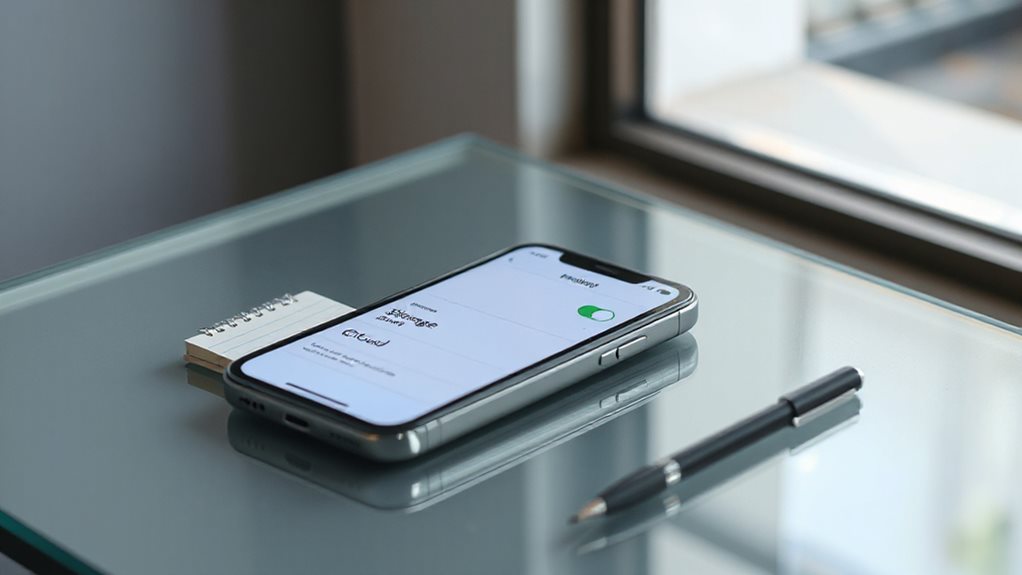
If you want your iPhone or iPad to free up space automatically, turn on the “Offload Unused Apps” feature.
Open Settings, go to Apps → App Store, and toggle Offload Unused Apps on.
The system will delete inactive app binaries while keeping their data.
When you tap the icon later, the app reinstalls instantly, preserving your documents and freeing storage without manual effort.
Deleted photos remain in the “Recently Deleted” folder for 30 days, so you can recover them during that window if needed Recently Deleted to highlight the recovery window.
Reset Individual App Settings to Remove Hidden Temporary Files
You can reset an app’s preferences directly from Settings, which wipes its custom configurations without touching your data.
While you’re there, tap the “Clear In‑App Cache” option to force the app to discard stored temporary files that can slow it down.
Deleting the remaining temporary files ensures the app starts fresh, freeing up space and improving performance.
cache clearing helps prevent crashes by removing corrupted or stale data that can affect app stability.
Reset App Preferences
When hidden temporary files slow an app down, you can reset its preferences without losing your data. Open Settings > General > iPhone Storage, tap the app, choose Offload App, then reinstall from the same screen.
This clears hidden temporary files while preserving documents and login credentials. You can also use Reset All Settings for system‑wide defaults, which doesn’t touch personal app data.
Clear In‑App Cache
Ever wondered how to strip an app of its hidden temporary files without losing your data? Open Settings → General → iPhone Storage, pick the app, then tap Offload App.
Confirm, then reinstall from the App Store.
The offload deletes the cache while keeping documents and login info intact, giving you fresh space without a full data wipe.
Delete Temporary Files
Resetting an app’s individual settings clears hidden temporary files without erasing your core data. Open Settings, tap General, then iPhone Storage. Choose the app, tap “Offload App,” confirm, and reinstall from the App Store. This removes cached data while keeping documents intact.
For Safari, go to Settings → Safari, tap “Clear History and Website Data,” and confirm. These steps free space instantly.
Use Safari and System Settings to Shrink iPhone Cache
If you want to shrink Safari’s cache without uninstalling the app, start by clearing its history and website data directly from Settings.
Open Settings → Safari, tap Clear History and Website Data, confirm, and choose a timeframe.
For finer control, go to Safari → Advanced → Website Data, swipe left on sites to delete, or tap Remove All Website Data.
Disable extensions in Settings → Safari → Extensions to prevent extra temporary files.
Block all cookies under Advanced to stop future buildup, remembering you’ll need to log in again.
To reduce long-term data traces, review and pause any Web and App Activity in your Google account settings No Activity Message and consider limiting activity across services for enhanced privacy.
Restart iPhone & Reset Background Apps for More Space

Restarting your iPhone clears the suspended states of recently used apps, freeing the small amount of RAM they occupy and resetting any lingering background processes.
Hold the side button and either volume button, slide to power off, then turn it on again.
This purge removes 2‑4 app snapshots from memory, eases pressure, and restores responsiveness.
You can also reset the Home Screen Layout via Settings > General > Transfer or Reset iPhone > Reset > Reset Home Screen Layout.
Fix Persistent Storage Issues After Clearing Data
Even after you’ve cleared an app’s data, storage can stay full because iOS retains caches, temporary files, and synced content in the background. To further reclaim space, you can check iPhone Storage, offload unused apps, and reinstall to purge hidden caches. Delete large Messages attachments, empty the Recently Deleted album, and consider a backup‑restore to reset system data. These steps reclaim space and keep your device free. VPN-based access to region-locked content may help you test how changes in storage and app data are reflected across related services, especially if you’re juggling multiple apps that cache data differently.
And Finally
By offloading or deleting apps, clearing caches, and removing offline media, you can reclaim storage without losing the apps themselves. Resetting individual settings and restarting the iPhone further eliminates hidden temporary files. Regularly reviewing storage usage helps prevent future bloat. Follow these steps to keep your iPhone lean, efficient, and ready for new data.