
High ping in Australia often stems from NBN technology (fixed wireless/satellite adds latency), distance to game servers (overseas connections hit 200–300ms), Wi-Fi interference, or network congestion. Connect via Ethernet to cut latency, reboot your router, and close bandwidth-heavy apps. Test local server pings using Ookla Speedtest or in-game tools; target under 50ms for competitive play. If issues persist above 100ms, check your ISP’s routing or upgrade hardware—solutions like QoS settings or a mesh system might keep your next session lag-free.
Quick Guide
- Local NBN type (e.g., fixed wireless/HFC) increases latency compared to FTTP connections.
- Wireless interference and distance degrade Wi-Fi signals, spiking ping versus wired Ethernet.
- Overseas servers add 200–300ms latency due to long undersea cable paths and global routing.
- Network congestion from too many devices or bandwidth hogs raises local ping times.
- Suboptimal router placement, outdated hardware, or signal barriers amplify local latency.
What High Ping Means for Gamers in Australia

For many Australian gamers, high ping consistently undermines competitive gaming experiences by creating noticeable delays that directly impact gameplay outcomes. Anything above 100ms throws off split-second timing, leaving you dodging attacks that already hit or landing shots that register too late. 225 ms pings in BTB modes have been frequently reported across Australian communities, where unstable connections dissolve teamwork into chaotic lag spikes during pivotal match moments. That laggy disconnect from reality? It’s costing you wins and frustrating every kill/death counter—freedom to compete fairly slips away with every millisecond over 40. Consider freeing up system resources and improving responsiveness by removing unnecessary background programs and performing a disk cleanup to reduce local causes of lag.
5 Fast Fixes: Step-by-Step Solutions for Lower Ping
Strip away lag with immediate adjustments: switch to a wired Ethernet connection for rock-solid stability, kill bandwidth-hogging apps in your Task Manager, and refresh outdated network drivers.
Reboot your router, optimize power settings to prioritize connectivity, and close background programs eating bandwidth.
Choose off-peak hours, pick closer servers, or upgrade your ISP plan—freedom from stuttering pings starts with these small, mighty tweaks. Your gameplay deserves snappier responses, not excuses.
Also, check your router and modem lights to verify equipment status and ensure everything is functioning correctly.
Why Overseas Servers Cost You 200-300ms: Geography’s Role in Ping

Catch an overseas server, and milliseconds instantly balloon—your keystrokes lag by hundreds before reaching distant data centers.
Sydney-to-Europe’s 17,000km span slams you with 263ms ping; even North America’s 16,800km drags latency to 219ms.
Local hops like Sydney to Canberra stay snappy at 5ms, but overseas routes snake through undersea cables, piling on 200-300ms delays.
Freedom to play? Gamers face choppy chaos—the Atlantic’s geography traps you in lag purgatory.
High bandwidth connections can help reduce queuing delays and improve overall responsiveness, especially when multiple devices share the same link, because they provide greater data transfer capacity.
NBN Latency Exposed: How Your Internet Plan Kills Ping
Your NBN plan’s impact on ping might be worse than you think—even if you’re paying for speed, your latency hinges on the network type you’re stuck with. Fibre-to-the-premises (FTTP) and fibre-to-the-curb (FTTC) deliver the lowest latency (17-20ms), while fixed wireless (44ms+) and HFC networks lag harder. Location matters too: Western Australia gamers suffer 56ms vs NSW’s 13ms. Satellite (Sky Muster) or wireless-heavy areas? Expect worse pings despite “fast” plans. Choose your tech wisely—fibre beats the rest. For large homes or high device counts, consider upgrading to Wi‑Fi 7 mesh systems to reduce local network latency and congestion.
Test Your ISP’s Network: Is Your Provider Causing Lag?
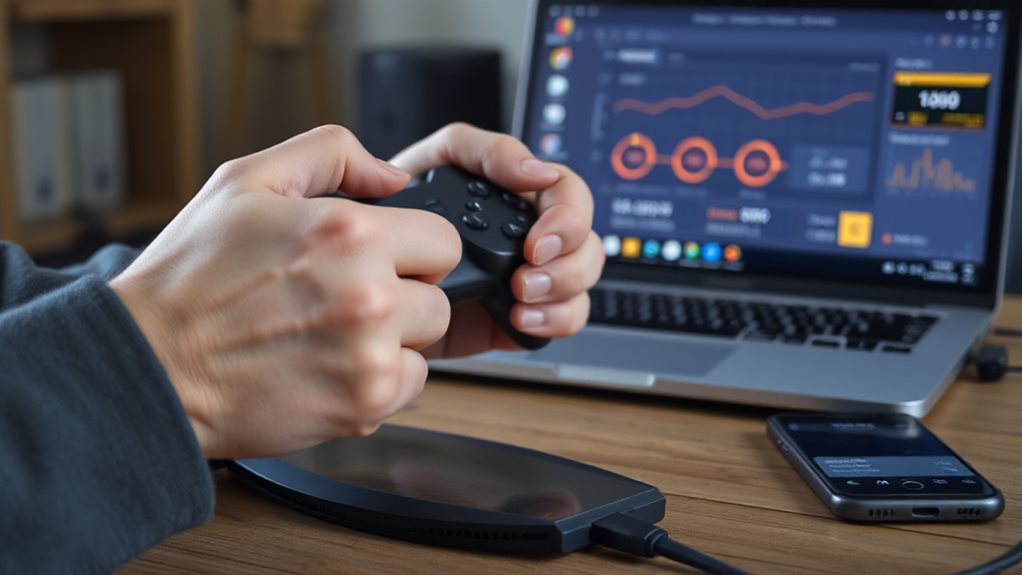
You’re frustrated with lag—let’s cut to the chase. Start by measuring current latency with tools like Ookla Speedtest or Telstra’s ISP-specific tool to pinpoint if delays stem from your connection.
Evaluate your router’s quality and placement alongside these results, as outdated hardware or poor signal coverage can compound lag from your provider’s network.
Measure Current Latency
Frequently, lag stems from network latency problems that testing can quickly uncover.
Use ping google.com.au (Windows) or ping -c 4 example.com.au (Mac/Linux) to check response times—under 100ms is ideal.
Try online tools like PingTesti or Speedtest for Australia-specific results.
Run tests multiple times daily, targeting local servers first.
High averages? Your ISP might be the culprit.
Keep it simple, stay free from guesswork.
Evaluate Router Quality
Latency tests can only tell half the story—if you’ve ruled out network congestion but still face lag, the problem likely starts at your router.
Test Wi-Fi range (25m+ with walls) and sync rates on short DSL lines. Use wired Ethernet for true ISP speed checks. Low scores? Your router’s choking your freedom. Upgrade to a mesh system or NBN-grade gateway—ACMA and CHOICE tests prove hardware matters.
Too Many Devices Slowing Your Ping? Fix Network Congestion
If your internet feels bogged down, chances are a crowded network is to blame—multiple devices competing for bandwidth can slam your connection, spiking ping times and dropping packets.
Check for latency above 100ms, packet loss in ping tests, or erratic tracert results. Prioritize gaming or VoIP with QoS, limit bandwidth hogs, or upgrade your plan.
Smooth skies await when you control device chaos.
Wired vs. Wireless: Which Connection Lowers Ping for Gamers?
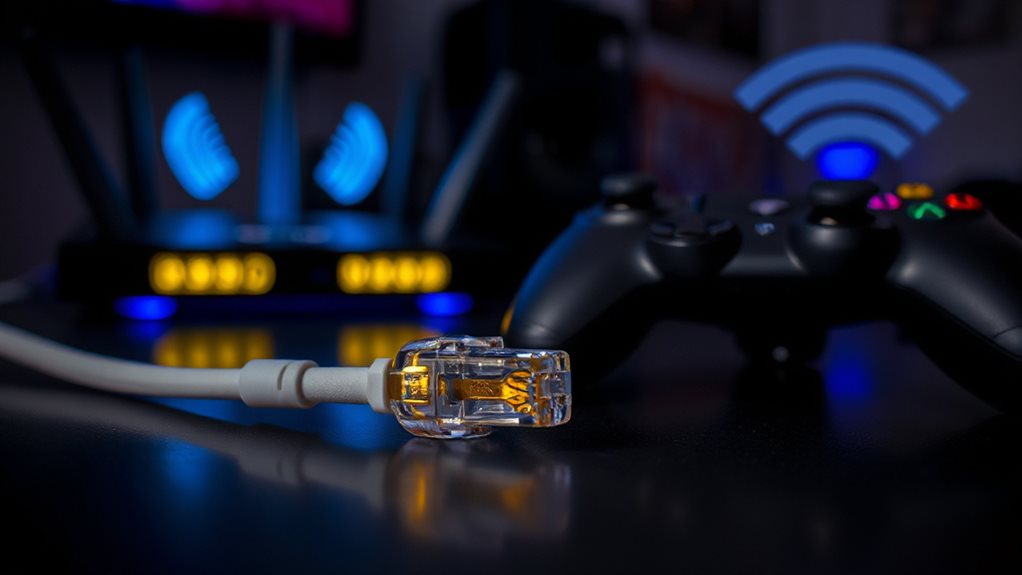
You’re probably wondering if your Ethernet cable is worth the hassle or if WiFi cuts it for smooth gameplay. Wired connections boast stability and lower latency—1-5ms vs. WiFi’s 10-50ms—while wireless networks struggle with interference and jitter, especially in crowded areas.
Let’s break down how each setup impacts your gaming ping and what you can do to optimize for lower latency without sacrificing convenience.
Wired Connections Stability
For gamers chasing the lowest possible ping, the choice between wired and wireless connectivity hinges on stability and performance. Ethernet offers rock-solid connections with 1–5ms latency while slashing lag and packet loss.
Unlike wireless, wired connections avoid interference, ensuring consistent speeds and zero unexpected drops—perfect for competitive play. Cat-5+ cables deliver faster, more reliable data flow, keeping your gameplay smooth and frustration-free.
Wireless Interference Factors
While wired connections eliminate airwave-based latency, wireless setups introduce unavoidable interference risks that amplify ping.
WiFi signals battle microwaves, Bluetooth, and walls, degrading strength.
Overloaded channels from neighbors or appliances cause packet clashes.
Distance spikes latency as signals weaken.
Congestion from streaming or devices clogs bandwidth, spiking ping.
Wired wins stability; wireless forces you to dodge interference to keep your gaming smooth.
Freedom demands choice, but physics doesn’t escape.
Optimizing For Lower Latency
Plug into a wired Ethernet connection to slash latency to 1-5ms, giving competitive gamers an edge where every millisecond matters most.
Ethernet’s dedicated cable avoids signal delays and interference, ensuring stable, low-ping performance.
While WiFi 6 can hit ~1ms, real-world obstacles and shared airwaves often spike lag.
For consistent dominance in fast-paced games, ditch wireless’s unpredictability—your reflexes deserve direct control over your connection’s freedom.
Your Router Is Causing Lag: Gamers’ Guide to Fixing Firewalls
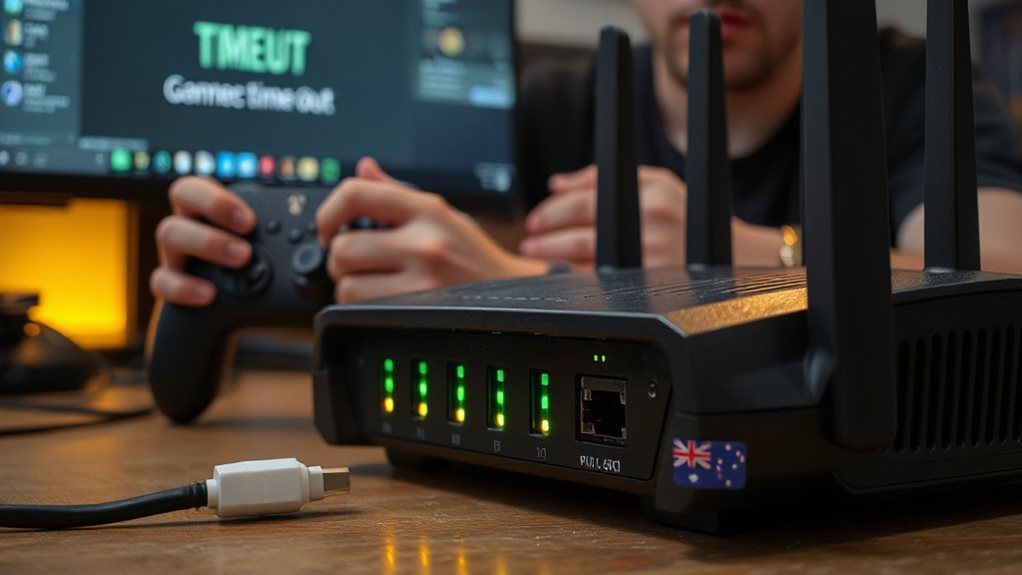
Check your router’s firewall settings if games keep freezing or stuttering—firewalls designed to protect your network can inadvertently add latency by inspecting packets through layers like Windows Defender, third-party security software, or the router itself.
Temporarily disable protective layers, including Sky Broadband Shield or your router’s IPv6 firewall, and adjust NAT settings to open (Type 1) to reduce restrictions.
Reclaim control over lag caused by unnecessary barriers, giving your game traffic the direct path it needs for smoother online sessions.
When to Test Server Proximity for Lower Ping in Australia
When in-game ping frequently surpasses 100ms or before launching into competitive matches aimed at 0–50ms targets, Australian gamers should prioritize testing server proximity. You’ll want to check it during network hiccups post-router fixes, after ISP changes, or when squad sessions drag due to friends’ distant regions.
If your Adelaide-to-Perth lag feels sluggish compared to Sydney’s smooth runs, tweak server selections using in-game ping tools. Don’t forget, local nodes like Brisbane’s or Melbourne’s beat Tokyo’s 250ms grind—every millisecond matters when freedom means lag-free wins.
Wrapping Up
You’ve identified common culprits behind high ping in Australia: distant servers, NBN latency, ISP throttling, network congestion, wireless interference, and router misconfigurations. Test server proximity, switch to a wired connection, verify your ISP’s performance, and limit bandwidth-hogging devices. Adjust router settings or upgrade hardware if issues persist. If troubleshooting fails to resolve lag, contact your ISP or consider a premium gaming VPN. Prioritize stable, low-latency connections for smoother gameplay—every millisecond counts.