
Your AirPods beep due to low battery warnings, Bluetooth connection problems, charging status alerts, or firmware glitches. You can fix this by checking battery levels, ensuring proper Bluetooth pairing, adjusting Tone Volume in Settings > Accessibility > AirPods, or updating firmware by keeping them charged near your iPhone. Clean charging contacts, reseat the AirPods properly, and restart your device if beeping persists. Understanding these specific triggers and solutions will help you identify exactly what’s causing your issue.
Quick Guide
- Low battery triggers beeping as a shutdown warning; charging status changes also produce beeps when placed on wireless chargers.
- Bluetooth connection problems cause beeping from pairing failures; remove AirPods from device list, reset, and re-pair to resolve.
- Firmware glitches create unexpected beeping; updates require closed case, charging, and 30 minutes connected to Wi-Fi near paired device.
- Moisture exposure beyond IPX4 rating or Find My movement detection can trigger unexpected beeping or alert sounds.
- Adjust Tone Volume via Settings > Accessibility > AirPods to reduce or mute connection, disconnection, and low battery alerts.
Common Reasons Your AirPods Are Beeping
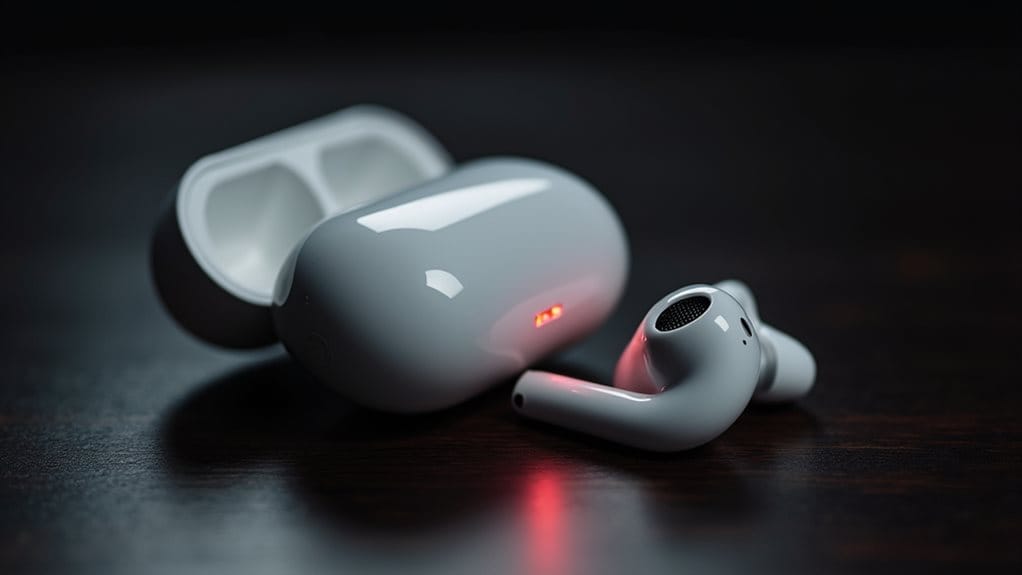
AirPods beep for several reasons, and identifying the cause can help you resolve the issue quickly.
Low battery levels trigger beeping in either the case or earbuds, alerting you before shutdown. Charging status changes can also produce beeps. If you’ve lost an earbud, the case may beep while attempting to pair. Additionally, firmware glitches or hardware malfunctions might cause unexpected alerts. Some users report that Find My network participation can trigger random beeping, particularly when the AirPods case detects movement or leaves the Bluetooth range of nearby Apple devices. AirPods can also beep if exposed to moisture or rain, since their IPX4 water resistance only protects against light splashes and not heavy downpours.
How to Fix Bluetooth Connection Problems
When your AirPods beep due to Bluetooth connection issues, you’ll need to systematically troubleshoot the pairing process to restore functionality.
First, make certain Bluetooth is enabled and your AirPods are charged. Remove them from your device’s Bluetooth list, then reset by holding the setup button until the light flashes amber, then white. Restart your device and re-pair following on-screen instructions. Also check that your AirPods are selected as the audio output in Control Center to ensure audio isn’t routing to your phone speaker instead of the AirPods (output device).
Check your device’s power management settings to ensure the Bluetooth adapter isn’t being turned off automatically to save power, as this can cause frequent disconnections. If problems persist, run your device’s built-in Bluetooth troubleshooter through the system settings to identify and resolve configuration issues.
Adjusting Volume Settings to Stop Beeping

Beyond connection issues, excessive beeping from your AirPods often stems from system tones that play at inconvenient volumes.
You can adjust these sounds independently from regular audio. Go to Settings > Accessibility > AirPods on your iPhone, then locate the Tone Volume slider. Slide it left to decrease or mute connection, disconnection, and low battery alert sounds.
Changes apply immediately and persist across reconnections. Note that AirPods Max have no water resistance, so you should avoid exposing them to sweat or rain during use.
Updating Firmware and Software on Your AirPods
Like many modern wireless devices, your AirPods require periodic firmware updates to function properly and eliminate unexpected beeping or other audio glitches.
These updates occur automatically when your AirPods are charging in their case, connected to power, and within Bluetooth range of your iPhone, iPad, or Mac.
Keep the case lid closed for at least 30 minutes while connected to Wi-Fi to complete the update successfully.
Charging Case and Hardware Issues That Cause Beeping
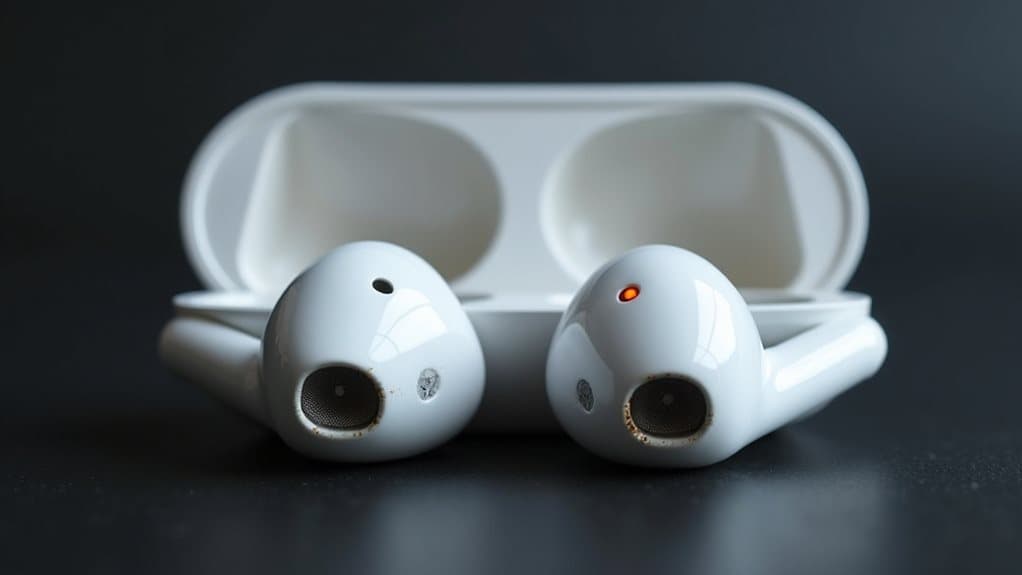
Software updates alone won’t solve every beeping problem with your AirPods. Hardware issues in your charging case often trigger persistent beeps.
Low battery warnings, faulty charging circuits, or overheating sensors can cause abnormal sounds. Dirt on charging contacts or improper AirPod seating may create intermittent beeping.
Additionally, your AirPods Pro beep when placed on wireless chargers, signaling charging status—a normal notification behavior.
Wrapping Up
AirPods beeping typically stems from low battery, connectivity issues, or pairing mode alerts. You’ve now got the tools to diagnose and resolve these problems through Bluetooth troubleshooting, volume adjustments, firmware updates, and hardware checks. If you’ve tried these solutions and the beeping persists, contact Apple Support or visit an authorized service provider. Regular maintenance, including cleaning your AirPods and keeping firmware updated, will help prevent future issues and guarantee peak performance.