When Prime Video won’t work on your Roku, start by restarting your device through Settings > System > System Restart or unplugging it for 30 seconds. If that doesn’t help, update both your Roku system and the Prime Video app, then remove and reinstall the app to clear corrupted data. Check that your internet speed meets minimum requirements—5 Mbps for HD or 18 Mbps for 4K. You should also verify your Amazon account status and subscription validity to guarantee there aren’t payment issues blocking access. The following steps provide all-inclusive solutions for persistent streaming problems.
Quick Guide
- Restart your Roku device via Settings > System > System Restart or unplug for 30 seconds to clear temporary cache issues.
- Update both Roku system software and Prime Video app by checking Settings > System > Software update and app updates.
- Remove and reinstall Prime Video by pressing * on the app, selecting Remove Channel, then reinstalling from Streaming Channels.
- Ensure network speeds meet minimum requirements: 5 Mbps for HD or 18 Mbps for 4K streaming content.
- Verify your Amazon Prime membership status and payment method are current under “Your Prime Membership” settings.
Common Reasons Prime Video Stops Working on Roku
When Prime Video acts up on your Roku device, the culprit usually falls into one of five main categories.
You’re dealing with app installation problems, streaming performance issues, network connectivity failures, device hardware limitations, or account access complications.
Each category has distinct symptoms—from complete loading failures to intermittent buffering—and requires specific troubleshooting steps to restore your viewing experience.
A simple power cycle, like unplugging your device for 10–15 minutes and reconnecting, often resolves common software glitches and temporary malfunctions and can be the quickest fix for many issues with streaming apps like Prime Video that hang or fail to load power cycle.
Quick Restart Solutions for Roku and Network Devices
Before you investigate more complex solutions, a simple restart often resolves most Prime Video problems on Roku.
You can restart your Roku by going to Settings > System > System Restart using your remote. Alternatively, unplug your device for 30 seconds, then reconnect it.
For persistent issues, restart your router and modem first, then reboot your Roku. Restarting clears temporary cache and refreshes the system to fix minor glitches that may be preventing Prime Video from working properly. Make sure your power supply and HDMI connections are secure, and try using the original power adapter or a different HDMI port if problems continue (power supply checks).
Update Your Roku System and Prime Video App
Outdated software frequently causes Prime Video to malfunction on Roku devices, so keeping both your system and the app current is essential.
Go to Settings > System > Software update > Check now to update your Roku. For the Prime Video app, press the star button on your remote, select the app, then choose “Check for updates.”
System updates improve compatibility and fix bugs affecting streaming performance. Your Roku automatically checks for updates every 24–36 hours when connected to the internet, downloading and installing them without interrupting your viewing. Power cycle your Roku and router periodically to resolve persistent issues and improve connectivity network status.
Reinstall the Prime Video App on Your Roku Device
If updating your Roku and Prime Video app didn’t resolve the issue, a fresh installation often clears up persistent problems.
Proceed to your Roku Home screen and highlight the Prime Video app. Press the asterisk (*) button, select “Remove Channel,” and confirm.
Then access “Streaming Channels,” search for Prime Video, and reinstall it. Sign in with your Amazon credentials to complete the process. You should also verify your internet speed meets the minimum 5 Mbps requirement to ensure reliable streaming.
Check Your Internet Connection Speed and Stability
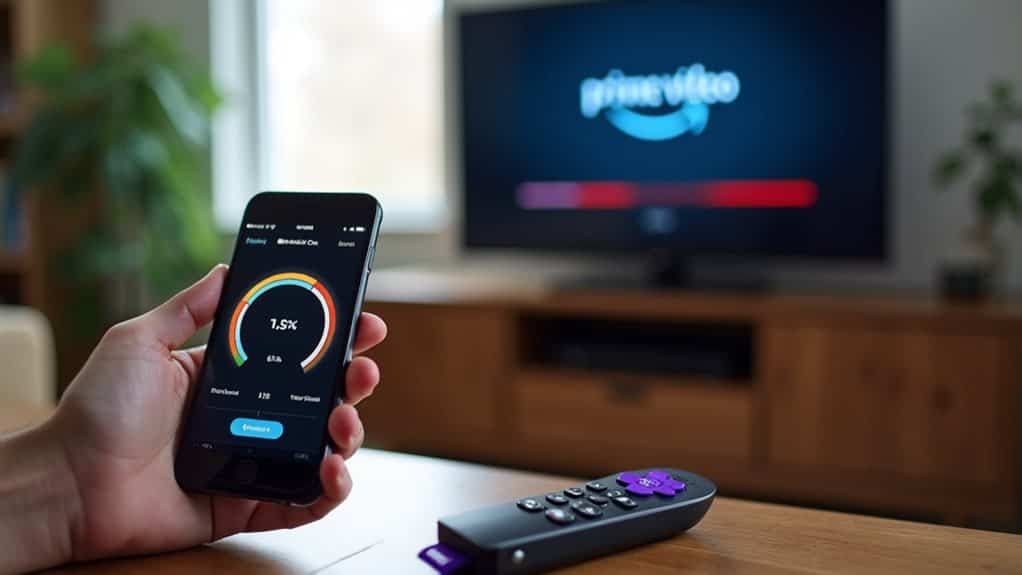
Many Prime Video playback issues on Roku stem from insufficient internet speeds rather than app or device problems.
Standard Definition requires 1 Mbps minimum, HD needs 5 Mbps, and 4K demands 18 Mbps.
However, you’ll want 30 Mbps for HD and 36 Mbps for 4K to prevent buffering.
Run speed tests during peak hours to verify your connection meets these requirements consistently.
Restarting your modem and router can often resolve intermittent speed or stability problems, and you can read about restarting equipment for simple steps and tips.
Optimize Your Network Settings for Streaming
Beyond addressing basic internet speed requirements, your network configuration plays a crucial role in maintaining consistent Prime Video streaming on Roku.
Position your router centrally and raise it away from walls and metal objects.
Switch to the 5GHz band for faster speeds with less interference.
Update your router’s firmware regularly to guarantee peak performance.
Limit active devices during streaming sessions to maximize available bandwidth for your Roku.
Verify Your Amazon Account and Subscription Status
Before troubleshooting any technical settings on your Roku device, you’ll need to confirm your Amazon account remains in good standing with an active subscription.
Sign in to Amazon.com and go to “Your Prime Membership” under “Accounts & Lists.” Check your subscription status, expiration date, and payment method.
Verify there aren’t any pending payment issues or security alerts requiring immediate action before proceeding with device-specific fixes.
Clear Cache and Reset App Data
Cached data can pile up over time on your Roku device, causing Prime Video to freeze, buffer endlessly, or fail to launch altogether.
Clear your Roku’s system cache by pressing Home five times, Up once, Rewind twice, then Fast Forward twice. Your device will restart automatically.
Alternatively, uninstall Prime Video from your home menu, then reinstall it from the Roku Channel Store to reset app-specific data.
Alternative Ways to Watch Prime Video on Your TV
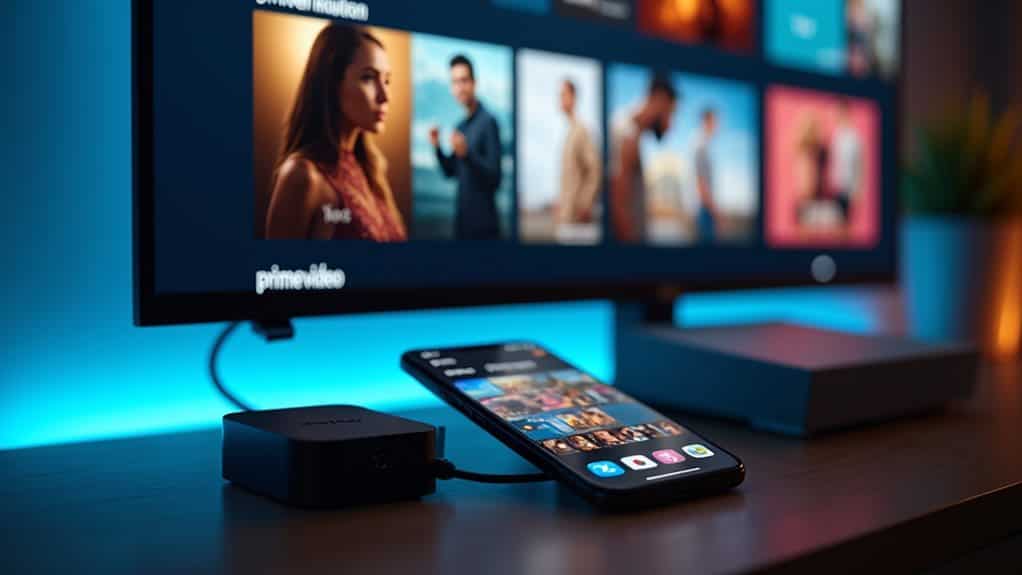
If your Roku troubleshooting hasn’t panned out, you’ve got several reliable alternatives to get Prime Video streaming on your TV.
Connect your computer directly using an HDMI cable and stream through your browser at amazon.com/video. Alternatively, use Chrome’s Cast feature from your computer or the Cast icon from your mobile app. Other streaming devices like Fire TV or Apple TV also support Prime Video.
Wrapping Up
Getting Prime Video working on your Roku doesn’t require technical know-how. You’ve now got multiple solutions—from simple restarts to reinstalling the app and optimizing your network. Start with the easiest fixes first, then work through more advanced options if needed. Most issues resolve quickly with basic troubleshooting. If problems persist after trying these methods, contact Amazon or Roku support for device-specific assistance. You’ll be streaming your favorite shows again soon.