
When Wyze fails to update your device list, start by force-closing the app through your phone’s Settings > App Manager, waiting 10 seconds, then reopening it. Next, check for app updates in your app store and install any available versions. If that doesn’t work, disable your VPN, restart your smartphone, and verify you’re connected to a stable 2.4 GHz Wi-Fi network. As a last resort, clear the app cache or reinstall Wyze entirely—your devices will resync automatically after logging back in, and additional troubleshooting steps can resolve persistent connection issues.
Quick Guide
- Force stop the Wyze app via phone Settings, wait 5–10 seconds, then reopen to refresh device list.
- Clear app cache through Settings > Apps > Wyze > Storage > Clear Cache, then restart the app.
- Update Wyze app to latest version (Android 3.8.6.723 or iOS 3.8.0.15) to fix known bugs.
- Verify cameras connect to 2.4 GHz Wi-Fi with strong router signal and stable internet connection.
- Disable VPN temporarily, as it can block Wyze server communication and prevent device list updates.
Check Wyze Service Status and Internet Connectivity
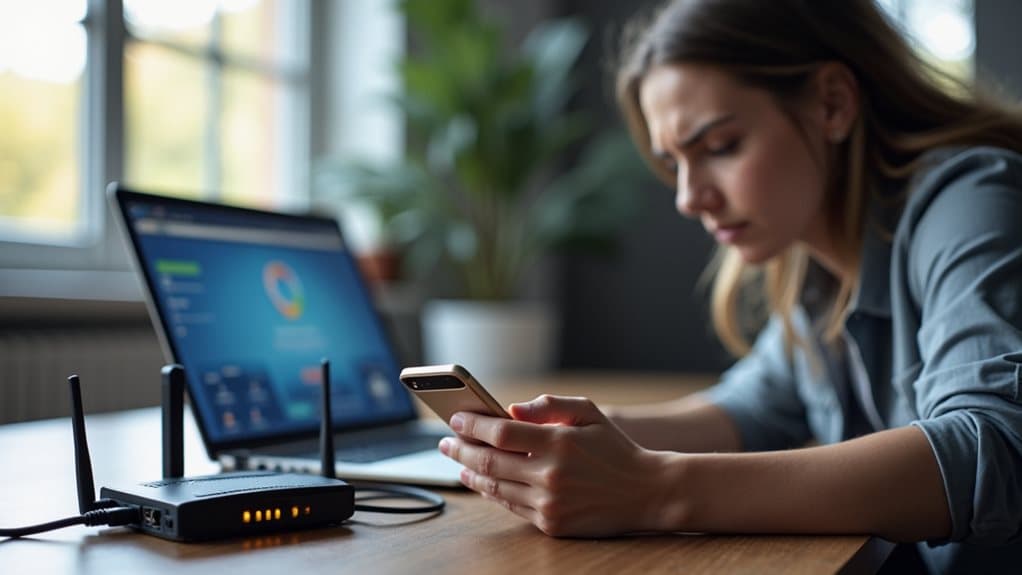
When your Wyze device list fails to load or appears empty, the first step is determining whether the issue stems from Wyze’s servers or your local internet connection.
Check Wyze’s official support pages or the app for service status updates about outages. Visit Downdetector for user-reported problems.
Verify your internet connection is stable and your router’s functioning properly, as weak Wi-Fi signals prevent devices from appearing online. AWS partner issues have previously caused widespread device connection problems and login difficulties across the Wyze platform.
Also ensure your cameras are connected to a 2.4 GHz network and within good signal range of the router.
Force Close and Reopen the Wyze App
If your Wyze device list won’t load, closing and reopening the app often clears up the problem in under a minute.
Open your phone’s settings, go to App Manager, and select Wyze. Tap “Force Stop” and confirm the action. Wait 5-10 seconds, then reopen the app.
This terminates background processes causing connectivity issues and typically results in immediate device recognition and successful camera loading. If the app continues to crash after force closing, you may need to uninstall and reinstall the Wyze app to resolve the issue completely. You can also try positioning your hub closer to the router to improve Wi-Fi connectivity.
Update the Wyze App to the Latest Version
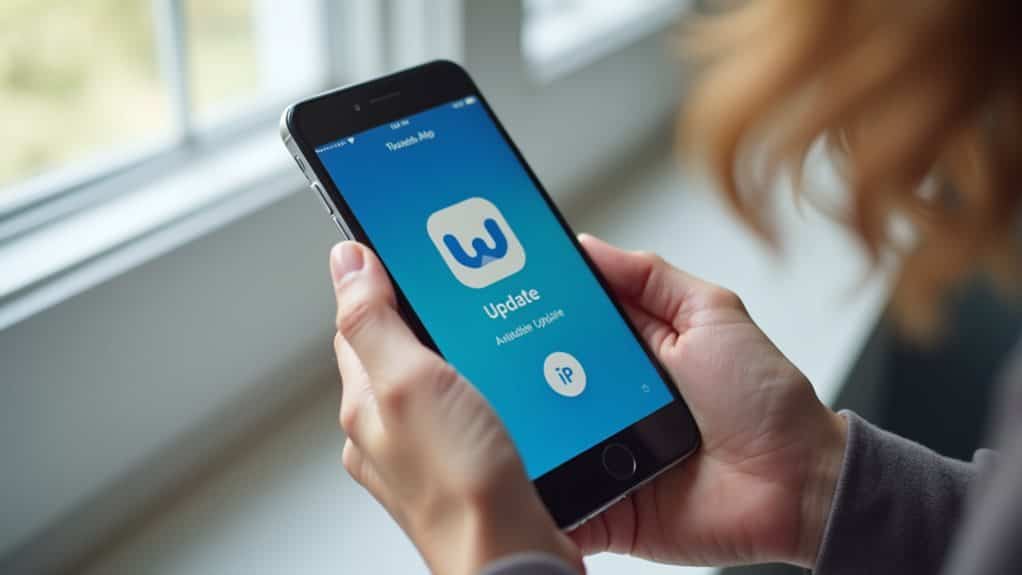
An outdated Wyze app can prevent your device list from loading properly, so you’ll need to verify you’re running the most current version.
You can check your app version in the Account tab under “App Version” and compare it against the latest releases: version 3.8.6.723 for Android or 3.8.0.15 for iOS.
If an update is available, install it through the Google Play Store or Apple App Store to resolve compatibility issues and benefit from recent bug fixes that address device list problems.
If you use a VPN that interferes with app connectivity, temporarily disable the VPN to see if the device list loads correctly; see how to disable for steps.
Check Current App Version
Before troubleshooting your Wyze device list, you’ll want to confirm you’re running the latest version of the Wyze app. Open your app and check the badge—it should display a black background with a blue gradient W logo.
For Android, the current version is 3.8.6.723, while iOS users should have 3.8.0.15. You can verify your version number in the app settings.
Install Available App Updates
Keeping your Wyze app updated is essential for maintaining a functional device list and accessing the full range of features available to you. Open your device’s app store and search for “Wyze.” If an update appears, tap “Update” and wait for installation to complete.
Restart the app afterward to guarantee all changes take effect. Updates include critical security patches, bug fixes, and performance improvements that resolve compatibility issues.
Restart Your Smartphone or Device
A simple restart of your smartphone can resolve issues with the Wyze app’s device list by clearing temporary cache files and resetting system processes.
When you reboot your phone, it frees up memory that background apps have been consuming and eliminates minor software glitches that might prevent Wyze devices from displaying properly.
This quick fix takes less than a minute and often restores full functionality to your device list without requiring more complex troubleshooting steps.
If the issue persists after restarting, also try checking your router and modem status and running basic network diagnostics to rule out a connection issue.
Clear Android App Cache
Sometimes, your Wyze device list won’t load properly due to corrupted temporary files stored in the Android app’s cache.
Clearing this cache removes outdated data that may cause glitches without deleting your personal information or app settings.
Go to your device’s Settings, select Apps, tap Wyze, choose Storage, and select Clear Cache.
This helps the app load fresh data and resolves specific malfunctions.
Reboot Clears System Processes
When your Wyze device list fails to load, restarting your smartphone can clear out the accumulated system processes and temporary files that interfere with app functionality.
A reboot releases RAM by terminating dormant apps and resetting volatile memory, which optimizes performance. This stops persistent processes causing lag and prevents software conflicts.
Simply power off your device, wait ten seconds, then restart to refresh your system and restore proper app operation.
Disable VPN and Check Network Settings
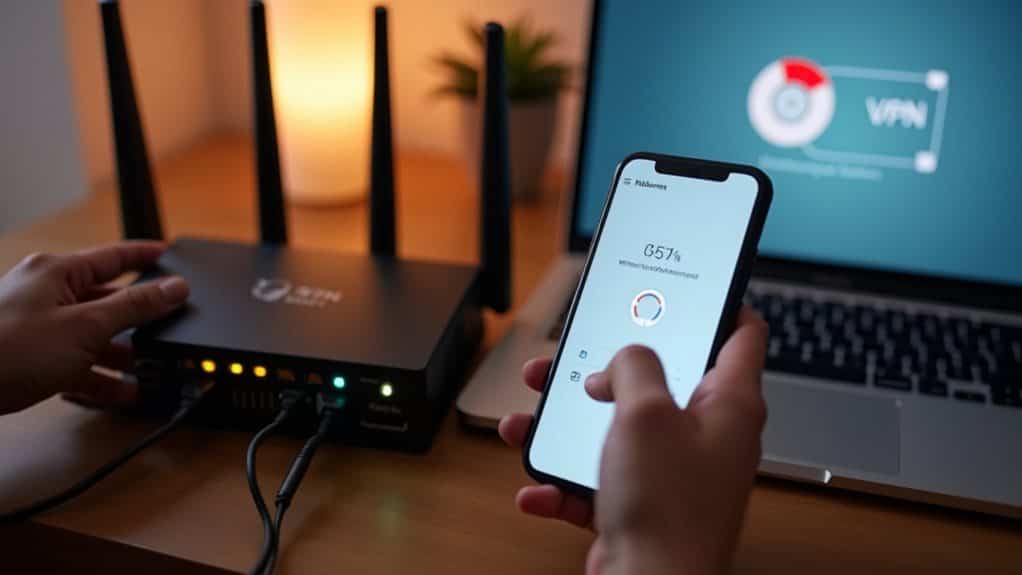
If your Wyze device list isn’t updating properly, VPN connections often interfere with the app’s ability to communicate with Wyze servers. Disable your VPN and check if the list refreshes within minutes.
Additionally, review network restrictions like firewalls or custom DNS settings that may block server access. Make sure you have a stable internet connection, and consider switching networks to identify router or ISP issues causing the problem. Also verify that your device is not experiencing a DNS leak which can expose DNS requests and bypass the VPN’s protections.
Uninstall and Reinstall the Wyze App
Network adjustments may not always resolve device list problems, and a fresh app installation often clears up persistent issues that other fixes can’t address.
Before uninstalling, clear the Wyze app’s cache through Account > App Settings > Cache File Size > Clear, then log out.
Uninstall the app from your device, restart it, and reinstall from your app store.
Your devices and settings will sync automatically after logging back in.
Contact Wyze Support for Additional Assistance
Should device list problems persist after reinstalling the Wyze app, you’ll need to reach out to Wyze Support for further troubleshooting.
Contact them through live chat or submit a support ticket via the Wyze help center. You can also call their support line at (206) 339-9646 or toll-free at 1-844-999-3226 during business hours: Monday-Friday 6:00 am-6:00 pm PT, and weekends 8:00 am-4:00 pm PT.
Wrapping Up
Resolving Wyze’s device list update issues typically involves checking your internet connection, updating the app, or adjusting network settings. Start with simple solutions like force closing the app or restarting your device before moving to more involved steps like reinstalling. If you’ve exhausted these troubleshooting methods without success, don’t hesitate to reach out to Wyze Support. They’ll provide specialized assistance customized to your specific situation and help restore full functionality to your smart home system.