Yes, most Smart TVs track your viewing with ACR to serve targeted ads, but you can stop it. Turn off ACR in your privacy settings (Samsung, LG, or Vizio menus), reset your advertising ID, and use AdGuard DNS to block trackers. Be aware—third-party apps on your TV might still send data, so check their permissions. Disable voice recognition and location features too. Even after opting out, some tracking slips through, so probe deeper into router-level blocks and app-specific settings to lock down your privacy. If ads keep following you, there’s more to uncover about hidden data paths.
Quick Guide
- Smart TVs use Automatic Content Recognition (ACR) to track viewed content via audio/video fingerprints for targeted ads.
- Collected data, including app usage and viewing habits, is shared with advertisers and third-party brokers.
- Disable brand-specific ACR features in TV privacy settings (e.g., Samsung’s Viewing Info Services, LG’s Live Plus).
- Turn off voice recognition and delete stored voice data through manufacturer apps like Google My Activity.
- Opting out may limit features; verify privacy settings post-updates and use manual DNS for extra control.
How Smart TVS Track Your Viewing Habits With ACR
Imagine your TV quietly analyzing what you watch, even during idle moments. Smart TVs use Automatic Content Recognition (ACR) to capture audio clips or visual frames, matching them against databases—like Shazam for your screen. It tracks live TV, streaming, and external devices 24/7, transmitting data encrypted but still revealing your viewing habits. Opt-out options exist, but manufacturers embed ACR deeply, with regional variations and cross-device tracking complicating true privacy control. This tracking extends to external devices, with LG TVs sending audio fingerprints every 15 seconds to unknown network domains continuous monitoring. Network-level tools like Pi-hole can help block tracker domains and reduce data reaching ACR servers.
What Data Smart TVs Sell to Advertisers
Smart TVs convert the viewing data they collect into revenue by sharing it with advertisers. They sell your watching habits, app usage, and voice commands to build targeted ad profiles.
Household demographics, unique ad IDs, and content preferences flow to third parties, fueling personalized ads. ACR tech snaps thousands of content screenshots hourly, helping advertisers match products to your habits—without needing a browser.
This data feeds proprietary systems, letting companies profit from what you watch, when you watch it, and how you interact. Your privacy becomes a commodity. Local control via Zigbee or Z-Wave hubs and privacy-focused device choices can reduce cloud exposure and limit data sharing.
Which Smart TV Brands Use Third-Party Tracking (and How to Opt Out)
You might be surprised by how many popular smart TVs use third-party tracking—Samsung’s ACR links your viewing across devices for ads, while Vizio’s SmartCast logs every channel and app with no easy opt-out.
These systems gather sensitive data, like when you pause or rewind shows, which gets sold to advertisers. Opting out varies by brand: Samsung lets you disable tracking via a buried menu or online account, but Vizio demands tedious manual steps and other brands tie privacy controls to smart features you might rely on. Meta Quest devices also use a 4-digit PIN for securing transactions and account actions, so learning how to find or reset such security codes can help protect your connected-device privacy.
Samsung And Third Party Acr
While Samsung’s Automatic Content Recognition (ACR) primarily stays within its own systems, the company still exploits third-party partnerships to monetize viewing data, using in-house processing for tasks like capturing screen snapshots every 500 milliseconds, including HDMI inputs, while sharing aggregated findings with advertisers.
You’ll see fewer external trackers here than with LG’s Alphonso reliance—but Samsung still sells anonymized viewing patterns and advertising IDs to brokers.
Opt out via Settings > Privacy Choices > Viewing Information Services to block data sharing without sacrificing core functionality.
Vizio Smartcast Acr Tracking
Vizio’s SmartCast ACR doesn’t just note what you watch; it captures screen frames and audio samples at high frequency, converting them into fingerprints to identify content across streaming services, cable, and connected devices like gaming consoles.
It logs volume, inputs, and playback actions, sharing data with third parties for ads. Post-FTC settlement, it now requires opt-in consent during setup—but declining limits personalized features. Your viewing habits fuel targeted ads unless you block this invasive tracking upfront.
Opt Out Across Brands
Whether you’re a current owner or considering a purchase, most major smart TVs—including LG, Samsung, Roku, Amazon Fire TV, and Google TV models—use third-party tracking to monetize viewing data.
LG’s Live Plus tracks everything; opt-out via settings (but lose features).
Samsung shares data across devices; adjust privacy settings.
Roku TVs disable ACR in *Smart TV Experience*.
Amazon Fire TVs turn off *Device Usage Data* (Alexa listens).
Google TV blocks personalized ads via *Privacy*.
Each brand leaks data—know how to protect yourself.
How to Access Privacy Menus on Major Smart TV Brands
Each brand offers options for you to limit data sharing and enhance privacy—locate these menus now to take control. You can also improve overall connection reliability by using manual DNS settings if privacy or connectivity issues persist.
Disable ACR Tracking in 3 Simple Steps (2025 Guide)
Disable ACR tracking on your smart TV to prevent companies from collecting data about your viewing habits. Press Home/Settings, go to privacy menus, then disable ACR features: Sony (Samba Interactive TV), LG (Viewing Information Agreement), Samsung (Viewing Info Services), Hisense/TCL (Smart TV Experience).
Deselect options, confirm changes, and restart your TV. This blocks data sharing with third parties, giving you control over your privacy without affecting basic functionality.
Stop Voice Recognition Data From Leaking to Google or Amazon
You can stop voice recognition data from leaking to Google or Amazon by turning off voice features in your TV’s settings.
If you don’t need voice control, disable it entirely—this blocks microphone access and stops recordings from being stored. Don’t forget to delete existing voice recordings, too, since old data might still linger in manufacturer servers even after you opt out.
Turn Off Voice Recognition
Carve out control over your smart TV’s listening capabilities by shutting down voice recognition features, which stop voice data from drifting to third-party servers.
Go to Settings → Voice, disable all voice assistants (Alexa, Bixby), and confirm ACR is off.
Opt for on-device speech-to-intent tech if your TV supports it—keeps commands local.
Review privacy policies, too; some defaults re-enable post-update. Your privacy shouldn’t hinge on a microphone. (62 words)
Delete Stored Voice Recordings
Take control of your smart TV’s privacy by scrubbing stored voice data that could leak to Google or Amazon.
Use built-in settings—like Google’s My Activity, Alexa’s app, or Samsung’s Secure Folder—to delete recordings manually.
Enable auto-deletion, toggle off voice services post-use, and physically disable mics.
Don’t let snippets linger: power off your TV fully to erase standby data trails.
Freedom starts with wiping what’s already stored.
Block Streaming Services From Logging Your Watch History
For many streaming platforms, maintaining privacy starts with understanding how each service handles viewing logs. Netflix, Amazon Prime, and YouTube let you hide or delete history via web or apps—clearing logs blocks recommendations.
Hulu lets you trash watched titles; Disney+ offers no edit tools. Avoid third-party apps like Trakt that auto-log your activity across services. Take control: manually manage history to limit what gets recorded and shared.
Why Your TV’s Advertising ID Keeps Resetting (and How to Fix It)
Your smart TV’s advertising ID is central to ad targeting, yet its unpredictable resets can confuse even privacy-minded users.
Resets occur from updates, factory resets, or multiple ad providers syncing IDs.
To manually reset, browse Settings > Privacy > Ads > Reset Advertising ID.
Regular resets disrupt tracking, but combine with ad blockers for stronger control.
Avoid factory resets to maintain a consistent ID.
Delete Device Location Tracking Without Losing App Features
While many users worry that turning off location tracking might break app features, smart TVs let you disable precise location access without losing functionality.
Navigate to your TV’s privacy settings (e.g., Samsung’s General & Privacy or Sony’s System Preferences), toggle off location services, and reset advertising IDs.
Use dedicated streaming devices or DNS filters like Pi-hole for extra control.
Most apps work fine without location data, protecting your freedom without sacrificing usability.
Regular audits make certain tracking stays off post-updates.
Why Smart TVs Still Track You After Opting Out (Third-Party Apps)
You might think opting out of data sharing stops tracking, but many third-party apps keep accessing your viewing habits through hidden data streams.
Services like ACR, embedded in devices or apps, often bypass privacy toggles by collecting screen snapshots or app activity to build your profile.
Even ad IDs you reset can regenerate, letting companies stitch together your preferences across platforms despite your settings.
Third-Party App Data Access
Turn off privacy settings or opt out, Smart TVs still let third-party apps track your streaming activity through Automatic Content Recognition (ACR), which scans screen frames to identify what you watch and shares snippets with advertiser networks.
Apps exploit permissions you granted—like device IDs, viewing logs, and interaction patterns—to bypass your privacy choices.
Manufacturers sell these analytics to data brokers, fueling targeted ads based on your habits, all while hiding behind opaque privacy controls that make accountability feel impossible.
Opt-Out Limitations Explained
Smart TV privacy settings give the illusion of control, but third-party tracking continues unchecked because opting out doesn’t erase permissions apps already exploited during setup.
Third-party data sharing persists—like LG’s pre-opt-out ACR data sent to Alphonso—even if you decline later.
Internal use still allows Samsung to process ACR data across domains.
Disable features like Vizio’s SmartCast entirely by rejecting default opt-ins; otherwise, diagnostic or ad data clings, trading freedom for partial “privacy.”
External App Tracking Workarounds
Plunge into your Smart TV’s privacy settings and you might think you’ve hit a dead end—opting out often fails to stop third-party apps from tracking your viewing. ACR in apps like Netflix logs screen data despite TV toggles.
Disable “Manage Sharing” on Fire TV to block leaks. Reset advertising IDs, but brokers still link profiles across devices.
Check app permissions post-updates; defaults often re-enable tracking. Use ad blockers or sideload apps without ACR to reclaim control.
Block Smart TV Tracking Using Router-Level Filters (AdGuard DNS)
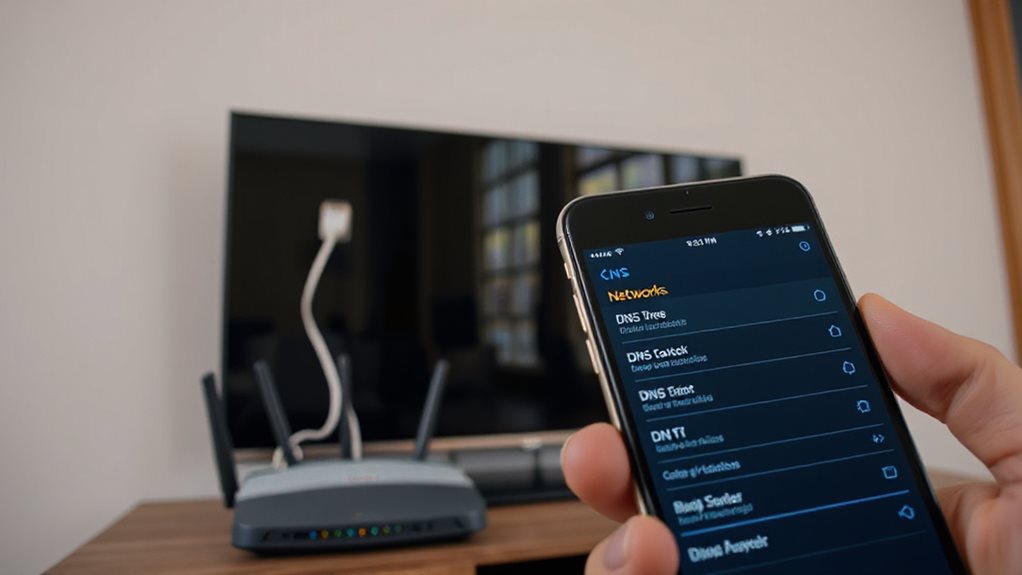
By adjusting your home network’s DNS settings, you can deploy AdGuard DNS to block tracking attempts from your Smart TV and other devices. Enter AdGuard’s DNS servers (94.140.14.14 and 94.140.14.15) in your router settings to intercept ad, tracker, and malware domains at the network level. This blocks telemetry, ACR requests, and background surveillance before they reach your TV, supporting encrypted protocols like DNS-over-HTTPS.
Works on Samsung Tizen, LG webOS, Apple TV, and more—even without installed apps. While free public servers work, subscriptions enable encrypted IPv4 for tighter control, putting you firmly in charge of your data.
Wrapping Up
Smart TVs track your viewing habits via ACR and third parties, sharing data like app usage and locations. Check privacy menus to disable ACR, opt out of data sales, or reset your advertising ID. Even after opting out, third-party apps (e.g., streaming services) may still collect data. Use router-level blockers like AdGuard DNS to cut tracking at the source. Delete location tracking without losing app access by toggling system settings. Stay proactive: smart TVs reset privacy options periodically, so revisit menus quarterly. Balancing convenience and privacy means knowing your device’s loopholes—and closing them.