Pick an NBN plan with the lowest latency—Superloop 1000 or Exetel 500 are top choices—then choose an ISP that shows near‑zero packet loss, like Origin. Connect your console or PC directly to the router with Cat6 Ethernet and enable QoS, giving the gaming device the highest priority. Run a ping test to an Australian server, note the average RTT, and use traceroute to spot any bottlenecks. Choose the nearest game server, ideally Sydney, and cap your frame rate to the monitor’s refresh rate. Follow these steps to keep your ping under 70 ms and uncover more detailed tweaks ahead.
Quick Guide
- Choose a low‑latency NBN plan (e.g., Superloop 1000 or Exetel 500) and match speed to your target ping and budget.
- Select an ISP with minimal packet loss (Origin NBN, Superloop) and avoid providers showing 1‑4% loss like Arctel.
- Test latency with ping/traceroute to Australian servers; record min, max, average RTT and packet loss to spot bottlenecks.
- Connect gaming devices via Cat6 Ethernet, enable router QoS for the console/PC, and keep router well‑ventilated.
- Play on the nearest server (Sydney, then Singapore) and cap frame‑rate to monitor refresh rate to keep ping under 70 ms.
Pick the NBN Plan That Gives You the Fastest Ping
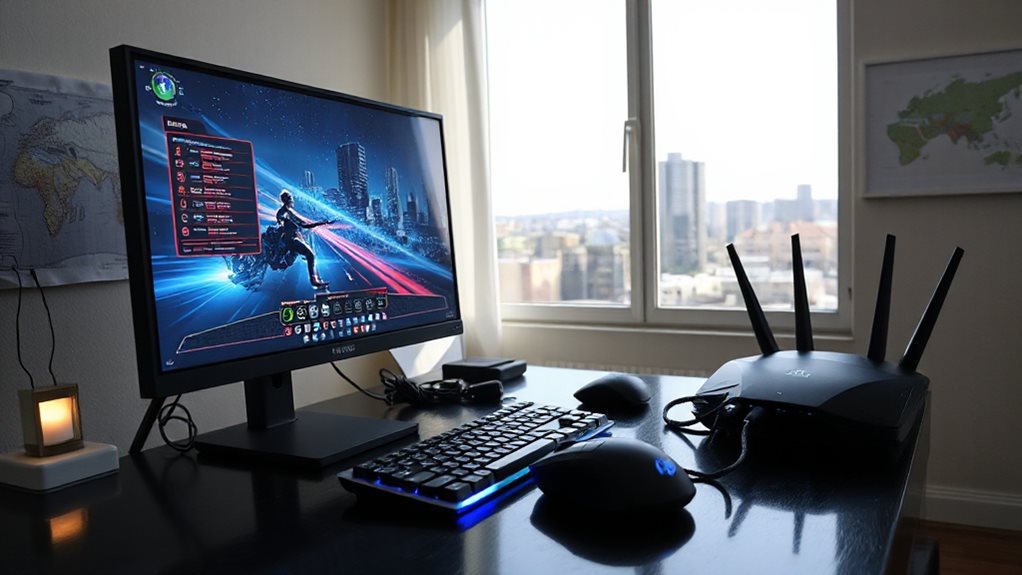
Which NBN plan gives you the lowest ping? Choose Superloop 1000 for top tier latency, 8.7 ms average, 860 Mbps evening speed, no lock‑in, $79 intro. If you prefer cheaper, Superloop 250 offers 8.7 ms ping, 250 Mbps download, $85 intro. Exetel 500 gives 7 ms ping, 500 Mbps download, $102 average. Pick the plan that matches your speed, price, and freedom needs. Superloop’s Speed Boost days can further reduce latency during peak gaming sessions. NBN latency optimization can help you maintain a smoother online gaming experience and lower ping in Australia.
Select an ISP With Minimal Packet Loss for Low‑Ping Gaming
Ever wondered how packet loss affects your gaming performance? Choose an ISP that reports near‑zero loss—Origin NBN delivers 0% in Perth tests, while Occom averages 0.92%, far lower than Telstra, Optus, or TPG’s 5‑7%. Look for providers with efficient routing, low jitter, and gaming‑focused infrastructure. Avoid ISPs with documented 1‑4% loss like Arctel, and prioritize those with proven stability during peak hours. VPNs can provide additional security and privacy for online play, though they may introduce extra latency depending on the route and server location. A key consideration is network stability over time, including how an ISP handles congestion and maintenance windows during peak hours, which can impact your packet loss and overall latency.
Measure Your Current Ping and Spot the Bottleneck
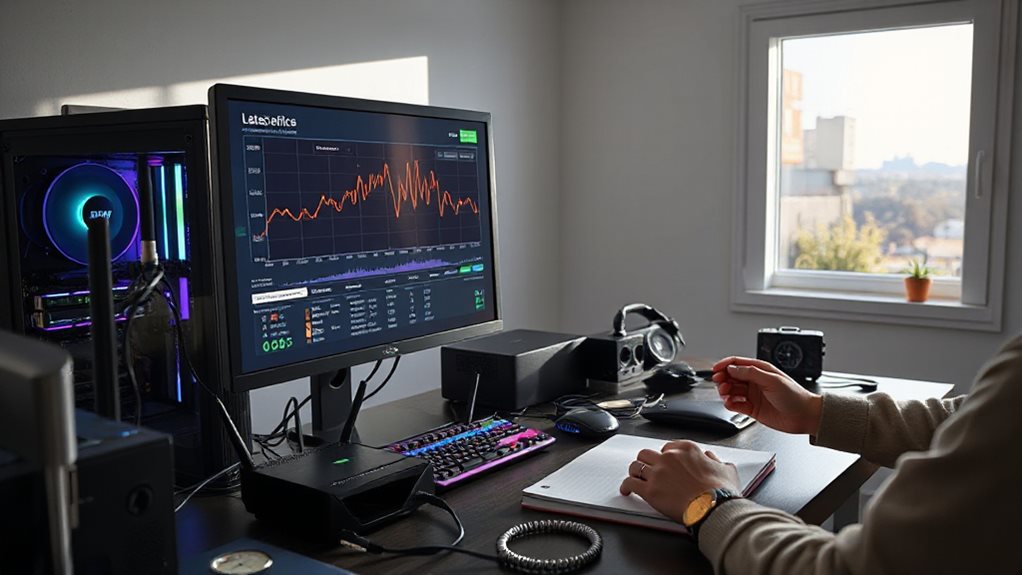
How can you tell whether your connection is holding you back in a match? Run an online ping test to an Australian server, then repeat it with Windows `ping example.com.au` or macOS `ping -c 4 example.com.au`. Record min, max, and average RTT and packet loss. Compare local vs international results, and note any high variation or loss. Use traceroute if needed to pinpoint the bottleneck. Metadata Essential for organizing and retrieving information efficiently. Also, to ensure you’re using reliable test results, consider verifying your setup with a trusted and stable network monitoring tool that features trusted performance metrics and logs over time.
Wire Your Devices & Enable QoS for Stable Gaming Latency
Why settle for lag when a simple wiring upgrade and proper QoS setup can slash your gaming latency? Plug your console or PC directly into the router with a Cat6 Ethernet cable; avoid Wi‑Fi interference. In the router admin panel, enable QoS, set your gaming device as highest priority, and reserve a modest bandwidth slice. Reboot the router, update firmware, and monitor traffic to keep latency low. Maintain 4–6 inches clearance around vents and ensure proper ventilation to prevent overheating during intense gaming sessions ventilation guidance.
Pick the Nearest Game Server for Low Ping
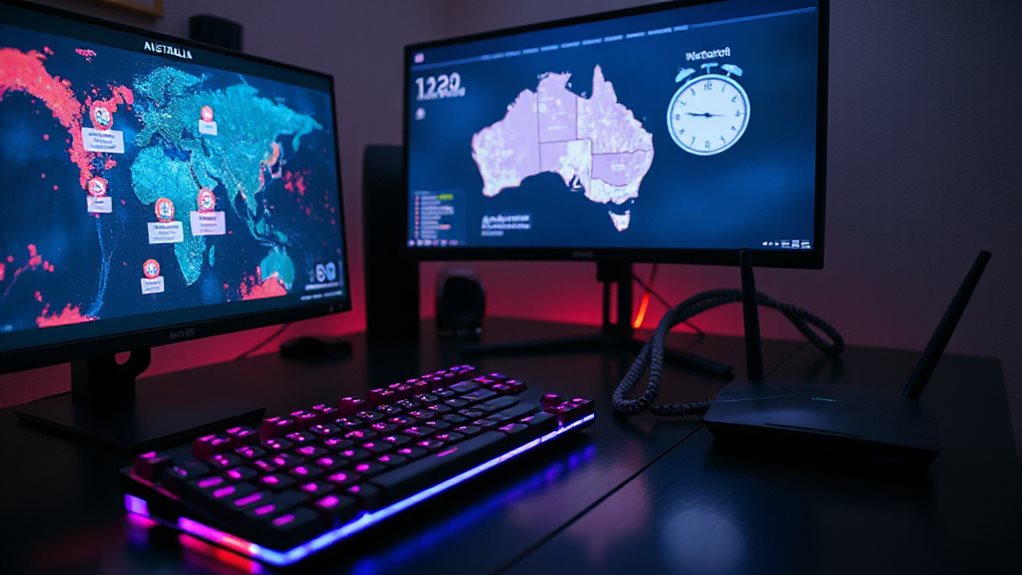
Where can you find the lowest ping? Choose the Sydney datacenter—Australia’s primary server. Use Pingperfect to test latency, confirming results under 70 ms. If Sydney isn’t available, try Singapore for comparable speeds. Avoid distant locations like Europe, US East, Canada, or Brazil, which push ping above 140 ms. Selecting the nearest server cuts travel time, steadies hit registration, and keeps gameplay fluid. Local proximity helps reduce overall latency by prioritizing nearby nodes in Australia.
Tweak In‑Game Settings and Monitor Latency Spikes
Adjust your display options and set a reasonable frame‑rate cap to keep the GPU from overworking and adding latency. Use built‑in network monitoring tools or a simple ping command to watch for spikes while you play. If you notice sudden delays, tweak the settings or pause the game to let the system stabilize. Restarting the device can help clear temporary audio routing glitches that may indirectly affect latency by stabilizing system performance. AirPlay status and proper audio routing are important factors in ensuring consistent hardware performance across devices.
Settings Display Options
Ever noticed how a single setting can shave milliseconds off your ping? Turn on Nvidia’s ultra‑low latency or AMD’s Anti‑Lag in the driver panel. Enable Game Mode on your monitor and Windows 10. Disable Windows visual effects, uncheck anti‑aliasing, and close bandwidth‑hungry apps. These tweaks free GPU cycles and network bandwidth, reducing latency spikes for smoother play.
Frame Rate Caps
How often do you notice your game stutter just before a pivotal shot? Cap the frame rate at your monitor’s refresh rate—60 Hz or 144 Hz—to keep GPU utilization under 95 %. Use the in‑game limiter; it cuts latency by roughly two frames compared to external tools. Consistent caps prevent queue buildup, lower input lag, and improve responsiveness across titles.
Network Monitoring Tools
Keeping your frame‑rate cap steady helps prevent GPU queue buildup, but you still need to see what’s happening on the network side. Use PRTG to watch latency, packet loss, and bandwidth in real time, visualizing spikes on dashboards.
SoftPerfect Ping Monitor gives instant ICMP results and alerts when thresholds breach.
Run synthetic latency probes to map ISP routes and spot congestion, keeping ping under 20 ms for competitive play.
Wrapping Up
By picking a high‑speed NBN plan, choosing an ISP with low packet loss, and regularly measuring your ping, you’ll identify and eliminate bottlenecks. Wire your devices directly, enable QoS, and select the nearest game server for the most stable latency. Adjust in‑game settings to keep spikes in check. Follow these steps, and you’ll consistently enjoy lower ping and smoother gameplay in Australia.