
If your Roku TV’s volume is too low, start by checking that TV speakers are selected in Settings > Audio — not ARC or an external device. Make sure mute is off on both the TV and remote, and press the star (*) button during playback to set Volume Mode to Off. Disable audio enhancements like Volume Leveling and Night Mode, which compress sound. Check HDMI cables are firmly connected, restart your system, and unpair any Bluetooth devices that may be redirecting audio elsewhere.
Quick Guide
- Check TV and Roku remote mute status, verify physical volume buttons are working, and set Volume Mode to Off during playback.
- Go to Settings > Audio and select TV speakers as output, then set Digital Output Format to Auto.
- Disable audio enhancements — Volume Leveling, Night Mode, Dialog Enhancement, Bass/Treble Boost — to restore full volume dynamics.
- Inspect HDMI cables and ports for loose connections, test alternate ports, and disconnect external devices like soundbars or Bluetooth speakers.
- Restart or power cycle by unplugging the TV for 60 seconds, then update firmware via Settings or USB.
Check Your Basic Volume and Mute Settings First
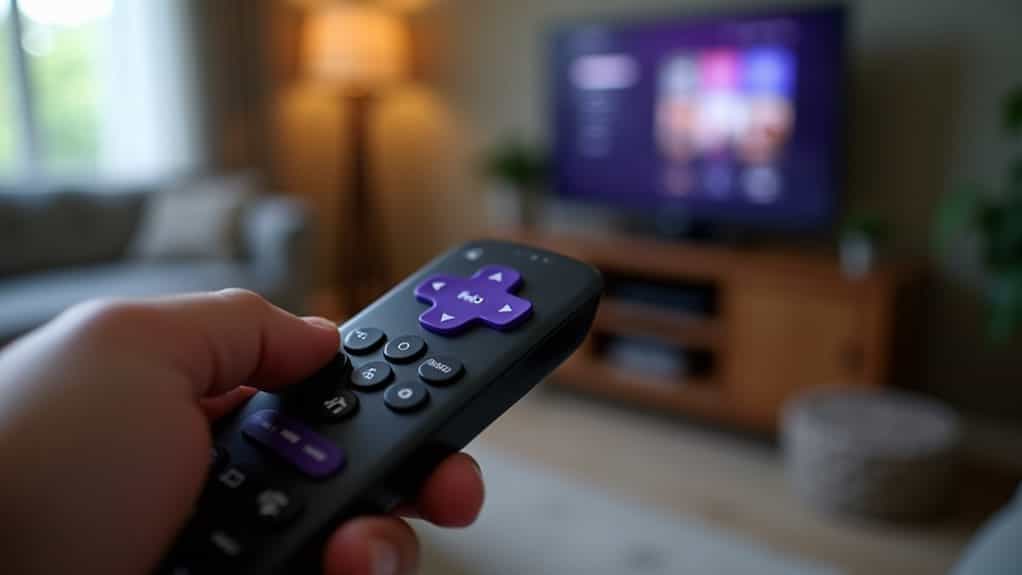
Before anything more involved, rule out the obvious. Use your TV’s physical buttons to confirm volume is actually turned up. Press mute on both your TV and Roku remote to make sure neither is active, and test the remote’s volume buttons to confirm they’re working. If you can’t find the physical buttons, they’re usually along the bottom or side edge of the TV — useful for adjusting volume even without a remote, similar to manual controls on other TV brands.
During playback, press the star (*) button and check Volume Mode is set to Off — Roku offers three modes here (Off, Leveling, and Night), and Leveling or Night mode can quietly compress your audio and reduce peak loudness without it being obvious that’s what’s happening.
Verify Audio Output Configuration
If basic checks don’t fix it, your audio output may be routing sound to the wrong destination. Go to Settings > Audio and confirm TV speakers are selected as the active output if you’re not using external equipment — mismatched output settings (ARC or Optical selected when you’re actually using built-in speakers) are a common, easy-to-miss cause of low volume.
Adjust Audio Mode Settings
Set Digital Output Format to Auto so Roku detects and sends the correct audio format automatically. With Volume Mode set to Off (as above), you preserve the full intensity range rather than a compressed version of it.
Disable Audio Enhancements
Go to Settings > Audio and find Dialog Enhancement — set it to Off, since speech-clarity processing can work against overall volume. Turn off Bass Boost and Treble Boost too if available. These features sound helpful in theory but often reduce the volume you actually perceive.
Inspect HDMI Cables and Connections

Loose or faulty HDMI connections can noticeably reduce audio output. Check that cables are firmly seated in both your TV and any connected devices — soundbar, cable box, console. Also check your HDMI-CEC settings, since CEC can sometimes cause unexpected audio or power behaviour alongside the volume issue itself.
Test Different HDMI Ports
Some ports are designated for specific features like ARC or 4K, which affects audio output differently. Test alternate ports to rule out a faulty one, and replace older cables with high-speed, ARC-certified options if you’re still on an older cable. If volume improves after switching ports or cables, you’ve found the cause.
Restart or Reset Your Roku TV
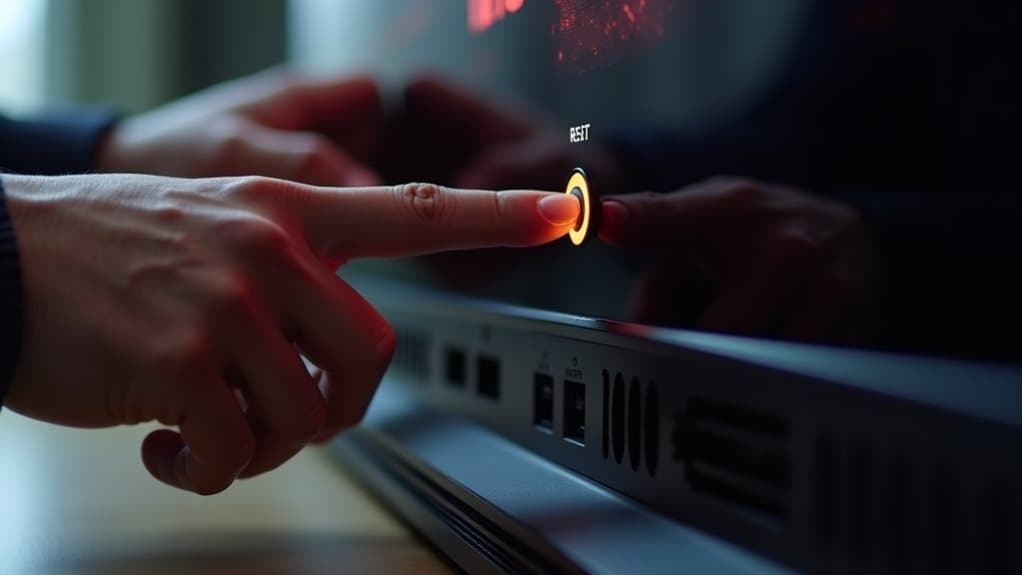
Start with a soft reset: Settings > System > Power > System Restart — this preserves your data while reloading system processes. A quick alternative for audio specifically: press the play/pause button on your remote three times in a row, which resets just the TV’s audio and image settings without a full restart. If neither works, unplug the TV entirely for 30-60 seconds before plugging back in.
As a last resort, Settings > System > Advanced System Settings > Factory Reset clears everything, including apps and settings — worth trying only after the lighter options above haven’t helped.
Disconnect External Audio and Bluetooth Devices
Soundbars, external speakers, or Bluetooth headphones can quietly redirect your TV’s audio output even when you’re not actively using them — the TV keeps routing sound there instead of its own speakers.
Unpair Bluetooth Audio Devices
Go to Settings > Remotes & devices > Bluetooth devices, select the paired device, and choose Forget or Unpair. This forces audio back to your TV speakers immediately.
Remove Soundbar Conflicts
Disconnect all HDMI ARC, optical, and auxiliary cables, power off any wireless soundbar, and unpair Bluetooth devices. Go to Settings > Audio, select TV Speakers as the output, then unplug the TV for 60 seconds and restart to fully clear any lingering audio routing conflicts.
Adjust Sound Settings via the Roku Remote
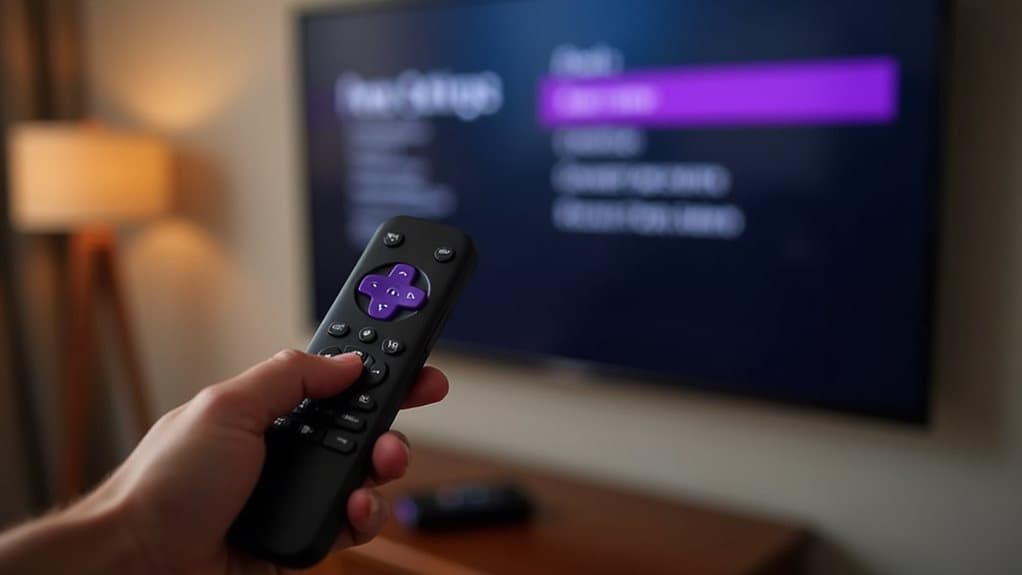
Press Home, go to Settings, then Audio or Sound Settings, and select Advanced Audio Settings for enhancement options like Movie or Night mode, which can amplify perceived clarity and volume. These settings save automatically and apply across all content going forward.
Update Roku TV Firmware
Outdated firmware can cause persistent volume issues tied to software bugs or audio-device compatibility problems. To update manually: download the update.roku file from Roku’s website, copy it to a FAT-formatted USB drive with at least 2GB free, insert it into your TV’s USB port, and follow the on-screen prompts.
Contact Roku Support for Hardware Issues
If you’ve worked through everything above and volume is still frustratingly low, it’s likely a hardware issue needing professional attention. Visit Roku’s official support site — you’ll need your device’s serial number and proof of purchase for any warranty claim. Support is available daily from 4:00am to 10:00pm PST via phone or live chat.
Wrapping Up
Low volume on a Roku TV usually comes down to incorrect settings, a loose connection, or outdated software — rarely an actual hardware fault. Work through audio configuration and HDMI checks first, then move to disconnecting external devices or updating firmware if needed. If you’re dealing with audio issues on other devices too, our guides to Apple TV audio dropouts and changing input with your Roku remote cover cover related ground.


