
Turn on Developer Mode by tapping your Firestick’s name seven times in Settings, then enable ADB Debugging and install apps from unknown sources. Use the Downloader app to sideload trusted APKs and enhance functionality. Clear app caches regularly to speed things up, and uninstall or disable unused apps to free up space. Connect your phone as a remote for easier control, or customize the home screen with a third-party launcher. You’ll uncover even more ways to take full control of your device.
Quick Guide
- Enable Developer Mode by tapping the device name seven times to unlock ADB debugging and sideload apps securely.
- Install third-party apps like Downloader to sideload APKs from trusted sources without using Kodi.
- Clear all application caches to free up storage and improve Firestick performance and responsiveness.
- Use an OTG cable with a USB drive to expand storage, especially on Fire OS 7 and above.
- Replace the default launcher with custom options like Wolf Launcher via sideloading for a personalized home screen.
Enable Firestick Developer Mode Fast
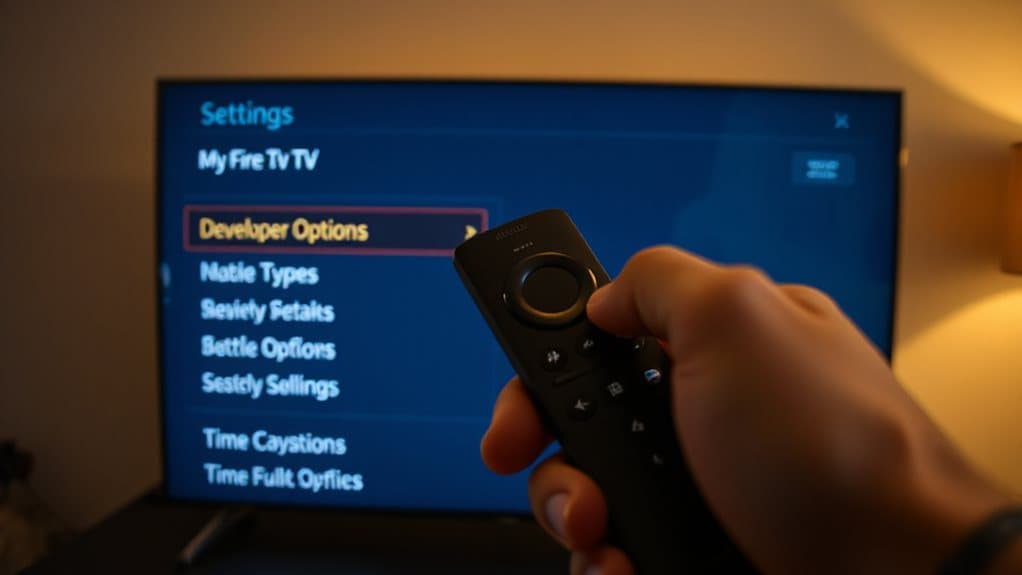
If you want to enable advanced features on your Firestick, enabling Developer Mode is the first step—and it’s quicker than you might think.
Go to Settings, select My Fire TV, then About. Highlight your device name and press the center button seven times. You’ll see “You are now a developer.” Developer Options will appear in My Fire TV—no restart needed. This method works even though Amazon has hidden the option on Fire OS 7 and above, but the Developer Options toggle can still be unlocked using this workaround. Enabling Developer Mode also lets you turn on ADB Debugging and install apps from outside the Amazon Appstore.
Install Third-Party Apps on Firestick
Get started installing third-party apps on your Firestick by turning on the right permissions. Enable Developer Options and allow Apps from Unknown Sources. Install the Downloader app from the Amazon Appstore.
Use it to enter APK URLs from trusted sites like APK Mirror. Download, tap Install, then open your new app from the full apps list. Stay safe by avoiding shady sources. Consider using a VPN to protect your privacy and hide your IP address while streaming.
Clear Cache to Speed Up Firestick
Now that you’ve installed third-party apps, keeping your Firestick running smoothly becomes even more important.
Clearing cache removes junk files without losing your data. Go to Settings > Applications > Manage Installed Applications, pick an app, then tap Clear Cache.
For a full sweep, use Clear All Application Caches. This frees space, reduces lag, and enhances speed—no extra apps needed.
If your Firestick keeps restarting or showing signs of trouble, check the power adapter and connections for faults that can cause reboot loops.
Free Up Space on Your Firestick
Running low on storage? Uninstall unused apps via Settings to free up space fast—just confirm removal of app and data. Can’t uninstall pre-loaded Amazon apps? Disable them instead.
Offload rarely used apps to keep data in the cloud. Delete downloaded media and clear temporary files.
Use an OTG cable with a USB drive for extra room, especially on Fire OS 7+. Use a powered USB hub with OTG adapters for reliable external storage and to avoid power issues with the Firestick powered USB hub.
Use Your Phone as a Firestick Remote
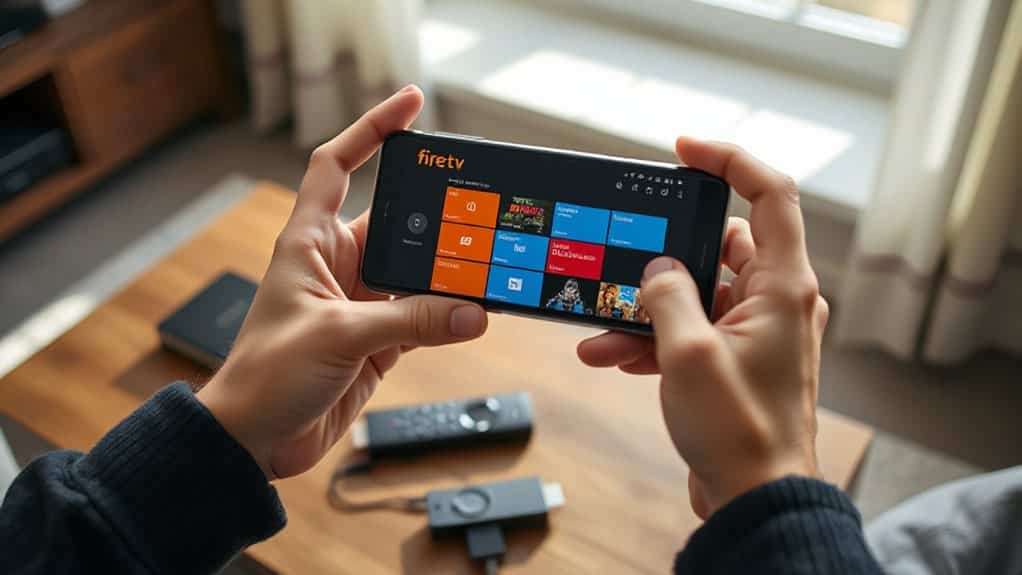
Turn your smartphone into a fully functional Firestick remote in just a few quick steps.
Download the free Amazon Fire TV app, connect your phone and Firestick to the same Wi-Fi, then open the app and enter the on-screen code.
Once paired, use the directional pad, voice search, and touch controls to browse seamlessly—no physical remote needed.
Change Your Firestick Home Screen
You can change your Firestick home screen by installing a custom launcher like Wolf Launcher.
First, enable Developer Options and use the Downloader app to sideload the launcher.
Once set up, it’ll replace the default interface and let you customize your layout with no ads.
Custom Launchers For Home Screen
Take control of your Firestick’s look and feel by swapping out the default home screen for a custom launcher.
You can install Wolf or Projectivy Launcher for smoother interface movement, ad-free browsing, and full customization.
Use Launcher Manager or sideload apps via Downloader.
Enable Home Button Hook with ADB to lock it in.
After reboot, press home to launch your new interface—fast, clean, and truly yours.
Enable Developer Mode First
Before diving into customizing your Firestick’s home screen, you’ll need to enable hidden system settings by activating Developer Mode.
Go to Settings, select My Fire TV or Device & Software, then About. Click the device name seven times. You’ll see a “You are now a developer” message.
Developer Options will appear, letting you enable unknown sources and grant full control over your device.
Install Third Party Interfaces
Get ready to convert your Firestick experience by swapping out the default home screen for a custom interface. Install Wolf Launcher via Downloader or ADB to ditch bloatware and spotlight your apps.
Enable unknown sources, sideload the APK, then launch it from Your Apps. Use Aptoide TV for more options.
Manage or remove launchers anytime through settings or ADB.
Wrapping Up
You’ve now opened useful Firestick tricks beyond Kodi. By enabling developer mode, installing third-party apps, and clearing cache, you enhance performance and access more content. Freeing up space keeps things running smoothly. Use your phone as a remote for easier guidance, and customize your home screen for quicker access. These simple steps improve your streaming experience. Apply them regularly to get the most from your device.