
You can recover permanently deleted iPhone videos without a backup by first checking iCloud Photos’ Recently Deleted folder, which retains items for 30 days and requires authentication to access. If that window has passed, specialized third-party tools like Dr.Fone, Tenorshare UltData, or Disk Drill can scan your device’s internal storage for recoverable file signatures that remain until overwritten. Alternatively, selective extraction software can pull videos from iCloud snapshots without restoring your entire device. Success depends on how long ago you deleted the files and how much you’ve used your phone since, and the guide below examines each method in detail.
Quick Guide
- Check the Recently Deleted folder in Photos app under Utilities; deleted videos remain recoverable for 30 days before permanent erasure.
- Use third-party tools like Dr.Fone, Disk Drill, or UltData to scan iPhone storage for deleted video file remnants.
- Connect iPhone to computer with genuine Apple cable; select deep scan mode targeting Photos & Videos for better recovery results.
- Avoid using the device after deletion to prevent new data from overwriting recoverable video files on internal storage.
- Recovery success depends on deletion timeframe, device usage since deletion, and whether iOS encryption has destroyed file access keys.
Check the Recently Deleted Folder in Icloud Photos
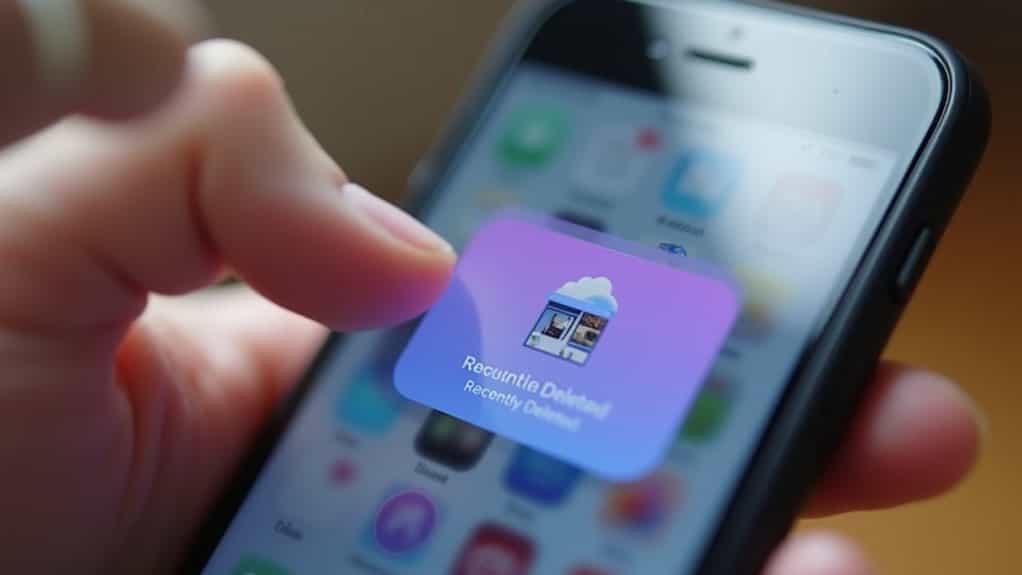
Often, iPhone users who accidentally delete videos don’t realize they’ve a built-in safety net that can save them from permanent data loss. Your Recently Deleted folder in iCloud Photos stores deleted videos for 30 days before erasing them permanently.
You’ll find this album under Utilities in your Photos app, where you can recover items by selecting them and tapping “Recover” after authenticating with Face ID, Touch ID, or your passcode. If you’re using iCloud Photos, be aware that deletion on one device will remove the item from all devices signed in with the same Apple ID. You can also transfer media to another device or account before the 30-day window expires to avoid losing content due to account or region changes, such as when creating a new Amazon account for a different country.
Understanding Why Iphone Videos Can Be Recovered Without Backup
When you delete a video from your iPhone, it doesn’t vanish instantly from the device’s physical storage. Instead, the file system removes its directory entry while the actual content remains intact until new data overwrites that space. This creates a recovery window where specialized tools can scan storage sectors, locate unindexed file signatures, and reconstruct deleted videos before they’re permanently gone. The video files are stored as coded data on the internal storage even when they are no longer visible in your Photos app. You can sometimes increase recovery chances by avoiding further writes to the device and using data recovery software.
Using Third-Party Data Recovery Software to Scan Your Iphone

Third-party data recovery software steps in as your primary solution when permanently deleted iPhone videos need retrieval without any backup available.
Tools like Dr.Fone, Tenorshare UltData, and Disk Drill scan your iPhone’s internal storage directly to locate recoverable files.
You’ll connect your device to a computer, grant access, and let the software analyze deleted data.
Most programs offer preview features before recovery, though full restoration typically requires purchasing a license.
These tools cannot protect against data profiling by services that scan email content or other cloud-stored data, so consider privacy implications before granting access.
Extracting Deleted Videos From Icloud Without Device Restoration
If you’ve enabled iCloud Photos on your iPhone, you can access your iCloud account directly through iCloud.com to check for deleted videos in the Recently Deleted album, which retains items for 30 days. This method doesn’t require restoring your entire device, allowing you to selectively recover specific videos without affecting your current data.
Alternatively, specialized third-party recovery software can extract video files from your iCloud backup by accessing your account credentials and scanning the backup contents for recoverable media.
Icloud Backup Access Methods
Unfortunately, Apple’s iCloud system doesn’t allow you to extract individual videos from a backup without performing a full device restoration.
You’ll need to erase your iPhone completely and restore it to access previous backup data. This process overwrites all current content with the backup state, replacing everything on your device. Third-party tools can’t bypass this limitation either.
Selective Video Extraction Process
Several specialized tools have emerged that let you pull specific videos from iCloud backups without wiping your iPhone.
Software like CopyTrans Backup Extractor and Elcomsoft Phone Breaker download only targeted video files after you log into your iCloud account.
This selective extraction preserves your current device data while recovering deleted videos from backup snapshots, avoiding the time-consuming full restoration process that overwrites existing content.
Compatible Recovery Software Options
The tools mentioned earlier represent just a fraction of the recovery software market designed for iCloud video extraction. Each option—Tenorshare UltData, Dr.Fone, iMobie PhoneRescue, EaseUS MobiSaver, and FoneLab for iOS—offers selective recovery capabilities without device restoration.
You’ll find preview functionality standard across these platforms, allowing you to examine files before extraction. Most support current iOS versions and work on both Windows and macOS systems.
Step-By-Step Guide to Recovering Videos With Phonerescue and Similar Tools
Recovering permanently deleted videos from your iPhone becomes manageable when you use specialized software like PhoneRescue or similar third-party tools.
You’ll need to download and install the recovery application on your computer, connect your iPhone via USB, and run a targeted scan to locate deleted video files.
Once the scan completes, you can preview the recoverable videos and selectively restore them to your computer without risking data overwrite on your device.
Download and Install Software
Before you can recover permanently deleted iPhone videos, you’ll need specialized iOS-compatible recovery software installed on your computer. Visit the official website of tools like Dr.Fone, Disk Drill, or EaseUS MobiSaver to download authentic versions.
Verify iOS 15+ compatibility and your system requirements. Run the installer with administrative privileges, follow the setup wizard, and avoid installing on your system drive to prevent overwriting recoverable files.
Connect Iphone and Scan
Once you’ve installed your recovery software, it’s time to plug in your iPhone and begin the scanning process.
Connect your device using a genuine Apple USB cable, then launch the recovery tool. Select “Data Recovery” mode and choose “Photos & Videos” as your target category. Opt for “Deep Scan” to locate permanently deleted files. The scan will analyze your iPhone’s file system for recoverable videos.
Preview and Recover Videos
After the scanning process completes, you’ll see an exhaustive list of recoverable videos displayed in your recovery software’s interface.
Use the preview feature to verify each video’s integrity before recovery. Select only the videos you need, checking resolution and playback quality.
Once confirmed, choose your computer as the recovery destination, complete the restoration, and verify the saved videos play correctly.
Factors That Determine Your Recovery Success Rate
When you’re attempting to recover permanently deleted iPhone videos without a backup, several critical factors determine whether you’ll succeed or face disappointment.
The time elapsed since deletion matters most—immediate recovery attempts yield higher success rates before data gets overwritten. Your continued iPhone usage markedly reduces recovery chances, as new photos, apps, and updates claim the storage space. iOS encryption strengthens with newer versions, creating substantial barriers that even professional tools struggle to overcome.
Risks and Limitations of Video Recovery Without Backup

While the prospect of recovering permanently deleted iPhone videos without a backup may seem promising, you’ll face significant technical obstacles and risks that dramatically reduce your chances of success.
Apple’s encryption destroys decryption keys when files are deleted, making true recovery impossible. Additionally, new data constantly overwrites deleted video fragments, and third-party recovery tools pose security vulnerabilities while offering limited effectiveness on modern iOS devices.
Best Practices to Prevent Future Video Loss
Setting up resilient backup systems ahead of time shields you from the heartbreak of permanent video loss and eliminates the need for risky recovery attempts.
Enable iCloud Backup regularly and connect to Wi-Fi before syncing. Use Finder or iTunes for computer-based backups with encryption enabled. Supplement with Google Photos, Dropbox, or OneDrive for redundancy. Transfer videos to external drives periodically and verify file integrity consistently.
Choosing Reputable and Secure Recovery Software

Sorting through dozens of recovery tools can feel overwhelming, but focusing on a few key indicators will help you identify trustworthy options quickly.
Look for software with 10+ years of industry experience, strong user reviews, and transparent privacy policies.
Reputable vendors like Wondershare Dr.Fone, EaseUS MobiSaver, and Disk Drill offer free trial previews, secure scanning, and multiple recovery modes without risking your data or privacy.
Wrapping Up
Recovering permanently deleted iPhone videos without backup is possible but not guaranteed. Your success depends on how quickly you act, whether you’ve overwritten data, and the recovery tool you choose. Always check iCloud’s Recently Deleted folder first, then consider reputable third-party software if needed. Remember that prevention is easier than recovery—regularly back up your videos to iCloud or another cloud service, and enable automatic sync to protect your memories from accidental loss.