Verify the network name matches the official SSID before connecting; rogue hotspots often mimic real ones. Use a trusted VPN with a kill switch to encrypt traffic and mask your IP. Turn off file sharing and Wi-Fi auto-connect to block unauthorized access. Stick to HTTPS sites and secure password managers for safer browsing. Enable multi-factor authentication for work accounts to add extra protection. Follow these steps to substantially reduce risks while using public Wi-Fi in Australia.
Quick Guide
- Confirm official Wi-Fi network names through venue signage or staff to avoid malicious impostors.
- Use a reputable paid VPN with kill switch to encrypt data on public connections, endorsed by Australia’s eSafety Office.
- Disable file sharing and auto-connect features on devices to prevent unauthorized access when online publicly.
- Access HTTPS-secured websites and employ a trusted password manager to safeguard sensitive login details.
- Enable multi-factor authentication for work accounts to add security layers beyond passwords on public Wi-Fi.
Detect Rogue Hotspots by Validating Network Names
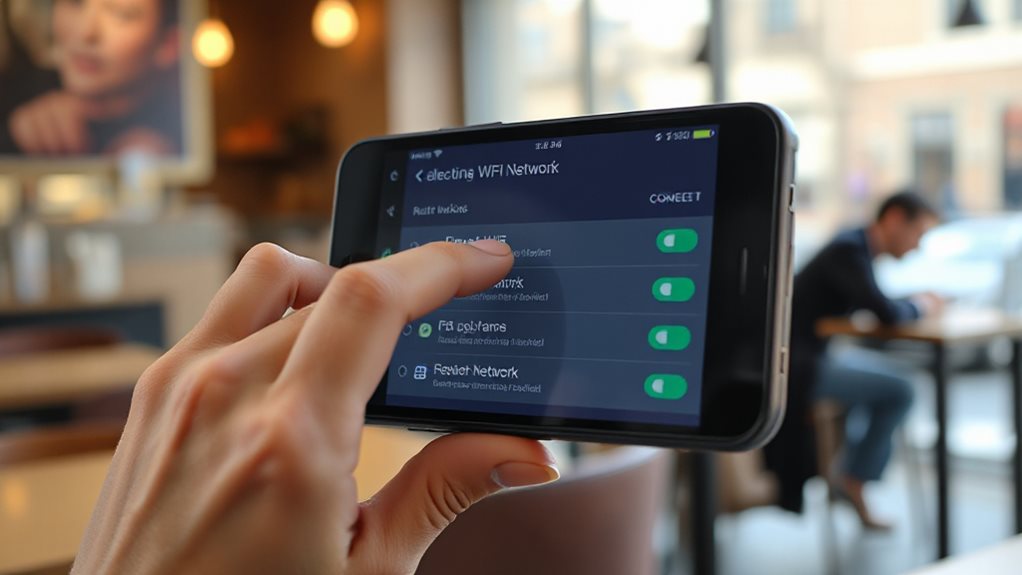
When connecting to public WiFi in Australia, start by verifying the network name displayed on available options against the official SSID published by the venue. Remember, rogue access points physically connected to networks bypass official security, unlike external mimics called evil twins that intercept users through fake SSIDs. Typos or odd capitalization mean danger—attackers often clone legitimate networks. Check signage or ask staff for the exact name. Don’t auto-connect; rogue hotspots exploit saved networks. Stick to venues that clearly list SSIDs. Your freedom demands vigilance: a mismatched name could hand your data to strangers. Trust only confirmed networks. Consider using a trusted VPN before accessing any services on public Wi‑Fi to add encryption and protect against interception.
Encrypt All Traffic With a Trusted Public Wifi VPN
Even after validating a network’s legitimacy, encryption becomes your next line of defense. A trusted VPN shields your traffic from snoops, masks your IP, and reroutes data through secure servers—endorsed by Australia’s eSafety Office.
Prioritize paid services with network lock features to prevent leaks if connections drop. While a VPN protects against hackers on public hotspots, avoid banking or sensitive logins, as risks linger if providers log activity.
Stay anonymous, but stay alert: no tool guarantees 100% privacy. Consider providers with RAM-only servers to ensure session data is wiped on reboot and reduce persistent data risks.
Turn Off File Sharing on Unsecured Networks
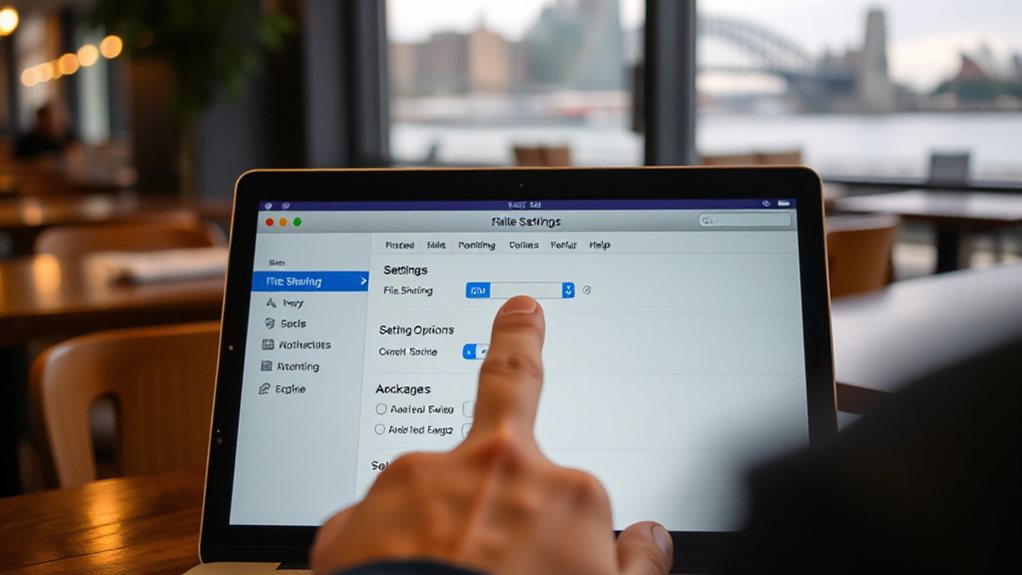
While your device might silently share files on a café’s Wi-Fi, exposing private documents or photos to strangers, a single misstep on an unsecured network can let hackers infiltrate your system.
File sharing lets attackers exploit vulnerabilities, intercept data via packet sniffing, or inject malware.
Lock down sharing settings—disable file transfer on Mac, Windows, and mobile devices. Turn off Wi-Fi when unused; avoid auto-connecting to prevent unexpected exposure and protect your privacy seamlessly.
Run mobile anti-virus software and regularly monitor for strange apps to detect and remove potential spyware.
Prioritize HTTPS Websites + Secure Password Managers
Securing your device’s sharing settings is just one piece of the puzzle—safe browsing requires prioritizing HTTPS websites and reliable password managers. Always check for “HTTPS://” and the lock icon; 88% of sites now use encryption, thwarting hackers on public WiFi.
Pair this with a secure password manager—it auto-fills strong, unique passwords *only* on verified HTTPS sites, shielding you from phishing traps. Stay free, stay sharp. Use a reputable antivirus and antimalware to further protect your device from threats like spyware and adware, and consider learning about antivirus updates to keep protection effective.
Safeguard Work Logins With Multi-Factor Authentication
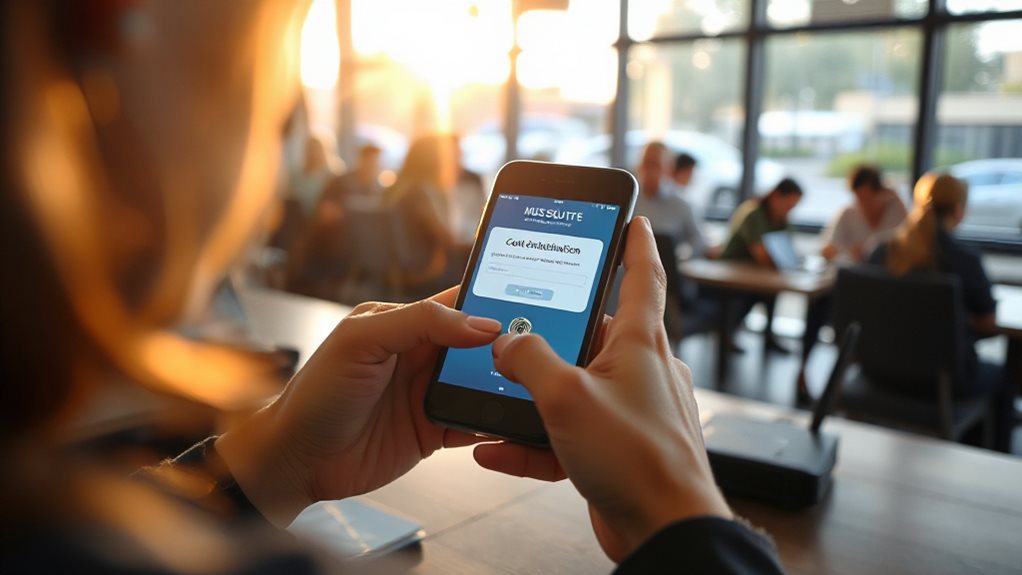
Lock down your work accounts with multi-factor authentication (MFA), which adds layers to your login process beyond passwords. Require something you know (password), have (authenticator code), or are (fingerprint) to verify identity.
MFA stops 80-90% of cyberattacks—like credential theft spiking 160% in 2025—and blocks rogue networks from stealing corporate access. Enable MFA on all work platforms; don’t log in on public WiFi without it.
The Medibank breach proves no MFA means no defense. Stay free, stay secure.
Wrapping Up
Staying safe on public Wi-Fi in Australia means taking simple, proactive steps. Validate network names to avoid rogue hotspots—don’t just connect automatically. Use a trusted VPN to encrypt your traffic and block snoopers. Turn off file sharing to prevent unwanted access. Stick to HTTPS websites, and let a secure password manager handle logins. Protect work accounts with multi-factor authentication (MFA) for extra security. These habits help guard your data without slowing you down. Stay alert, stay protected.