To hide your Smart TV viewing history, disable Automatic Content Recognition (ACR) in your settings (like LG’s Live Plus or Samsung’s Viewing Information Services) to stop content tracking every 15–60 seconds. Turn off personalized ads and reset your advertising ID in the privacy menu. Clear app and browser histories regularly, and keep firmware updated. For TCL Roku TVs, toggle off “Use Info from TV Inputs” in Privacy settings. Sony models may require disabling Samba Interactive TV. Test for data leaks by monitoring network activity—persistent spikes could mean hidden tracking. More options await to lock down your privacy.
Quick Guide
- Disable ACR features (e.g., LG Live Plus, Samsung Viewing Info) via brand-specific settings to block content tracking.
- Opt out of personalized ads and reset your TV’s advertising ID to reduce targeted data collection.
- Clear browsing history and app data routinely to erase stored viewing records linked to your habits.
- Enable “Do Not Sell My Data” toggles (e.g., LG webOS) or use privacy dashboards to restrict third-party sharing.
- Keep firmware updated to maintain privacy settings and ensure tracking protections align with latest software.
Stop Smart TVS From Tracking Viewing Habits: Quick Universal Settings
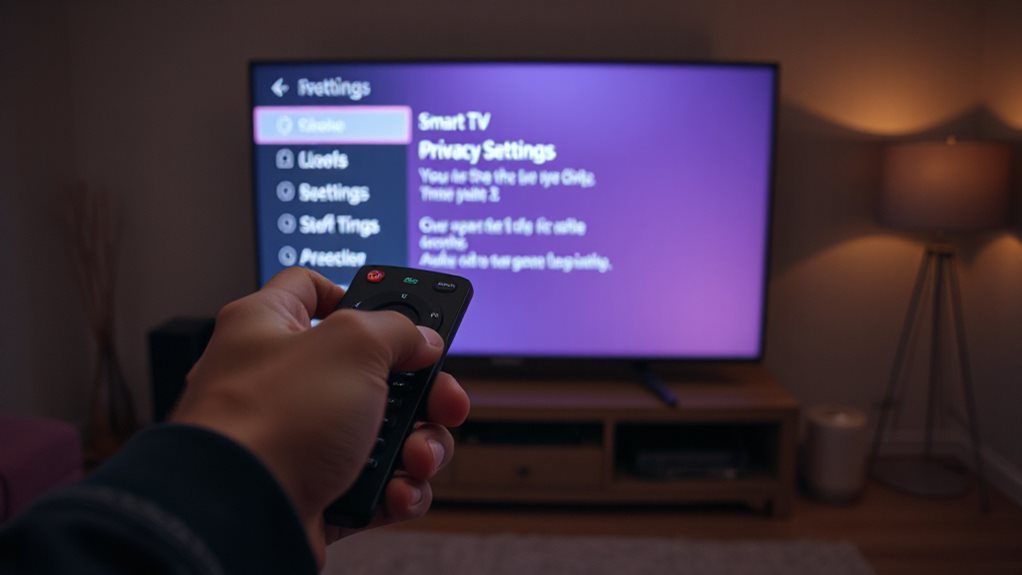
Take control of your privacy by disabling your Smart TV’s tracking features, which constantly monitor viewing habits through technologies like Automatic Content Recognition (ACR), digital watermarks, and screen content scanning.
Access Settings on LG or Samsung TVs to disable ACR tracking. Turn off Live Plus and Viewing Information Services. Opt out of personalized ads via Privacy or Advertising menus. You can also reset the advertising identifier regularly to break links to past viewing behavior and reduce targeted ads.
Blocking these features stops your data from being sold to advertisers—your viewing habits are yours to protect, not their next business strategy. For example, LG TVs offer a Do Not Sell toggle in the webOS Privacy menu to prevent sharing data with third parties.
TCL Roku TVs: Fix Privacy Leaks and Disable Viewing Data
Plug the gaps in your TCL Roku TV’s privacy by diving into Settings > Privacy.
Toggle off “Use Info from TV Inputs” under Smart TV Experience to block ACR tracking.
Disable Interest-Based Ads and reset your ad ID in Advertising Settings for tighter control.
Don’t forget to adjust app-specific controls—like YouTube’s “Pause Watch History” in Settings—to keep your viewing private.
Also, confirm your Roku device’s date and timezone are correct to avoid authentication and playback failures.
Samsung TVs: Step-by-Step ACR Disable Guide
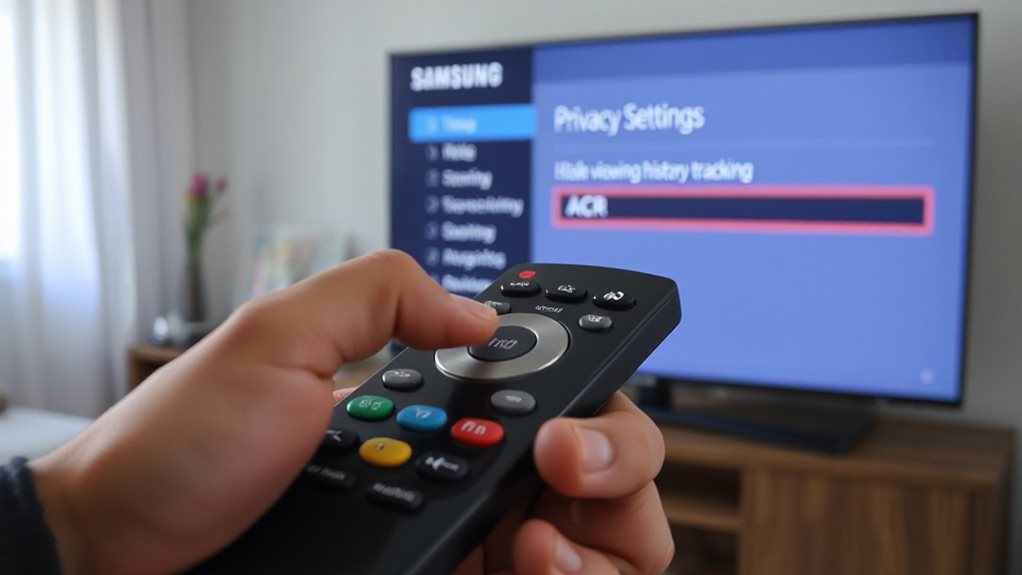
You’ve probably heard ACR works differently depending on the brand. Samsung’s “Viewing Information Services” tracks content every 500ms, even from HDMI.
Hit Home > Settings > All Settings > Privacy. Disable “Viewing Information Services” and “Interest-Based Advertising” to block data collection.
Use Samsung’s Privacy Dashboard to manage preferences. Turn off voice recognition separately for full control.
Your viewing stays private—no more targeted ads or recommendations. (62 words)
Also make sure your TV firmware is up to date to ensure these privacy settings function correctly and to maintain software compatibility.
LG TVs: Block Smart Tracking Tools (No Content Scanning)
If safeguarding your viewing privacy matters, LG’s smart tracking tools demand attention. Disable Live Plus (Settings > General > Live Plus > toggle off) to block ACR. Hit Advertisements > Limit Ad Tracking and reset Ad ID. Opt out of Viewing Information in User Agreements. Disable Smart TV Experience in Privacy settings. Clear browser and app histories regularly. These steps slash data collection, trimming targeted ads and preserving your right to watch freely. Your habits shouldn’t become someone else’s profit. Take control. Ensure your TV’s software is up to date to make these privacy settings effective and compatible with software updates.
How Hisense TVs Track You: And How to Stop It
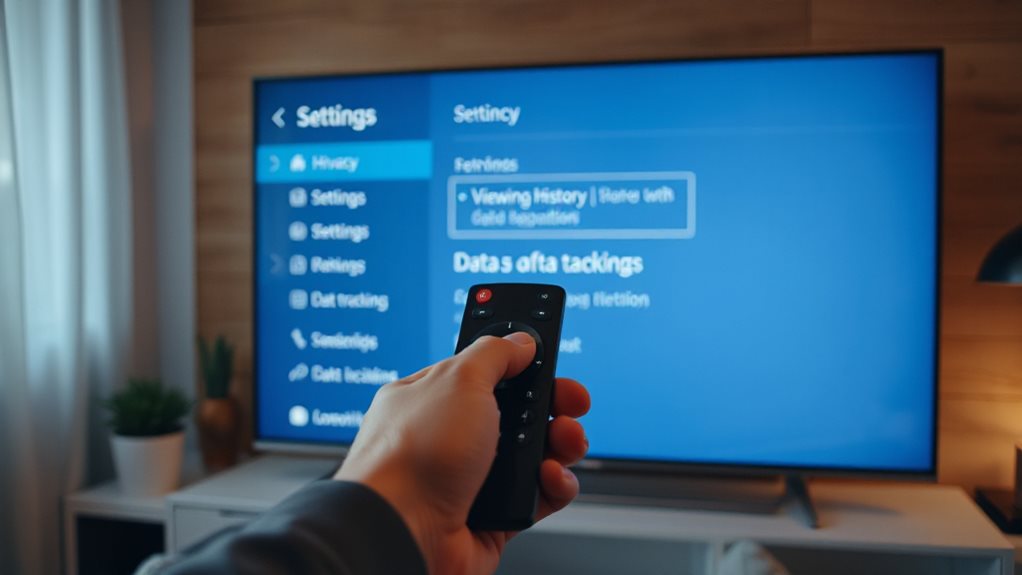
Hisense TVs track your viewing habits using Automatic Content Recognition (ACR), acoustic fingerprints, and video fingerprinting—capturing screenshots every 10 seconds to map what you watch, skip, or interact with. They link this data to your MAC address, IP, and other identifiers, sharing it with advertisers.
Stop tracking by disabling “Smart TV Experience” (Settings > System > Privacy) or opting out via Roku’s privacy menu (Home > Settings). But watch out: hidden toggles and encrypted data sharing still enable partial tracking, even after you say no. Freedom demands constant vigilance.
Sony TVs: Turn Off Viewing Data Collection
Sony TVs collect viewing data through Samba Interactive TV—turn it off by selecting “Disagree and Disable” in System Preferences to stop tracking.
Older models may also use ACR (Automatic Content Recognition), which you can disable separately in device settings.
For added privacy, reset your device’s advertising ID through Samba’s Privacy menu to break links between data and your TV.
Samba Interactive Tv Toggle Off
Start by getting a handle on your TV’s privacy settings: disabling Samba Interactive TV on Sony models takes just a few steps but locks down intrusive data tracking right away.
Head to Settings → System Preferences → Samba Interactive TV, toggle it off, and halt audio/visual content recognition. This stops third-party data sharing and targeted ads without factory resets.
Newer models use Initial Setup instead—confirm the disable action to block viewing history collection permanently.
Simple, immediate privacy control.
Acr Tracking On Older Models
While newer Sony models streamline privacy controls, older Bravia TVs tie ACR tracking to Samba Interactive TV, which monitors habits via audio scans, screen analysis, and embedded watermarks—data that’s often sold to advertisers without explicit consent.
Disable ACR by toggling off Samba Interactive TV in *Settings > System Preferences* and unchecking “Viewing Information Services.” Opt out of data sharing during setup or adjust in *Privacy Choices* to block fingerprinting and limit personalized ads—though some smart features may dim. Take charge now; your viewing history isn’t up for grabs.
Limit Ad Tracking Reset
When resetting ad tracking on Sony Google TVs, press the Home button to access Settings, then go to Device Preferences and turn off Usage & Diagnostics tracking.
Move to Privacy > Ads, disable Ad Personalization, and reset your advertising ID.
Toggle on “Limit Ad Tracking” to send an opt-out signal to third parties.
Confirm changes—your TV now shows generic ads without collecting viewing data.
Check If Your TV Still Tracks Viewing Data: Step-by-Step Test
Dip into your TV’s settings to hunt for ACR-related toggles like LG’s Live Plus or Samsung’s Viewing Information Services, and disable them temporarily to pause fingerprinting.
Use a network monitor to check for data spikes every 15–60 seconds, test HDMI inputs with a laptop or console, and verify if Sony’s Samba or Vizio’s Activity Data persists.
Toggle options back, then revisit after updates—if prompts reappear, tracking isn’t fully blocked.
Remember: EU models may require opt-in, but US HDMI tracking stays aggressive even with ACR off.
Wrapping Up
You’ve now secured your privacy across major smart TV brands. Adjust settings, disable ACR, opt out of personalized ads, and enable privacy modes. Test tracking status with the manual steps provided. These actions block data collection while letting you enjoy your TV. Stay proactive—check updates periodically. Your viewing habits stay private, giving you control over your data and peace of mind. Keep these steps handy for future devices, ensuring no hidden tracking slips through. Simple, effective, and essential for modern privacy needs.