
When AirPlay won’t connect to your LG TV, first confirm both devices are on the same Wi-Fi network and band, mismatched 2.4 GHz versus 5 GHz connections commonly cause failures. Restart your TV and Apple device, then check for firmware updates in your TV’s settings. Enable AirPlay under Settings > General > Apple AirPlay & HomeKit, and disable AP Isolation in your router to allow the multicast traffic AirPlay requires. If issues persist, reset paired devices and move equipment closer to your router for stronger signal strength, as the steps below outline additional troubleshooting methods.
Quick Guide
- Verify both LG TV and Apple device connect to the same Wi-Fi network and frequency band (2.4 GHz or 5 GHz).
- Confirm your LG TV actually supports AirPlay before troubleshooting further , it requires webOS 4.0+ (2018 models or newer).
- Enable AirPlay in TV Settings > General > Apple AirPlay & HomeKit and reset paired devices if needed.
- Update firmware on LG TV and iOS/macOS on Apple devices, then restart both devices completely.
- Disable router’s AP Isolation and enable Bonjour/mDNS services to allow device discovery on the network.
- Turn off VPN apps and Mac firewall temporarily, as they can block multicast traffic required for AirPlay.
- If you’re on a mesh Wi-Fi system, see the dedicated note below , mesh setups cause AirPlay problems more often than standard routers.
First, Check Your LG TV Actually Supports AirPlay
AirPlay requires LG’s webOS 4.0 or later , 2018 models and newer. Check your model year under Settings > Support > TV Information. If your TV predates 2018, AirPlay isn’t available at all, and no amount of troubleshooting below will fix that.
[No existing image for this section , it’s new. Worth creating one before publishing.]
Verify AirPlay Is Enabled on Your LG TV
Before you troubleshoot connection issues, you’ll need to rule out whether your LG TV even supports AirPlay in the first place. LG TVs released before 2017 typically lack AirPlay due to limited performance. Newer models with webOS generally include built-in AirPlay capability. Check your user manual or product specifications to verify compatibility.
Once confirmed, press the Home button on your remote and proceed to Settings > General > Apple AirPlay & HomeKit to enable the feature. You can also use manufacturer resources to double-check AirPlay availability for your specific model number. If you experience issues after enabling it, ensure the TV has a stable Wi-Fi connection for best results. If you’re prompted for a passcode when connecting, enter the code shown on your TV screen.
If a previously connected device is stuck paired and blocking new connections, go to AirPlay & HomeKit Settings > Require Code > Reset Paired Devices, then reconnect from scratch.
Confirm Both Devices Are on the Same Wi-Fi Network
When AirPlay won’t connect to your LG TV, the most common culprit is that your Apple device and TV aren’t on the same Wi-Fi network.
Check your TV’s network in Settings > Network, then verify your iPhone, iPad, or Mac shows the identical network name. Different Wi-Fi bands (2.4 GHz vs 5 GHz) or guest networks will prevent connection, so reconnect devices to matching networks. Both devices must be connected to either the 2.4 GHz or 5.0 GHz band to establish a successful AirPlay connection. Also ensure your devices meet the AirPlay compatibility and software requirements to avoid connection issues.
Fix a Wi-Fi Band Mismatch
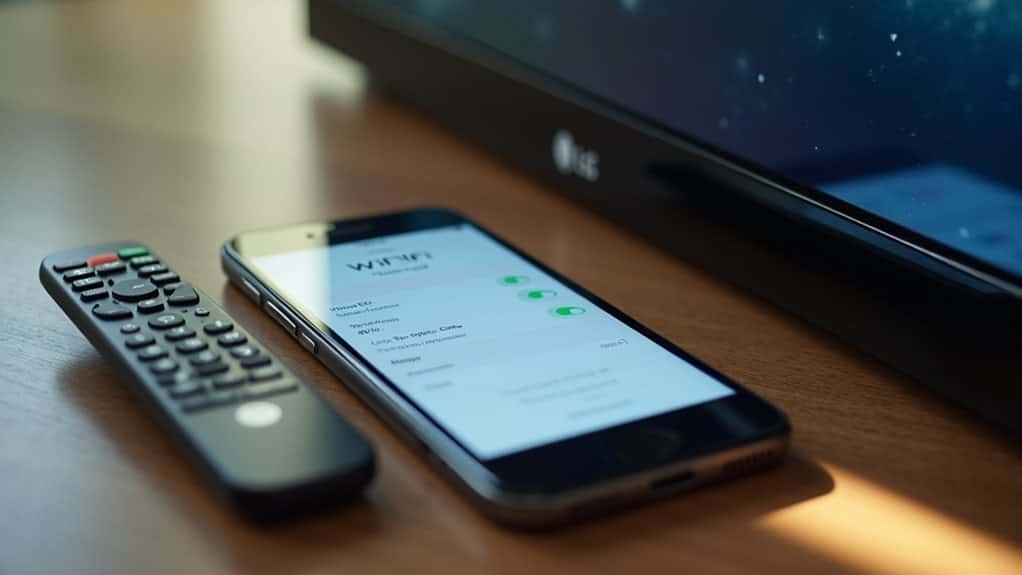
Your router likely broadcasts both 2.4 GHz and 5 GHz frequencies under a single network name, which can cause your Apple device and LG TV to connect to different bands without you realizing it , one of the most common reasons AirPlay fails even when both devices appear to be on the same network. On your LG TV, check Settings > Network for band info. On your Apple device, tap the “i” icon next to your connected network in WiFi settings. If they’re on different bands, either manually reconnect both to the same one, or temporarily disable your router’s 5 GHz band in your router’s admin settings to force everything onto 2.4 GHz while you test , you should see improvement almost immediately if this was the cause. Use network diagnostics to confirm both devices are on the same frequency if you’re still unsure.
Using a Mesh Wi-Fi System? Read This
Mesh systems (Eero, Google Nest WiFi, Orbi, and similar) are one of the most common causes of AirPlay problems specifically , even more so than a standard single router. Mesh networks are designed to seamlessly hand devices off between nodes as you move around your home, but that same roaming behaviour can cause your Apple device and TV to end up connected to different physical nodes that don’t properly relay multicast traffic between each other. If you’re on mesh and nothing else here fixes it, try temporarily connecting both devices to the same specific node (many mesh apps let you see and choose this) rather than letting the system auto-assign one.
[No existing image for this section , new addition, same note as above.]
Restart Your LG TV and Apple Device
Connection issues between your Apple device and LG TV often stem from temporary software glitches that accumulate during normal operation. Restarting both devices clears cached data and refreshes network connections.
Power off your LG TV by holding the power button for five seconds, then wait ten seconds before turning it back on. Similarly, restart your Apple device using its standard power-off function, wait ten seconds, then power it back on.
Also check and disable HDMI-CEC features on your TV to prevent connected devices from waking it unexpectedly.
Update Firmware on Your LG TV
Outdated firmware on your LG TV can prevent AirPlay from establishing a proper connection with your Apple devices. LG provides two methods to update: automatic updates through your internet connection, or manual installation using a USB flash drive. Regular software updates and checking cables can help prevent connectivity issues and detect problems like faulty backlights early.
Check Current Firmware Version
Find your TV’s Home menu and select the Settings icon. Go to Support, then select Software Update. Your current firmware version is displayed here, which helps determine if an update is available.
Enable Automatic Update Settings
Go to All Settings, then Support or General, depending on your webOS version. Select Software Update and toggle Allow Automatic Updates to On.
Manually Install the Latest Update
If automatic updates haven’t caught a critical release yet, locate your model number on the TV’s back label, then visit LG’s support website to download the firmware. Transfer the file to a FAT32-formatted USB drive, insert it into your TV, and follow the on-screen prompts to install.
Update iOS or macOS on Your Apple Device
When your Apple device runs outdated software, it can’t support the latest AirPlay protocols your LG TV requires for a stable connection. On iPhone or iPad, go to Settings > General > Software Update, then tap Download and Install. On Mac, open System Settings, select Software Update, and click Update Now. Restart your device afterward.
Reset Network Settings on Your Apple Device
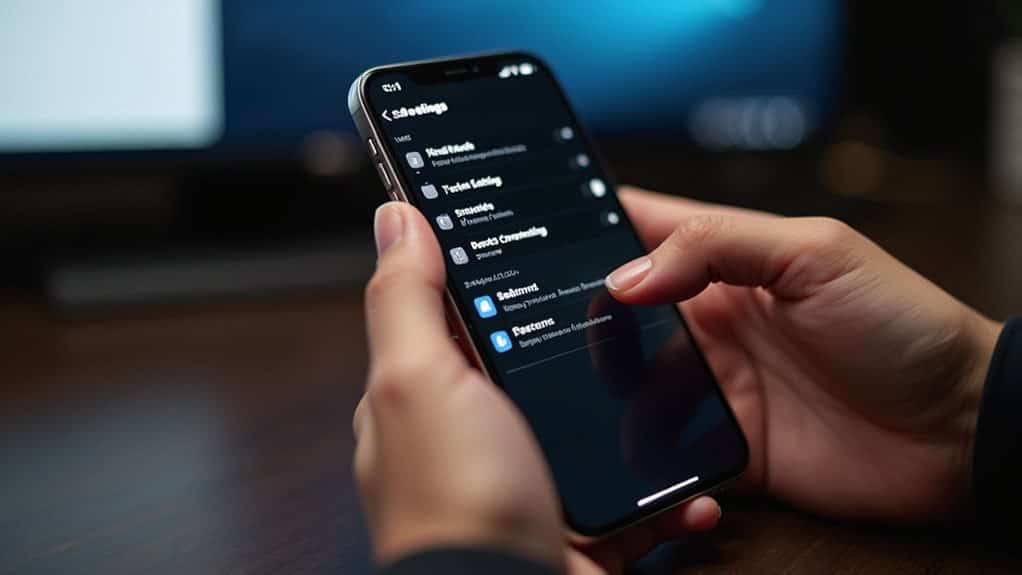
Network connectivity problems often stem from corrupted network configurations that prevent AirPlay from establishing a proper connection. Go to Settings > General > Transfer or Reset iPhone, then tap Reset and select Reset Network Settings. Authenticate when prompted, then confirm , your device will restart automatically, clearing saved Wi-Fi networks, Bluetooth pairings, and VPN configurations.
Adjust Router Settings to Allow AirPlay Protocol
Your router’s settings can directly prevent AirPlay from finding your LG TV, even when both devices are connected to the same network.
Disable Client Isolation Feature
Client isolation (sometimes labelled “AP Isolation”) blocks device-to-device communication by creating separate virtual networks for each connected device. Access your router’s admin panel, browse to wireless settings, locate this option, disable it, save changes, and restart your router.
Enable Bonjour and Multicast
Access your router’s settings and enable Bonjour or mDNS services, which allow devices to broadcast and find each other. Ensure multicast traffic is permitted on UDP port 5353. If you’re using VLANs, configure an mDNS gateway to forward traffic between network segments.
Disable VPN and Firewall on Your Apple Device
VPNs block the multicast traffic essential for AirPlay device discovery, and firewalls prevent incoming AirPlay connections. Completely disable VPN apps and restart your device. On Mac, go to System Settings > Network > Firewall and turn it off temporarily to test.
Clear Paired Devices and Re-establish Connection
Pairing conflicts between your Apple device and LG TV can build up over time, creating invisible barriers that prevent new connections from forming. Access your LG TV’s AirPlay and HomeKit settings menu, locate “Reset Paired Devices,” and select it to disconnect all previously connected Apple devices. Restart both devices completely , unplug your TV for two minutes and force restart your iPhone or iPad , before attempting to reconnect.
Position Devices Closer to Your Wi-Fi Router
Wi-Fi signals weaken as distance increases, particularly on the 5 GHz band, which offers faster speeds but shorter range. Walls, furniture, and appliances further degrade signal strength. Moving your Apple device and LG TV closer to the router , ideally within direct line of sight , significantly improves connection stability. If your TV is in a fixed location far from your router, a wired Ethernet connection to the TV (where supported) removes the Wi-Fi variable entirely and is worth considering as a permanent fix rather than a workaround.
Which LG TVs Support AirPlay 2?
| Year | webOS version | AirPlay 2 |
| 2018 and earlier | webOS 4.0 and older | AirPlay 2 arrives with webOS 4.0; models that stop there vary, so check the TV product page. |
| 2019 to 2022 | webOS 4.5 to 22 | Yes, built in, with the AirPlay toggle in Settings. |
| 2023 and newer | webOS 23 and newer | Yes; AirPlay is under General, and the newer OSD lives in the quick settings. |
AirPlay Icon Missing After an LG Update
Some LG owners report the AirPlay icon disappearing after a webOS update or it refusing to appear at all. The fix in most reports is to update the TV again (a newer firmware usually restores it), toggle AirPlay off and on, unpair all devices under General > AirPlay (HomeKit) and add them again, then power cycle the TV from the wall. Our Apple TV audio guide covers the related AirPlay audio dropouts, and the CRUNCHYROLL cast guide helps if the issue is casting apps rather than AirPlay itself.
Frequently Asked Questions
Why does my iPhone keep failing to connect to my LG TV?
The top causes in order are: AirPlay disabled on the TV, the phone and TV on different Wi-Fi bands or a guest network, a router blocking device discovery (client isolation or an AP isolation toggle), and stale pairing records. Work through the troubleshooting order above.
Does my LG TV support AirPlay?
LG TVs on webOS 4.0 or newer (roughly 2018 models onward) support AirPlay 2. Older webOS versions do not, and some 2018 entry models shipped without it, so check Settings for an AirPlay toggle or the model’s feature list.
Both devices are on the same Wi-Fi but AirPlay still fails. What now?
Same network name is not enough: both devices need the same band and subnet, the network must not be a guest network, and the router must not isolate clients. Then restart both devices and the router in that order.
The AirPlay icon disappeared on my LG TV after an update. How do I get it back?
Check for another software update, toggle AirPlay off and on under General, unpair and re-pair devices, and power cycle the TV from the wall. Most reports say a newer firmware restores the icon.
Wrapping Up
These troubleshooting steps should resolve most AirPlay connectivity issues with your LG TV. Start with the simplest solutions , confirming compatibility, checking you’re on the same network and band, restarting both devices , before moving to the more technical fixes like router settings or firmware updates. If you’ve tried everything here and still can’t connect, contact LG support or Apple’s customer service directly. Keep both your TV and Apple devices updated going forward, since most future AirPlay issues trace back to one or the other falling out of date.


