
Your Apple TV’s audio dropouts most likely come from one of two Apple-acknowledged bugs that have already been fixed in recent tvOS updates — so before anything else, check you’re on the latest version. If you’re already updated and still having issues, it’s usually HDMI handshake failures or an audio format mismatch, both covered below.
Quick Guide
- Go to Settings > System > Software Updates and install the latest tvOS — this alone fixes two known audio bugs from earlier versions.
- Firmly reseat HDMI cable ends and test different HDMI ports, especially ones labeled eARC.
- Navigate to Settings > Video and Audio > Audio Output and try switching from Dolby Atmos to Dolby Digital 5.1 if dropouts persist.
- Try turning off Frame Rate Matching in video settings — an unusual but user-confirmed fix for some Atmos dropout cases.
- Power cycle your Apple TV, TV, and soundbar together to reset HDMI handshakes.
- Update streaming apps via the App Store and test across multiple services to isolate app-specific issues.
- Connect Apple TV directly to your TV, bypassing any receiver or switch, to rule out HDCP handshake failures.
Update tvOS First — Apple Has Already Fixed Two Real Bugs
This is worth doing before anything else. Apple TV audio dropouts became widely reported after tvOS 17 and 18 rolled out, and Apple has since shipped fixes for two separate issues: tvOS 18.5 fixed a Dolby Atmos sync bug affecting speakers connected over AirPlay or Bluetooth, and tvOS 26.4 (March 2026) fixed a different bug where audio would drop out completely when switching between apps that use different audio formats — sound goes silent while the picture keeps playing, and only a force-quit or HDMI reconnect temporarily restores it.
If you haven’t updated in a while, go to Settings > System > Software Updates now — there’s a real chance this alone resolves what you’re experiencing, without needing any of the hardware troubleshooting below.
Why Your Apple TV Audio Keeps Dropping Out
If you’re already on the latest tvOS and still having problems, the culprit is usually an audio format mismatch between your Apple TV and connected devices, a faulty HDMI cable, or a failed handshake between devices. Standard 5.1 surround sound triggers dropouts more often than Dolby Atmos does for some setups. You can often resolve persistent issues by power cycling your Apple TV, router, and modem together.
The problem has affected multiple streaming platforms, including Netflix, HBO Max, and iTunes, particularly with Dolby Atmos content. It’s also been reported across a range of TV and soundbar brands rather than any one specific combination — if you’re seeing it, you’re not alone and it’s not necessarily your specific gear at fault.
Common Sound Issues With Apple TV

Beyond the tvOS-level bugs above, you’ll also encounter sound problems stemming from incorrect audio settings or hardware issues day to day. Testing with different HDMI cables can help identify if a connection problem is the cause. Common culprits include mismatched audio configurations, outdated software, and faulty HDMI connections.
Check Your Hardware Connections
The quality of your HDMI cable can make or break your Apple TV sound experience, so it’s worth using one that’s not damaged or excessively long. A VPN connection can occasionally interfere with sound quality if misconfigured, worth ruling out if you’re streaming geo-restricted content.
Check that all connections are firmly seated, giving particular attention to both ends of the HDMI cable. Where possible, connect your Apple TV via Ethernet rather than Wi-Fi. If issues persist, try a different HDMI port on your TV — some ports can malfunction while others work fine.
HDMI Cable Quality Matters
A low-quality HDMI cable is a common cause of audio cut-outs. Look for cables with proper certification — High Speed or Ultra High Speed — for reliable audio transmission and crystal clear image quality alongside sound.
Secure All Port Connections
Double-check that HDMI cables are firmly plugged in at both ends, and that you’ve selected the correct HDMI input on your TV’s own menu. Inspect cables for visible damage.
Test Different HDMI Ports
Switch your Apple TV to different ports to identify if one is faulty. Look for ports labeled HDMI 2.0 or eARC specifically, since they support the more advanced audio formats Apple TV uses.
Check HDCP Handshake Issues
A failed HDCP (content protection) handshake causes dropouts, complete sound loss, or blocked playback. This authentication happens every time devices connect, and mismatched HDCP versions, incompatible HDMI switches, or outdated firmware commonly cause it to fail. Power down all devices for 60 seconds, then restart your TV first, followed by your Apple TV.
If you’re using an HDMI switch or AV receiver, connect your Apple TV directly to the TV first to identify whether that intermediary device is the actual source of the handshake failure.
Audio Format Settings That Cause Problems
Certain audio format configurations trigger consistent playback issues across streaming platforms — Dolby Atmos dropouts, multichannel LPCM conversion failures, and a forced Dolby Digital 5.1 setting that doesn’t always behave as expected.
Dolby Atmos Dropout Issues
Since tvOS 16.x, some users have experienced Dolby Atmos audio dropouts — 2-5 second gaps, pops, or clicks — on Atmos-enabled sound systems. If you’re already on the latest tvOS and still seeing this, one unusual but user-confirmed workaround: try turning off Frame Rate Matching in your Apple TV’s video settings. It’s not obvious why a video setting affects audio, but multiple users report it resolving Atmos dropouts specifically. Disabling Dolby Atmos entirely is the more reliable fallback if that doesn’t help, at the cost of losing immersive audio.
Multichannel LPCM Problems
Switching to multichannel LPCM output can trade one problem for another — some soundbars can’t properly decode multichannel LPCM signals, leading to dialogue dropping to barely audible levels, missing surround channels, or sync issues. Apple TV lacks a passthrough option in this mode, forcing automatic LPCM conversion that doesn’t always play nicely with equipment built around Dolby Digital.
Force Dolby Digital 5.1
Forcing Dolby Digital 5.1 via the “Change Format” setting can backfire, delivering stereo instead of the surround sound you’re expecting, on some older receivers and third-party speakers. This also prevents automatic Atmos detection, which can limit audio quality on services like Netflix and Disney+.
How to Adjust Your Apple TV Audio Output
Go to Settings > Video and Audio > Audio Output and choose your intended device — HDMI, HomePod, or soundbar. Multiple paired wireless devices will appear here if available. If you have devices connected via HDMI, consider disabling HDMI-CEC on the TV to stop other devices from changing the audio output unexpectedly.
During playback, you can also access quick audio options like Enhance Dialogue or Reduce Loud Sounds directly from the Apple TV remote’s control centre.
TV Pass-Through Settings You Need to Check
Enable “Prefer HDMI Passthrough” on your TV’s own audio settings. Set your Apple TV’s audio output mode to Automatic or Dolby Digital 5.1 — never force Stereo mode, since it disables surround sound entirely. Verify your receiver actually supports the audio formats you’re trying to use.
Update Software and Apps

Beyond the major tvOS fixes mentioned above, keeping streaming apps themselves updated matters too — outdated app versions can cause their own audio glitches independent of tvOS. Update through the App Store, then restart your Apple TV to make sure changes take effect.
Network and Bandwidth Solutions

Network performance affects sound quality more than people expect. If you’re having issues, move your Apple TV away from other electronics and metal objects, connect directly to your router via Ethernet, and consider disconnecting other streaming devices to free up bandwidth. Reset your network equipment and confirm your firmware is current — ensure you have sufficient bandwidth to support streaming, since low bandwidth causes both interruptions and latency.
Test Different Content Sources
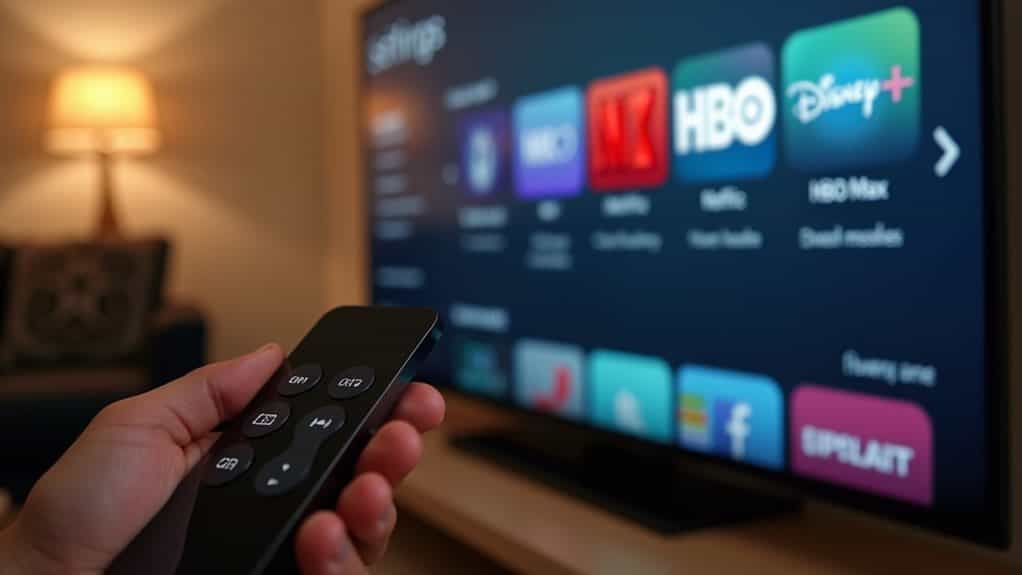
Switch between streaming services like Netflix, Disney+, and YouTube to see whether the problem occurs everywhere or only in specific apps. If dropouts happen primarily with Dolby Atmos content, try standard 5.1 or stereo to see if the issue is Atmos-specific.
Switch Content Audio Formats
Check your audio format settings under Video and Audio, where you can toggle Dolby Atmos, switch to Dolby Digital 5.1, or select stereo output. If problems persist, try changing the audio track during playback, or set your TV/soundbar to PCM format for broader compatibility.
When to Consider Alternative Streaming Devices
If audio problems persist despite everything above, it might be worth branching out. Fire TV Stick 4K Max delivers comparable performance at a noticeably lower cost. Google TV Streamer offers balanced audio-video performance with HDR10+ and Dolby Vision support. Roku Streaming Stick 4K connects well with major platforms, and Nvidia Shield TV remains a strong performance option if you want to stay at the premium end.
Advanced Troubleshooting Steps

If you’ve worked through everything above and audio still isn’t reliable, systematically re-check hardware connections and network bandwidth, confirm every device’s firmware is current, and experiment with different audio format configurations. As a last resort, try bypassing intermediary devices by using AirPlay directly to your AV receiver instead of a wired HDMI chain.
Wrapping Up
Start by checking for a tvOS update — genuinely likely to resolve this on its own given the fixes Apple has shipped recently. From there, work through HDMI connections and audio format settings before considering more advanced fixes. Most sound problems trace back to a software bug Apple has already addressed, an incorrect audio format, or a loose cable — true hardware failure is rarer than it might feel in the moment. If you’ve tried everything here and audio still cuts out regularly, it’s worth contacting Apple Support directly or considering one of the alternative streaming devices above.
Related Audio Fixes
If the same TV has other audio quirks: our why Disney+ is so quiet guide covers quiet dialogue in specific apps, and turning off SAP handles the second-audio track that some channels switch on by themselves.


