Enable WPA3 on your router (or WPA2‑AES if older devices need it) and set a long, random passphrase using a password manager. Turn on Protected Management Frames to stop spoofed attacks. Create a separate guest SSID and isolate it from your main LAN. Update the firmware regularly and secure admin access with a unique username, strong password, and HTTPS. Verify the encryption with a free Wi‑Fi analyzer, and you’ll find more details ahead.
Quick Guide
- Enable WPA3‑Personal (or WPA2‑AES fallback) in the router settings and verify it’s active with a Wi‑Fi analyzer.
- Set a strong, random Wi‑Fi passphrase using a password manager; change it every few months.
- Enable Protected Management Frames (PMF) and confirm “PMF enabled” in router logs.
- Disable legacy protocols (802.11b/g/a), turn off remote admin, and keep router firmware up to date.
- Create a separate, isolated Guest SSID with network isolation from the main LAN.
Choose the Best Home Wi‑Fi Security Standard
What security standard should you pick for your home Wi‑Fi? Choose WPA3, because it adds forward secrecy, blocks offline dictionary attacks, and enforces Protected Management Frames. It also offers Easy Connect via QR codes for hassle‑free device onboarding. When available, enable automatic software updates to keep security features current and reduce exposure to new threats network security and consider upgrading to a router that supports Wi‑Fi 6/6E or Wi‑Fi 7 to benefit from higher throughput and reduced latency while maintaining strong encryption. WPA3 also mitigates the risks of shared keystream exposure that plagued earlier authentication methods.
Enable WPA3 (or WPA2‑AES) on Your Router
First, log into your router’s admin panel and choose WPA3‑Personal (or WPA2‑AES if you need a fallback) as the encryption mode.
Next, check for firmware updates and install any that add WPA3 support, then reboot the device.
Finally, confirm that each of your Wi‑Fi gadgets supports the selected protocol before you finish the setup.
Additionally, consider using split tunneling on compatible routers to prioritize bandwidth for streaming and gaming while keeping the rest of your devices protected.
Select Encryption Mode
How do you choose the right encryption for your home Wi‑Fi? Open your router’s admin page, locate Wireless Security, and pick WPA3‑Personal if available; it uses 192‑bit keys, AES‑GCM, and per‑device encryption for strong, independent protection. If older devices need support, select WPA2‑AES instead of WPA/WEP/TKIP. Apply the setting, then verify each device connects successfully.
Update Router Firmware
Wondering how to keep your Wi‑Fi secure? First, locate your router’s model number on the sticker and verify the hardware version. Log into the router’s admin page via its LAN IP, then steer to Firmware Upgrade. Check for updates, download the exact file from the manufacturer, and upload it. After the router reboots, enable WPA3 or WPA2‑AES for strong protection.
Verify Device Compatibility
After updating the firmware, log into your router’s admin interface and locate the wireless security settings. Check if your devices support Wi‑Fi 6 (802.11ax) or newer; they need WPA3‑Personal (SAE) to stay secure. Older gadgets may require WPA2‑AES or a WPA2/WPA3 Transitional mode. Enable PMF, select the appropriate cipher, and confirm each device connects before finalizing.
Set a Strong Home Wi‑Fi Passphrase With a Password Manager
Pick a password manager to generate a long, random Wi‑Fi passphrase that meets current security standards, then store it securely offline so only you can access it. Using the manager’s autofill feature lets you copy the passphrase to your router without typing errors. This approach eliminates reuse, protects against credential‑stuffing attacks, and keeps your home network safely locked down. keyboard‑less
Generate Generate Password Manager
How can you create a Wi‑Fi passphrase that’s both strong and easy to manage? Open your password manager, enable AES‑256 encryption, and let it generate a long, random phrase for your router login. The manager stores it locally, syncs securely, and auto‑fills it, so you never type it. Use two‑factor authentication to protect the master password and share the Wi‑Fi credential via encrypted channels with family.
Store Securely Offline
Why store your Wi‑Fi passphrase offline? Use an offline password manager that encrypts credentials with AES‑256 and keeps them on a single device. Create a login vault item or secure note labeled with the SSID, then protect the vault with a strong primary password and optional hardware key. Transfer the vault via encrypted USB if you need to move it, and avoid system‑wide unencrypted storage. This preserves freedom and security.
Activate Individualized Encryption (SAE) for Home Wi‑Fi
Ever note that VPN or proxy use can trigger security warnings and may violate terms of service when accessing streaming platforms like Amazon Prime VPN blocking or similar services.
Enable Protected Management Frames (PMF) for Home Wi‑Fi
Turn on Protected Management Frames in your router’s security settings, then check the device logs to confirm the feature is active. If the logs show “PMF enabled” or a similar status, you know your management frames are being protected. This simple step helps block deauthentication attacks and other tampering without any extra configuration on your devices. PMF is supported by many modern routers, which helps bolster overall home network security. PMF feature provides an additional layer of defense against wireless threats.
Enable PMF in Router Settings
Do you know that enabling Protected Management Frames (PMF) can stop attackers from tampering with your Wi‑Fi’s control messages? Open your router’s admin console, locate the wireless security section, and find the PMF or MFP option. Choose “Required” instead of “Compatible.” Save changes, then reboot the router. This forces all devices to use 802.11w, blocking spoofed de‑auth and disassociation attacks.
Verify PMF Status via Device Logs
How can you confirm that Protected Management Frames are actually active on your network? Open your router’s web GUI or SSH in and locate logs mentioning “PMF,” “MIC validation,” or “forged frame detected.” Look for association entries showing PMF negotiation or encrypted Channel Switch Announcements. On client devices, check for ignored deauth messages. Successful logs prove PMF is enabled.
Turn Off Legacy Protocols and Unused Guest Networks
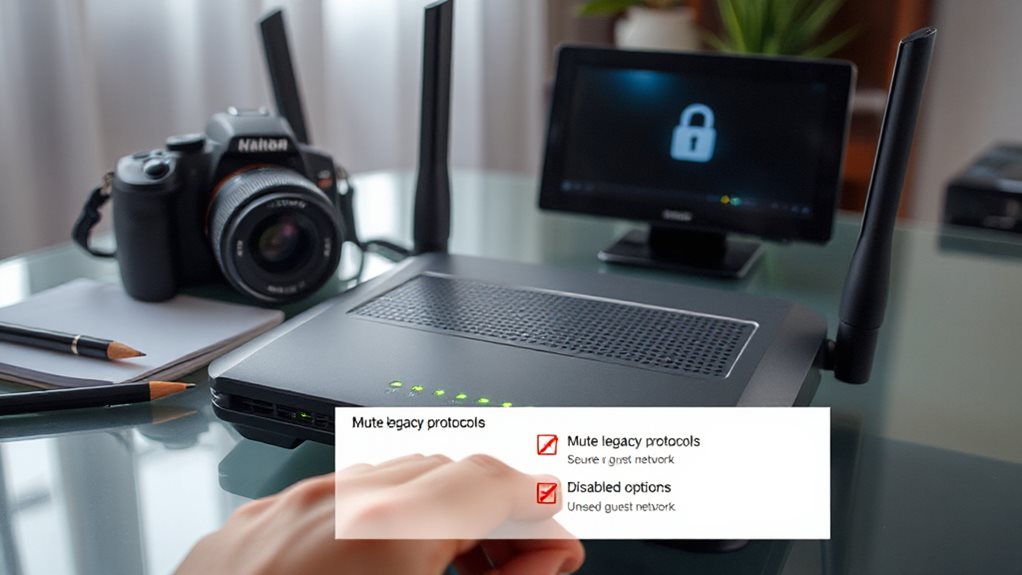
Why keep outdated Wi‑Fi standards running on your network? Turn off 802.11b/g/a in your router settings. Disable any guest SSID you don’t use. Enable WPA3 or WPA2‑Personal for the remaining devices. Isolate legacy hardware on a separate VLAN if needed. Log connections and watch for attempts to use old protocols. This frees bandwidth and blocks weak‑key attacks.
Update Home Router Firmware Regularly
So often does your router’s firmware get a fresh look? Check for updates weekly and install them promptly. Patching fixes vulnerabilities, blocks cyber threats, and boosts privacy. New firmware sharpens speed, stability, and signal strength, reducing drops. It also adds features like WPA3 and better device compatibility. Regular updates keep your network resilient, efficient, and ready for future tech. Proactively choosing high-quality, durable networking gear and accessories supports sustained performance and reliable connections across cloud gaming and other bandwidth-intensive tasks, including Wi‑Fi 7/6E capable ecosystems designed for stable, comfortable setups.
Set Up a Secure Guest SSID for Home Wi‑Fi
Ever wondered how to keep visitors online without exposing your personal devices? Log into your router at 192.168.1.1, enable the Guest Network, and name the SSID “Guest Network.” Set a strong, memorable password like GuestPass2026! Choose WPA2/WPA3, enable network isolation, and block access to your main LAN. Apply firewall rules, limit bandwidth, and test the connection to confirm guests stay separate.
During setup, consider enabling a basic form of network health awareness to monitor for issues during peak times, which can help prevent guest connections from impacting your primary network network health.
Verify Home Wi‑Fi Encryption With a Free Analyzer
A smartphone or laptop can instantly confirm whether your Wi‑Fi is truly encrypted by running a free analyzer app. Install WiFi Analyzer on Android or Vistumbler on Windows, then scan your network. Look for WPA2/WPA3 status, encryption type, and authentication method in the results. Verify hidden SSIDs, client MACs, and signal strength to guarantee no rogue or unprotected APs are present.
Harden Home Router Admin Access – Change Defaults, Use HTTPS
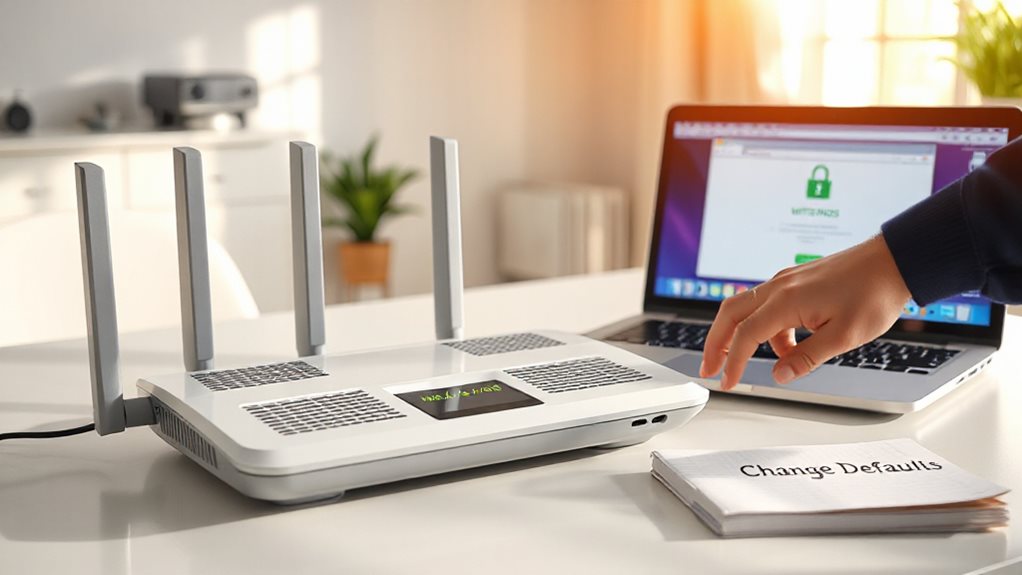
Change the router admin credentials to a unique username and a strong password, then disable remote management and unnecessary services like UPnP. Enable HTTPS for the admin interface, or use the secure mobile app if HTTPS isn’t available. Verify the changes and keep the password safe. VPN guidance The VPN guidance can help mask your location while streaming, but ensure it is properly configured and connected if you choose to use one.
Troubleshoot Common Home Wi‑Fi Security Issues
How do you pinpoint why your Wi‑Fi security isn’t holding up? First, verify you’ve replaced the default password and use a strong, unique passphrase; change it every few months.
Next, confirm you’re running WPA3 or at least WPA2—avoid WEP entirely.
Update router firmware regularly, enable client isolation, and scan connected devices for unknown IDs.
Finally, rename the SSID and disable default admin credentials.
Wrapping Up
By following these steps, you’ll secure your home Wi‑Fi against most threats. Enable WPA3 (or WPA2‑AES) and use a strong, unique passphrase stored in a password manager. Activate SAE and PMF for added protection, and set up a separate guest network. Verify encryption with a free analyzer, and harden router admin access by changing defaults and using HTTPS. Regularly review settings to keep your network safe and reliable.